
AI Funnel Chart Generator Using Tableau and CSV Document
A funnel chart shows how people or items move through a series of steps, and how many drop off at each step. Think of a shop website: 10,000 people visit, 2,500 add an item to a cart, 800 start checkout, and 400 buy. A funnel chart turns those four numbers into a shape that narrows from top to bottom, so the biggest drop off jumps out at a glance. If you have your numbers in a simple CSV document, which is just a plain text spreadsheet file with values separated by commas, you can build that chart in Tableau in under an hour, even with no coding.
This guide is a practical how to. It explains what a funnel chart is, how to lay out your CSV so Tableau reads it cleanly, how to build the chart step by step, and how to add labels that show conversion rates. It also covers a smooth funnel variation, common problems, and honest limits, plus simpler alternatives when a funnel is not the right chart. One honest note first: Tableau does not include a one click funnel chart button in its standard chart menu, so you build a funnel by shaping a bar chart with color and size. That sounds harder than it is, and the steps below walk through it slowly.
A note on the phrase in the title: people search for an "AI funnel chart generator" when they want a fast way to turn data into a funnel visual, sometimes with AI help. This guide focuses on the reliable path, which is building the funnel yourself in Tableau from your own CSV. AI tools can suggest layouts or write a first draft of your data, but they cannot check your numbers for you. If an AI tool reshapes your CSV, always verify every stage count against your source before you present the chart. A pretty funnel built on wrong numbers is worse than no funnel at all.
What a Funnel Chart Is, in Plain Language
A funnel chart is a visual for a journey with steps. Each step is a stage, such as visited, signed up, trialed, and paid. Each stage has a value, usually a count of people or orders. The chart draws the first stage widest and each later stage narrower, matching its smaller value. The gap between two stages shows the drop off, which is the share of people who left the journey at that point. The conversion rate, meaning the share that moved from one stage to the next, tells you where to fix problems.
Funnels work best when the steps follow one clear order and every person in a later stage also passed through the earlier stages. A sales funnel, a signup flow, a hiring pipeline, and a support ticket flow all fit this shape. Funnels work poorly when people can skip steps, enter in the middle, or loop back, because the narrowing shape then hides the real story. In those cases, a different chart, covered later in this guide, will serve you better.
Here is a small example to keep in mind through the whole guide. An online course site records four stages in one month: visited the course page (10,000), started a free trial (2,000), finished the trial lessons (900), and paid for the course (450). The overall conversion from visit to payment is 4.5 percent, and the biggest drop is between visit and trial. That single insight tells the team where to focus: the course page or the trial offer, not the payment step.
Step 1: Lay Out Your CSV Document Correctly
Your CSV is the foundation, and most funnel problems start here. Tableau reads a CSV as a table with column names in the first row and one record per row after that. For a funnel, you want one row per stage, with exactly two columns: a stage column and a value column. Here is the course example as a CSV:
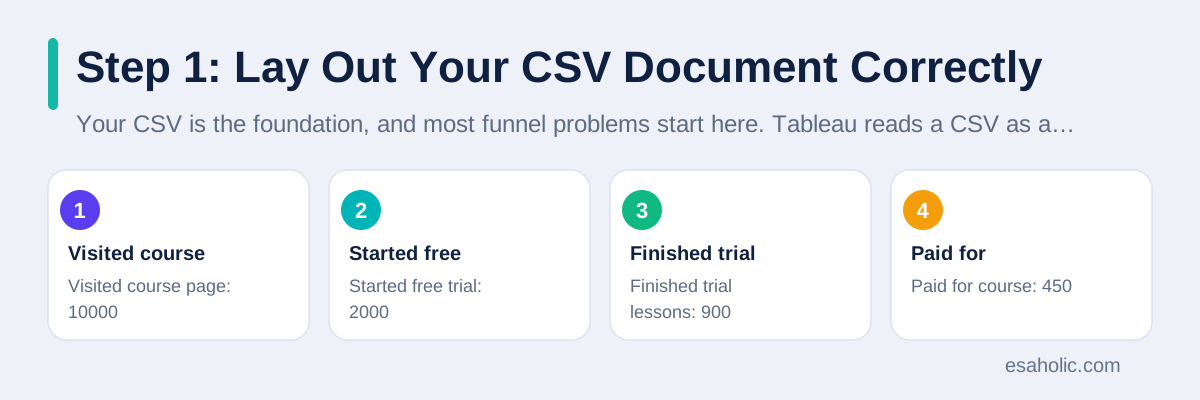
| Stage | Visitors |
|---|---|
| Visited course page | 10000 |
| Started free trial | 2000 |
| Finished trial lessons | 900 |
| Paid for course | 450 |
Keep the rows in true funnel order, top to bottom, from the widest stage to the narrowest. Tableau will otherwise sort stages alphabetically, which scrambles a funnel, since alphabetical order rarely matches journey order. We fix sorting inside Tableau later, but starting in the right order keeps everything easier to check. Use plain numbers with no commas, no currency signs, and no percent signs in the value column, so Tableau reads them as numbers, not text. Avoid blank rows, merged cells, and summary rows such as a total row mixed in with the stages, since each of those becomes a false stage in your chart.
What if your data arrives in wide form, with one column per stage, like Visited, Trial, Finished, Paid as four columns in a single row? Tableau needs long form, which means one row per stage, for this chart. You can reshape it by hand in a spreadsheet: copy the stage names into one column and their values into a second column. For larger files, Tableau Prep or a spreadsheet pivot can do the same reshape. Do this reshaping before you connect the file, and double check that the totals still match your source.
Step 2: Connect the CSV in Tableau
Open Tableau Desktop or Tableau Public and choose Text File as your data source. Select your CSV document. Tableau shows a preview of the table and guesses each column type. Check two things right away. First, your stage column should be treated as text, known as a dimension, which is a category you group by. Second, your value column should be treated as a number, known as a measure, which is a value you can add, average, or count. If Tableau guessed wrong, click the column type icon and fix it before you build anything.
Next, click the worksheet tab to start a new sheet. You will see your two fields in the data pane on the left. Before building, rename the fields if their names are unclear. A field called "Stage" and a field called "Visitors" will make every later step easier to follow than "Column1" and "Column2". This is also the moment to confirm your row count matches your CSV. If your CSV has four stages, Tableau should show four rows of data. If it shows five, a blank row or a header repeat has slipped in, and you should clean the CSV and reconnect.
Step 3: Build the Stepped Funnel Chart
The stepped funnel is the most common Tableau funnel, and it is built from a bar chart. Follow these steps in order:
First, drag your value measure, such as Visitors, onto the Rows shelf. Tableau draws a single bar. Second, drag your stage dimension onto Color in the Marks card. The bar splits into colored blocks, one per stage. Third, drag a copy of the same value measure onto Size in the Marks card. You can copy a field by holding the control key while you drag it, or by right clicking it and duplicating it. This step is the key move: Size makes each block narrower in proportion to its value, which creates the funnel shape.
Fourth, change the view fit from Standard to Entire View, using the fit control in the toolbar. This stretches the chart to fill the sheet and makes the funnel shape clear. Fifth, sort the stages in funnel order. Click the sort button on the stage field, or drag the stages into order in the color legend, so the widest stage sits at the top and the narrowest at the bottom. Sixth, add labels. Drag the stage field and the value measure onto Label in the Marks card, so each block shows its stage name and its count. Your stepped funnel is now complete.
Check your result against your CSV. The top block should show your largest value, and each block below should be smaller or equal. If a middle block looks wider than the one above it, your sort order is wrong, or a value was typed incorrectly. Fix the sort first, since that is the most common cause, then recheck the numbers.
Step 4: Add Conversion Rates With Percent of Total
Counts alone do not tell the full story. A drop from 10,000 to 2,000 is an 80 percent loss, while a drop from 900 to 450 is a 50 percent loss, and your team needs to see both. Tableau can show this with a quick table calculation, which is a built in way to turn a value into a percent without writing formulas by hand.
Right click the value measure on the Label card, choose Quick Table Calculation, and pick Percent of Total. Each block now shows its share of the total, such as 100 percent for the first stage and 4.5 percent for the final stage. To show the step to step conversion instead, which is the share that moved from one stage to the next, you need a calculated field, which is a custom formula you define. A simple version divides each stage value by the previous stage value. For most beginners, Percent of Total plus the raw counts is enough to start useful conversations, and you can add step conversion later once the basic funnel is trusted.
Format your labels so they stay readable. Increase the label font size, pick a dark color for light blocks, and keep labels short. If a late stage block is too narrow for its label, move that label outside the block or show the numbers in a tooltip instead. A tooltip is the small pop up that appears when a reader hovers over a block, and it can carry the stage name, count, and rate without crowding the chart.
Step 5: Try the Smooth Funnel Variation
Some teams prefer a smooth, symmetrical funnel instead of stacked blocks. Tableau can build that shape too, with one extra trick. Start the same way, with your stage dimension and your value measure, but change the mark type from Bar to Area. An area chart draws a filled shape, which gives you one side of the funnel. To mirror it, create a calculated field that holds the negative of your value, for example Negative Visitors equal to minus Visitors, and place it beside the original measure on the Columns shelf. The two sides together form a centered funnel.
The smooth funnel looks elegant in presentations, but it has a trade off. Narrow late stages become very thin, and their labels may not fit. The stepped funnel is usually easier to read and easier to label, which is why this guide recommends it as the default. Use the smooth version when the funnel is a visual summary on a dashboard, and keep the stepped version, or a simple table, nearby for readers who need exact numbers.
Common Problems and Quick Fixes
Stages appear in alphabetical order. This is the most common funnel problem. Fix it by sorting the stage field manually, or by adding a stage order number to your CSV and sorting by that number. A small extra column called Stage Order with values 1, 2, 3, 4 makes sorting reliable even if stage names change.
All blocks look the same size. That usually means the value field landed on Color or Label but not on Size, or the measure was added as a count of rows instead of a sum of values. Check the Marks card: Size must hold your value measure, and the aggregation, which is how Tableau combines values, should be Sum for a simple stage table.
The chart shows an extra stage called Null or blank. A blank row in your CSV creates a phantom stage. Remove blank rows, including trailing blank lines at the end of the file, save, and refresh the data source. If the problem stays, check for hidden spaces in stage names, which can split one stage into two lookalike stages.
Numbers look wrong. Compare the chart labels with your CSV line by line. If a value is ten times too large, a comma or a duplicated row is often the cause. If values are missing, a stage name mismatch may have split your data. Never present a funnel you have not checked against its source. For a deeper guide to building and reading funnel visuals, the Playfair Data guide to Tableau funnel charts walks through both the stepped and smooth methods with examples, and the ExcelMojo Tableau funnel chart tutorial covers the same steps with sample data.
Limits of Funnel Charts, Stated Honestly
A funnel chart shows where people leave, but not why they leave. A big drop between trial and payment could mean the price is too high, the payment page is broken, the trial was too short, or the wrong audience arrived in the first place. The chart cannot tell you which one. Pair every funnel with follow up work: read support messages, watch session recordings where you have permission, or survey users who dropped off.
Funnels also hide time. A monthly funnel mixes people who joined at different times, and a slow stage can look like a drop when it is really just a delay. If your journey takes weeks, build funnels by cohort, which means grouping people by the month they started, so you compare like with like. Finally, funnels hide segments. An overall conversion rate of 4.5 percent might be 9 percent on one channel and 1 percent on another. Add filters for channel, device, or region, and check whether the story changes.
Alternatives When a Funnel Is Not the Right Chart
When stages can be skipped or revisited, a bar chart often works better, because it compares values without implying a strict order. When users split into many paths, a Sankey diagram, which draws flows as ribbons that split and join, shows those paths honestly. When you care about change over time, a line chart of weekly conversion beats a single funnel snapshot. And when exact numbers matter more than shape, a clean table with counts and rates is the most honest visual of all.
None of this makes the funnel useless. It makes it one tool among several. Use the funnel to find where to look, then use other views to understand why. Teams that treat the funnel as a starting question, not a final answer, get far more value from it than teams that treat it as proof. For related work on turning raw data into clear decisions, our AI and ML development services cover the data pipelines and modeling behind dashboards, and our guide to predictive analytics in supply chain shows how similar stage thinking helps teams plan stock and demand.
Before You Share the Chart
Run this short checklist. First, does every stage count match your CSV and your source system? Second, are stages in true journey order, not alphabetical order? Third, does every block show its stage name, its count, and its rate? Fourth, does the chart title say what the funnel covers and over what time period, for example "Course signup funnel, June 2026"? Fifth, have you noted the limits, such as a missing segment or a known data gap, in a footnote or a caption? A chart with an honest footnote earns more trust than a perfect looking chart that hides its gaps.
Conclusion
Building a funnel chart in Tableau from a CSV document is a simple skill with a large payoff. Lay out your CSV with one row per stage and one value column, connect it as a text file, drag the value to Rows, the stage to Color, and the value again to Size, then sort in journey order and label every block. Add Percent of Total for conversion context, and check every number against your source before you share. The stepped funnel is the best default, the smooth funnel is a good presentation option, and other charts take over when journeys branch or loop. Clean stage data comes first, and AI data integration explains how scattered sources become one trusted view. If you rebuild the same funnel every month, automating a recurring funnel report can remove the repeated manual work.
Remember what the funnel can and cannot do. It shows where people leave, not why, and it hides time and segments unless you filter and group with care. Use it to ask better questions, follow up with real user evidence, and keep your data clean at the source. Done that way, a simple CSV and a simple chart can guide real decisions about pricing, onboarding, and product fixes, without any code and without any guesswork.
Frequently Asked Questions
Can I build a funnel chart in Tableau from a CSV file?
Yes. Connect Tableau to your CSV as a text file, then build the funnel from two fields: a stage field for the steps and a measure field for the counts or values. The stepped method uses the measure on Rows, the stage on Color, and the measure again on Size, with stages sorted in funnel order.
How should my CSV be laid out for a funnel chart?
Use one row per stage, with one column for stage names and one column for values. Keep the rows in true funnel order, use the same spelling for each stage everywhere, and avoid blank rows, merged cells, or totals mixed into the stage rows. Clean data makes the chart build in minutes.
What if my funnel stages are in separate columns?
If each stage is its own column, your data is in wide form, and Tableau needs it in long form with one row per stage. You can reshape it in a spreadsheet by stacking the stages into two columns, or use Tableau data prep tools to pivot the stage columns into rows before you build the chart.
Written by Danish Mustafa
Danish Mustafa is a senior AI engineer who builds agentic AI systems and chatbot products. He writes about AI tools, conversation design, and practical system design in plain words.
Reviewed by Ahmad Jajja
Ahmad Jajja is a senior AI research engineer who specializes in generative AI and data systems. He reviews Esaholic guides for technical accuracy and clarity before publication.
Relevant blogs
Predictive Analytics in Supply Chain
How data models help teams plan stock, routes, and demand with real numbers.
Who Is a Generative AI Data Scientist?
Learn what a generative AI data scientist does, and how data work powers AI tools.
Do UC Colleges Check for AI?
How UC checks applications for AI written answers, and how to write honestly.
Back to all blog guides · Explore AI and ML Development Services