
What Is Ransomware?
Ransomware is a type of malicious software, which is software built to harm a computer or steal from its owner, that locks your files or your whole device and then demands payment for their release. The name comes from two words: ransom, which means money demanded in exchange for freeing something that was taken, and ware, from software. In a typical attack, the program scrambles your documents, photos, and databases so you cannot open them, and then it shows a note that tells you to pay, usually in cryptocurrency, which is digital money that is hard to trace, in exchange for a tool that promises to unscramble them. That promise is the trap at the center of the whole crime, because you must trust criminals to keep their word after you have already paid them.
Most people first meet ransomware through a frightening screen. One morning the computer shows a message instead of the desktop, or a folder full of work files suddenly has strange extensions, which are the short suffixes after a file name, and none of the files will open. A home user may lose family photos and tax records. A small business may lose customer orders, invoices, and appointment books. A hospital, a school, or a city office may lose access to the systems it needs to serve people that day. The damage is rarely just the payment itself. Work stops, customers lose trust, and recovery can take days or weeks even when a backup exists, because every restored system must be checked before it goes back into use.
This guide explains ransomware in plain language, without scare tactics and without invented statistics. You will learn how this malware locks files, how it reaches a computer in the first place, who attackers tend to target and why, and which practical steps actually lower your risk. You will also learn what to do in the first hour after an attack, why security experts advise against paying, and how a simple backup habit can turn a crisis into an inconvenience. If you read nothing else, remember this: prevention costs far less than recovery, and a tested backup is the single best defense you can own. For official guidance, start with CISA's ransomware guide, which lays out prevention and response steps from United States government experts.
How Ransomware Locks Your Files
To understand the attack, start with encryption, which is a method of scrambling readable data into unreadable code using a secret key, which is a long string of characters that controls the scrambling and unscrambling. Good encryption protects your bank login and your private messages every day, and it is one of the most useful tools in modern computing. Ransomware abuses that same tool. Once it runs on a computer, it walks through your files and encrypts them with a key that only the attacker holds. Your photos, spreadsheets, and documents are still on the disk, but they are now scrambled beyond reading, and the only advertised way to reverse the process is the attacker's decryption tool, which is software that unscrambles files when given the correct key.
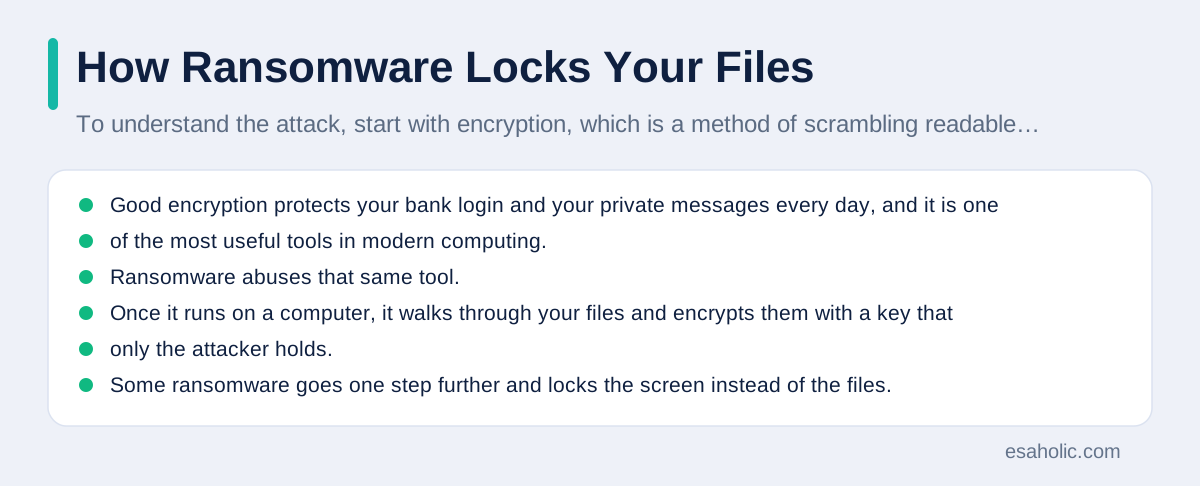
Some ransomware goes one step further and locks the screen instead of the files. Screen locking ransomware, sometimes called locker ransomware, blocks you from using the device at all and covers the screen with a demand, even though the files underneath may still be intact. This variant is less common today, because it is easier to defeat by reinstalling the system or by booting from a clean drive, but it still frightens victims into paying quickly. A third pattern, often called double extortion, combines file locking with theft. The attackers first copy sensitive files to their own servers, then lock the originals, and then threaten to publish the stolen copies unless the victim pays twice, once for the unlocking tool and once for silence. That pattern matters because it means even a perfect backup does not remove all pressure, which is why preventing the break in matters as much as preparing to recover from it.
How Ransomware Reaches A Computer
Ransomware almost never appears out of thin air. It needs a way in, and attackers reuse a small set of entry points because those entry points keep working. Phishing is the most common one. Phishing means a fake email, text, or message that pretends to come from a trusted sender and tricks the reader into clicking a link or opening an attachment. A message may pose as an unpaid invoice, a delivery notice, or a password reset, and the attachment may look like an ordinary document while hiding a small program that starts the attack. Modern phishing messages read smoothly and copy real company branding, so spelling mistakes alone no longer give them away. The safest habit is simple: never open an attachment or follow a link from an unexpected message, and instead go to the real website or app yourself to check whether anything truly needs your attention.
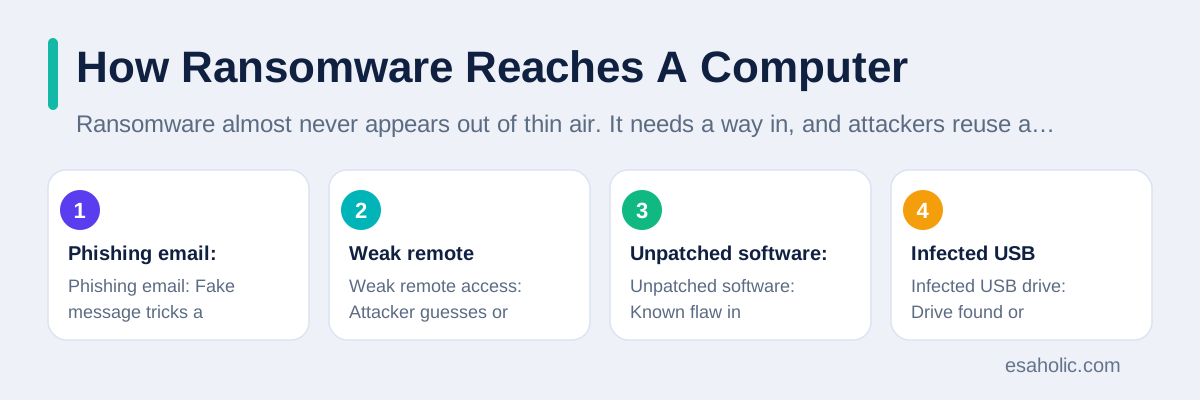
The second major entry point is remote access that is left open to the internet with a weak password. Many businesses let staff connect from home through remote desktop tools, which are programs that let you control an office computer from another location. If that tool is exposed to the internet and protected only by a short or reused password, attackers can guess or buy the password and walk straight in, often at night when nobody is watching. They then quietly disable security tools, explore the network, and trigger the encryption at a moment that causes maximum disruption, such as a Monday morning or a holiday weekend. Multi-factor authentication, which means a second check beyond the password, such as a code from an authenticator app or a hardware key, blocks most of these break ins, because a stolen password alone is no longer enough.
The third entry point is unpatched software, which means programs that still contain known flaws because their security fixes have not been installed. Attackers study public fix announcements, build attacks for the flaws those fixes close, and then scan the internet for computers that have not updated yet. That race is why updates matter so much, and why automatic updates are worth turning on for your operating system, your browser, and your office software. Other routes exist too, including infected USB drives, malicious advertisements on compromised websites, and attacks on a trusted supplier whose software update is poisoned before it reaches customers. No single route explains every attack, but every route shares one lesson: the attacker needs you, or your software, to leave a door open, and closing those doors removes most of the risk.
| Entry point | How it works | What stops it |
|---|---|---|
| Phishing email | Fake message tricks a person into opening a harmful file or link | Pause before clicking, verify the sender through a separate channel |
| Weak remote access | Attacker guesses or buys a password for a remote login tool | Multi-factor authentication and a virtual private network |
| Unpatched software | Known flaw in outdated software lets the attacker in | Automatic updates for the system, browser, and apps |
| Infected USB drive | Drive found or borrowed carries a program that runs on insertion | Never use unknown drives, scan every drive before opening files |
Phishing is one of the most common routes in, and AI-driven phishing attacks show how convincing those messages have become.
Who Attackers Target And Why
A common myth says ransomware only hits large companies with deep pockets. In practice, attackers target whoever is easiest to break into and most likely to feel pressure to pay. Small businesses are attractive because they hold valuable customer and financial data but often lack a full time security team, and a few days of downtime can threaten their survival. Schools, hospitals, and local government offices are attractive because their services cannot simply pause, which raises the pressure to restore systems fast. Home users are attractive in a different way: each payment is smaller, but attacks can be automated at scale, so thousands of small payments add up for the criminal group behind them.
How To Prevent A Ransomware Attack
Prevention sounds dull next to dramatic stories about hackers, but it is where almost all of the protection lives, and most of it costs little or nothing. Start with updates. Turn on automatic updates for your operating system and your browser, and update office software, plugins, and router firmware, which is the built in software that runs your home router, whenever a fix appears. Next, protect remote access. If you do not need remote desktop access from the internet, turn it off. If you do need it, require multi-factor authentication, use a strong unique password, and put it behind a virtual private network, which is a tool that encrypts your connection and hides it from casual snooping. Our guide to how a VPN encrypts your connection explains that protection in plain terms, including what it cannot do.
Backups deserve their own routine, because they decide whether an attack is a disaster or a bad day. Follow the simple 3-2-1 rule: keep three copies of important data, on two different kinds of storage, with one copy stored off site or offline. For a home user, that can mean the original files, a copy on an external drive that you unplug after each backup, and a copy in a cloud service with version history. For a business, it means automated backups to a separate system that regular user accounts cannot delete or encrypt, plus a regular test restore, which means actually recovering a few files from the backup to prove the backup works. An untested backup is a hope, not a plan, and many victims discover too late that their backup failed months earlier or that it backed up the encrypted files over the good ones.
People are the last layer, and training them well beats blaming them when they slip. Teach everyone who uses the computer to pause on unexpected messages, to check the sender address carefully, and to report anything odd instead of hiding a mistake out of embarrassment. Run short practice exercises, such as fake phishing messages sent by your own IT team, and praise people who report them, because a reported click is far easier to contain than a hidden one. Limit user permissions too, which means giving each account only the access it needs for its job, so one compromised account cannot reach every shared drive in the company. Finally, keep security software updated and let it run its scheduled scans, but remember that no single product replaces the habits above. Defense works in layers, so one failed layer still leaves others standing.
Prevention starts with the everyday system in computer virus prevention, not with a single tool bought after an attack.
Warning Signs That An Attack Is Underway
Most ransomware attacks do not start with a ransom note. They start quietly, sometimes days before the encryption begins, while attackers explore the network and prepare. Catching that quiet phase can stop the attack before any file is locked. Watch for computers that suddenly run slowly for no clear reason, security software that turns itself off or refuses to update, and files that change names or gain unfamiliar extensions. Watch for login alerts from unusual locations or at unusual hours, for new user accounts nobody created, and for shared drives that fill up or show files you do not recognize. Any one of these signs can have an innocent explanation, but two or more together deserve a prompt call to your IT team or support provider.
What To Do If Ransomware Hits You
If ransomware locks your files, follow a calm order of steps. First, disconnect the affected device from the network, including Wi-Fi and wired connections, and unplug any external backup drives that are still attached, so the encryption cannot spread or reach your backups. Do not turn the computer off yet if an expert may need to examine it, unless your IT team tells you to, because powering down can destroy temporary evidence that helps investigators understand how the attacker entered. Second, tell the right people: your IT team or support provider, your manager if this is a work device, and law enforcement. In the United States, you can report through the FBI Internet Crime Complaint Center and through CISA, and reporting helps investigators link your attack to others and warn future victims. CISA's Stop Ransomware resource hub collects reporting routes and recovery guidance in one place.
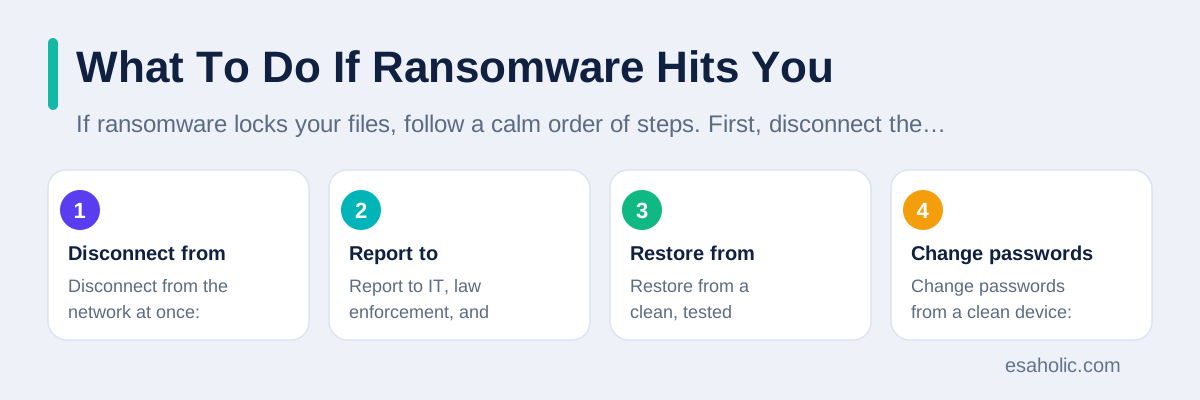
Third, do not pay immediately, and get independent advice before you consider it at all. Talk to your IT provider, your insurer if you have cyber insurance, and law enforcement, because they can check whether a free decryption tool exists for your variant, whether your backups are clean, and whether payment is even legal in your situation, since paying groups under sanctions can create legal trouble of its own. Fourth, identify the scope. Check which devices and shared drives are affected, change passwords for important accounts from a clean device, and turn on multi-factor authentication everywhere it is available. Fifth, restore from a backup that predates the attack, and scan the restored files before you reconnect the cleaned system to the network. If no clean backup exists, a professional recovery service may still help, but beware of any service that promises guaranteed recovery for an upfront fee, because that promise is one more version of the same trap.
Recovery does not end when files return. After the incident, find the entry point and close it, or the same attackers may return through the same door. That review should cover phishing messages that arrived before the attack, remote access accounts and their passwords, software that missed updates, and backup settings that failed or were reachable by the attacker. Write down what happened, what worked, and what will change, and share the lessons with everyone who uses the affected systems, without naming and shaming the person who clicked. A culture that treats a click as a learning event gets faster reports next time, while a culture that punishes clicks gets silence, and silence is exactly what attackers need to finish their work unnoticed.
| Do this | Do not do this |
|---|---|
| Disconnect from the network at once | Keep using the infected device as normal |
| Report to IT, law enforcement, and CISA | Pay quietly without advice or a record |
| Restore from a clean, tested backup | Restore from a drive that stayed connected |
| Change passwords from a clean device | Reuse the passwords the attacker may have seen |
Why Paying Ransomware Is So Risky
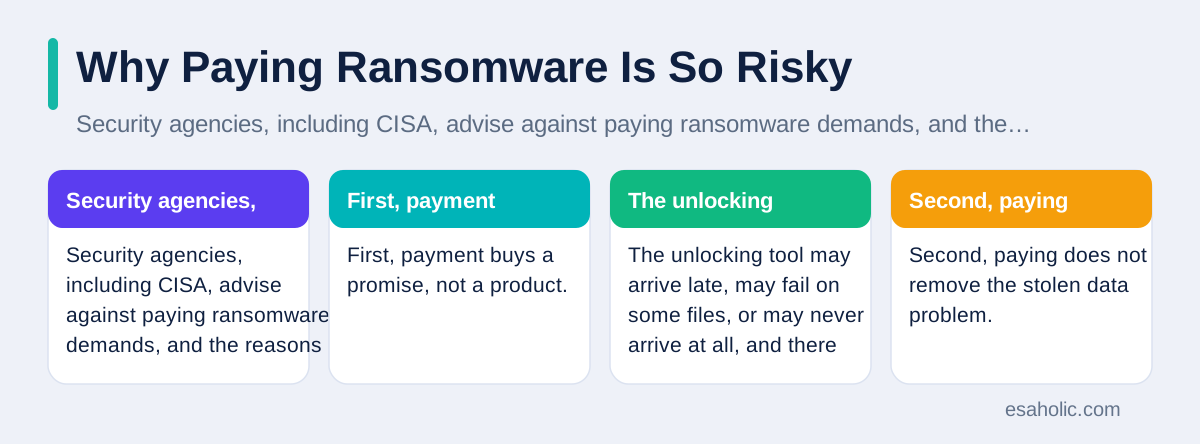
Security agencies, including CISA, advise against paying ransomware demands, and the reasons are practical rather than moral. First, payment buys a promise, not a product. The unlocking tool may arrive late, may fail on some files, or may never arrive at all, and there is no customer support desk to complain to when it fails. Second, paying does not remove the stolen data problem. In double extortion attacks, the criminals already hold copies of your files, and nothing stops them from publishing those copies later or selling them, even after you pay for silence. Third, payment funds the next attack, whether against you or against someone else, and it signals to criminal groups that your organization pays, which raises your chance of being targeted again.
The stronger position is the one you build before an attack. A tested offline backup, multi-factor authentication on every remote login, timely updates, and a team that reports suspicious messages quickly together remove the leverage that makes ransom demands work. An attacker who finds patched systems, strong logins, and clean backups to restore from has little to sell you, and most such attacks end as minor incidents rather than crises. That is the real goal of ransomware defense: not to win a negotiation with criminals, but to make the negotiation unnecessary. For teams that need outside help building that position, our support and maintenance services cover ongoing updates, monitoring, and backup checks that keep small systems defended between projects.
A Simple Recovery Plan For Homes And Small Teams
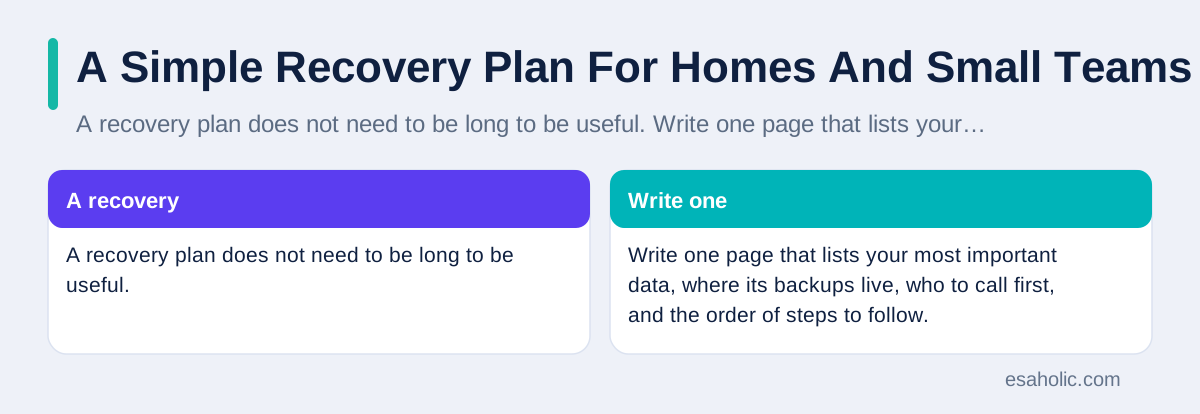
A recovery plan does not need to be long to be useful. Write one page that lists your most important data, where its backups live, who to call first, and the order of steps to follow. For a home, that page might say: photos and tax files back up weekly to an external drive that is unplugged afterward and monthly to cloud storage, the internet provider number is on the fridge, and the first step after any attack is to unplug the network cable. For a small team, the page should add who can authorize disconnecting a server, where clean installation media lives, and which customers must be notified if their data was involved. Keep a printed copy, because a plan stored only on the infected computer is useless during the incident it was written for.
Test the plan at least once a year, the way you would test a smoke alarm. Pick a folder, delete it on purpose, and restore it from backup, timing how long the restore takes and noting any step that confused you. Check that backup passwords and encryption keys, which are the secrets that protect your backup copies, are stored somewhere safe and separate from the backup itself, because a backup you cannot unlock is as useless as no backup at all. Review who still has access to shared drives and remote tools, and remove accounts for people who left the team, because stale accounts are a quiet gift to attackers. Each test makes the real incident calmer, shorter, and cheaper, and that calm is worth more than any single security product.
Conclusion
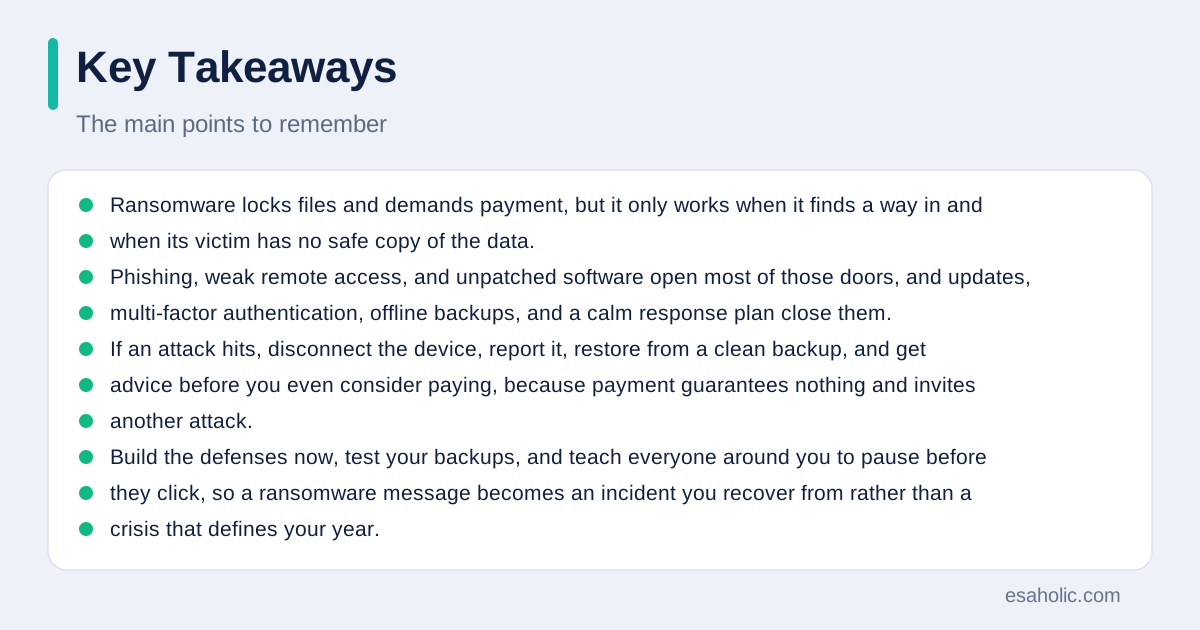
Ransomware locks files and demands payment, but it only works when it finds a way in and when its victim has no safe copy of the data. Phishing, weak remote access, and unpatched software open most of those doors, and updates, multi-factor authentication, offline backups, and a calm response plan close them. If an attack hits, disconnect the device, report it, restore from a clean backup, and get advice before you even consider paying, because payment guarantees nothing and invites another attack. Build the defenses now, test your backups, and teach everyone around you to pause before they click, so a ransomware message becomes an incident you recover from rather than a crisis that defines your year.
Frequently Asked Questions
Should you pay a ransomware demand to get your files back?
Paying does not guarantee that you will get your files back, because the criminals control the unlocking tool and may fail to send it, send a broken tool, or demand more money. Paying also marks you as someone who pays, which can invite another attack. Restore from a clean backup when you can, and report the attack to law enforcement and to CISA.
Can antivirus software alone stop ransomware?
Antivirus software helps, but it cannot stop ransomware on its own, because new variants change quickly and some attacks enter through stolen passwords rather than through a downloaded file. Combine antivirus with updates, backups that are kept offline, multi-factor authentication, and training that teaches people to pause before they click a link or open an attachment.
What is the first thing to do when ransomware locks your files?
Disconnect the affected device from the network right away so the attack cannot spread to shared drives or other computers, then leave the device powered on but untouched while you call your IT team or a trusted support provider. Do not delete files, do not reinstall the system before experts check it, and save the ransom note and any messages for investigators.
Written by Amir Iqbal
Senior AI Systems Architect and Lead Technical Reviewer
Amir Iqbal is a senior AI systems architect at Esaholic who reviews code and architecture and keeps live AI systems fast and reliable.
Reviewed by Danish Mustafa
Senior Agentic AI Engineer and Systems Architect
Danish Mustafa is a senior agentic AI engineer and systems architect who designs controlled multi-step AI systems with clear limits on what they can do.
Relevant blogs
Computer Virus Prevention: A Simple Home Guide
Simple steps that keep malware off your computer, from updates and safe downloads to backups and quick recovery.
Gmail Users Warned About Sophisticated AI Phishing Attacks
What the phishing warning means and simple steps that protect a Gmail account.
Virtual Private Networks: How VPNs Protect You
How a VPN encrypts your connection, hides traffic on public Wi-Fi, and what it cannot protect.
What Is an SSH Key? A Simple Guide to Safer Logins
How public and private key pairs replace passwords for safer server logins.
Back to all blog guides · Back to Cybersecurity and Networking guides · Explore Support and Maintenance Services