
How Does AI Visual Search Work? A Simple Guide

You see a chair in a cafe and want the same one. You do not know the brand, the style name, or the right words to describe it. Ten years ago, you were stuck. Today, you point your phone camera at the chair, and a visual search engine shows you matching chairs, similar styles, and shops that sell them. No typing needed. This guide explains how that magic works in plain language: what happens to your photo, how a machine reads it, why results are sometimes wrong, and what happens to your images and data.
A visual search engine is a search tool that takes a picture as its question instead of words. Google Lens, Bing Visual Search, and Pinterest Lens are the best known examples. They all work on the same basic idea. A trained AI model studies your photo, turns what it sees into a compact numeric profile, compares that profile with millions of indexed images, and returns the closest matches, ranked by similarity. Around that core, each tool adds extras: text reading, translation, shopping links, and answers about landmarks, plants, and products.
Understanding this process helps you use visual search better and more safely. You will learn why a clear photo works and a dark one fails, why cropping to the item matters, and why you should think twice before uploading a photo of a person, a document, or your home. The technology is powerful, but it is not magic, and it is not private by default. Both facts matter.
What Visual Search Is, in Plain Language
Normal search starts with words. You type "red running shoes" and the engine matches those words to pages. Visual search starts with a picture. You show the engine a photo of red running shoes, and it matches the picture to other pictures. That difference matters most when you do not know the words. A plant you cannot name, a landmark you cannot spell, a chair style you have never heard of, or a dress you saw on the street all become searchable the moment you can photograph them.
A visual search tool, in this context, is any app or feature that accepts an image and returns information about it. Google Lens lives in the Google app, in Google Photos, and in Chrome on desktop and mobile. Bing Visual Search lives on the Bing website, where you upload an image or paste an image link. Pinterest Lens lives inside Pinterest and leans toward ideas and shopping: find the lamp, find the outfit, find the room style. Smaller visual search software tools exist for shops, museums, and factories, but the big three cover most everyday use.
Visual search does not replace text search. It works best when paired with a few words. A photo plus the words "buy" or "near me" or a brand name will beat a photo alone in most shopping cases. Think of the photo as the main question and the words as a helpful hint that points the engine in the right direction.
How Visual Search Technology Works, Step by Step
Step one is capture. You point your camera at an item, or you select a photo from your gallery, or you select an image on a web page. The tool may ask you to crop, which means trimming the photo down to the item you mean. Cropping matters more than most people realize, because a busy background gives the engine extra shapes to match, and those shapes can pull results away from your item.
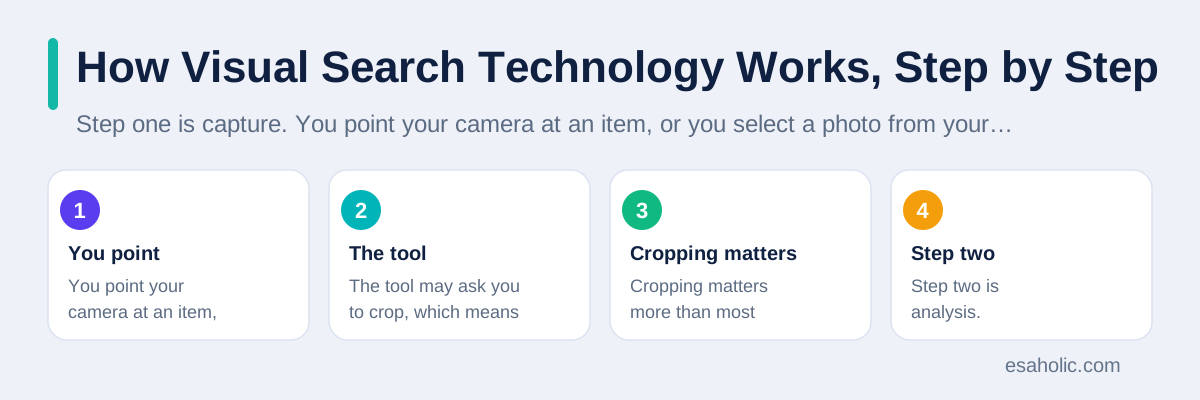
Step two is analysis. A vision model, which is a trained AI program that understands images, studies the photo in layers. Early layers detect edges, colors, and textures. Middle layers detect shapes, parts, and patterns, such as a chair leg, a shoe sole, or a leaf edge. Later layers combine those parts into objects, such as a chair, a dog, or a building, and into attributes, such as color, style, and material. If the photo contains text, a separate step called optical character recognition, or OCR, reads the letters, which lets the tool translate signs, copy text from images, and match product labels.
Step three is the fingerprint. The model turns everything it found into a numeric profile, often called an embedding, which is a long list of numbers that captures what the image looks like in a form a computer can compare. Two photos of the same chair will have similar profiles, even if the light or angle differs a little. Two different chairs will have profiles that differ more. The profile is the key trick of visual search: it turns a picture into something searchable, the way words turn an idea into something searchable.
Step four is matching. The engine compares your photo profile against profiles of images it has already indexed, meaning collected and stored from across the web, from shopping catalogs, and from its own databases. It ranks the closest matches first, then blends in other signals: text near the image, the page it came from, your location if you shared it, and, for products, price and availability. The result is a page of visual matches, similar items, and actions such as shop, translate, or learn more.
Step five is learning from feedback. When many people tap one result and ignore others, the engine learns which matches satisfy real users. That feedback loop, meaning a cycle where results improve from user behavior, is part of why visual search keeps getting better. It is also why results can drift toward popular items over time, even when a less popular item is a closer visual match.
The Main Visual Search Tools, Compared
| Tool | Where it lives | Best for | Watch out for |
|---|---|---|---|
| Google Lens | Google app, Photos, Chrome | Everyday identification, translation, homework help | Results lean toward Google shopping and web index |
| Bing Visual Search | Bing website | Web image matching, similar images | Uploaded images are sent to Microsoft servers |
| Pinterest Lens | Pinterest app | Style ideas, home decor, fashion shopping | Results stay inside Pinterest content |
Google Lens, launched in 2017, is the most widely used visual search tool, and Google describes it as a set of vision based computing capabilities that can understand what you are looking at. In practice, that means it identifies objects, reads and translates text, helps with homework by explaining problems, and finds products to buy. On a computer, you can use Lens inside Chrome by right clicking an image or using the Lens option in the toolbar, and results appear in a side panel without leaving the page. For step by step instructions, Google's own Lens in Chrome help page walks through searching a page with Lens, and the Android Authority Lens guide covers the mobile app in detail.

Bing Visual Search works a similar way on the web: upload an image, and Bing returns visually similar images, related searches, and pages containing the image. Pinterest Lens differs in goal. It is less about identifying an exact object and more about finding the look: the same style of lamp, the same kind of outfit, the same room mood. For shopping, that difference matters. Lens and Bing aim for the exact item. Pinterest aims for inspiration, which is often what a shopper actually wants.
How to Do a Visual Search on Google, Step by Step
On your phone, open the Google app and tap the camera icon in the search bar. Point your camera at the item, or tap the gallery icon to pick a saved photo. Lens will highlight what it thinks you mean. If it highlights the wrong thing, drag the selection box to the right item, or crop the photo tighter. Then scroll through results. Tap a result to open it, or add a few words in the search bar to narrow things down, such as adding a brand, a color, or the word "buy".

On a computer, open Chrome, go to a page with an image, and use the Lens option from the toolbar or the right click menu. You can select any part of the page to search, and results open in a side panel. You can also ask a follow up question about the page content in that panel. If you want to search with your own photo on desktop, open the Google Lens upload page in your browser and drag your photo in. The steps differ slightly between phone and desktop, but the idea is identical: show the engine the item, confirm the selection, and refine with words when needed.
Visual Product Search: How Shopping Changes
Visual product search is the shopping version of this technology, and it is where visual search earns its money. A shopper photographs a jacket on the street, a sofa in a hotel lobby, or a pair of shoes in a photo, and the store search returns the same item or close matches from its catalog. For retailers, this solves a real problem: shoppers often cannot describe what they want in words, and text search fails them. A photo query removes that barrier.
Behind the scenes, a shop builds its own visual index. Every product photo in the catalog gets a numeric profile, just like the web index described earlier. When a shopper uploads a photo, the shop compares profiles and returns the nearest products, often with price, size, and stock details. Good visual product search also handles near matches honestly, showing similar items when the exact item is out of stock, and saying so clearly. Bad visual product search shows a similar item as if it were the exact item, which leads to returns and angry customers.
For shoppers, the advice is simple. Use visual search to find candidates, then verify before you buy. Check the brand, the model, the size, and the seller. Compare prices across shops, since the first result is not always the cheapest or the most reliable seller. Read the return policy before you order, because a visually similar item is not always the item you wanted. For teams building shopping features, our computer vision development services cover the image models, indexing, and matching work behind product search, and our AI and ML development services cover the data pipelines that keep a product catalog accurate.
Privacy: What Happens to Your Photos and Data
This section matters, because visual search feels private and is not. When you run a visual search, your photo leaves your device and goes to the provider servers for analysis, unless the tool specifically says it processes on device. That upload is the price of the feature, and it carries real implications. A photo can reveal where you are, who you are with, what you own, and what documents you hold, through background details you never noticed.
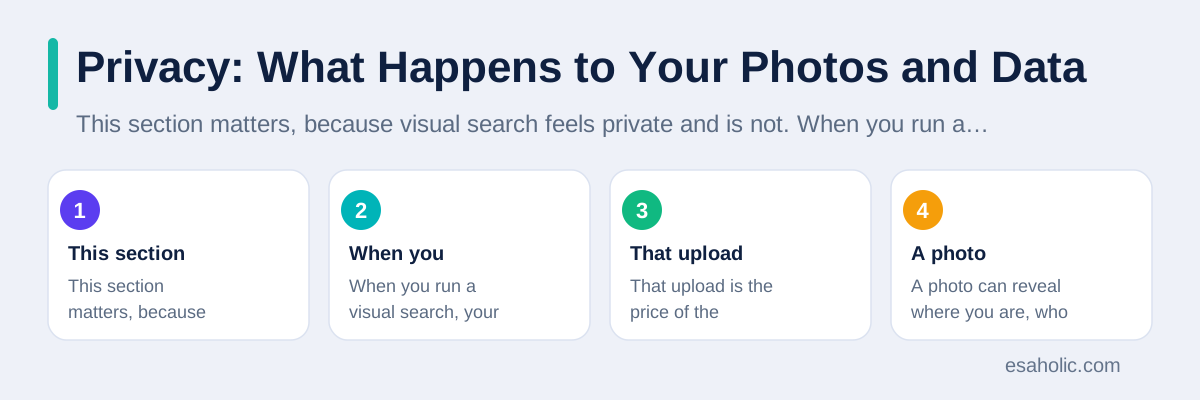
Bing visual search privacy deserves a direct answer, since it appears in search data for this topic. When you use Bing image features, the image you provide is sent to Microsoft, along with your search terms, IP address, location, cookie identifiers, time and date, and browser configuration, as described in the Microsoft privacy statement. Microsoft states that it de-identifies stored search queries over time, by removing the full IP address after six months and cookie identifiers after eighteen months, while retaining data from signed in users longer to improve products. Microsoft has not published a separate fixed retention time for visual search uploads specifically, and community answers from Microsoft support channels confirm that no service specific policy or fixed expiry for those uploads has been documented. The honest summary is: your upload is governed by the general privacy statement, not by a special visual search promise.
Google Lens follows a similar pattern: images and queries go to Google, are used to provide and improve the service, and are tied to your account settings when you are signed in. You can review and delete activity in your Google account controls, and you can use Lens signed out for some tasks, though features may be limited. The practical rules are the same for every provider. First, never upload photos of people, children, identity documents, tickets, medical items, or your home interior unless you accept that the image will be stored on a provider server. Second, crop out background details, such as house numbers, license plates, and faces of strangers, before you upload. Third, check your account activity controls and delete visual searches you no longer need. For a deeper look at how Bing handles search data, the Windows Forum guide to Bing search privacy explains dashboard controls and retention timelines in detail.
Where Visual Search Gets It Wrong
Visual search matches patterns, not meaning, and that limit produces predictable errors. Similar looking items confuse it: two chair models from different brands, two dog breeds with similar coats, or two landmarks with similar towers. Bad light flattens colors and hides detail. Odd angles change shapes. A busy background adds false clues. And rare items may have no good match in the index at all, so the engine returns the nearest popular item instead of admitting it does not know.
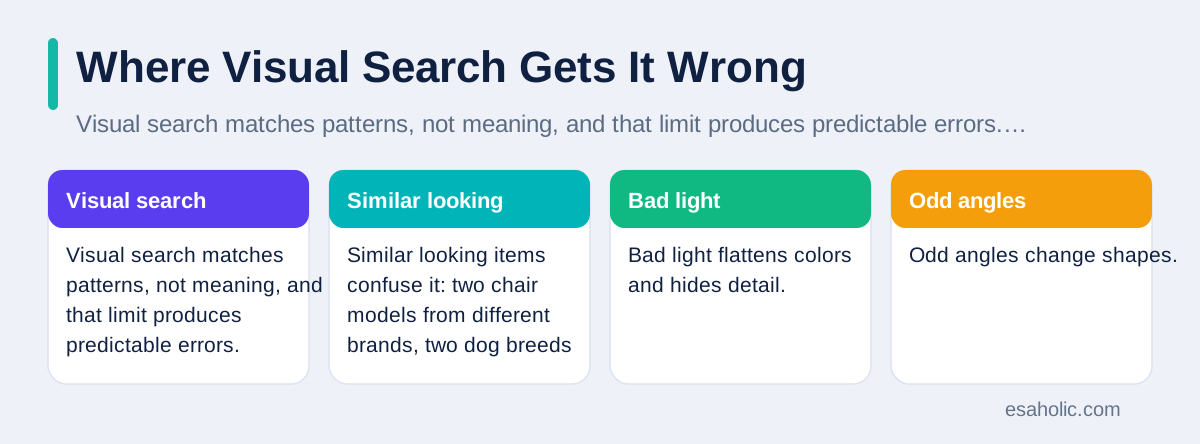
People also overtrust visual search in risky situations. A plant identification that is wrong can be dangerous if you plan to eat or touch the plant. A product match that is wrong can mean ordering the wrong part for a repair. A landmark match that is wrong can send you to the wrong place. Treat visual search as a strong first guess, not a final answer, and verify anything that affects health, safety, money, or travel with a second source. For a related guide to how AI tools can mislead when used without checks, see our article on how UC checks applications for AI written answers, which shows the same lesson in a different field: a machine score is not proof.
Other Uses of Visual Search Software
Beyond shopping and identification, visual search software serves many serious jobs. Doctors and researchers use image matching to compare scans with known cases, though always with human experts in control. Museums let visitors photograph an artwork and pull up its history. Factories use visual matching to spot defects on a production line. Farmers photograph a crop leaf to identify disease. Accessibility tools describe a scene aloud for blind users, turning a camera into a narrator. Each use shares the same core: a photo becomes a query, and a database of images becomes the answer.
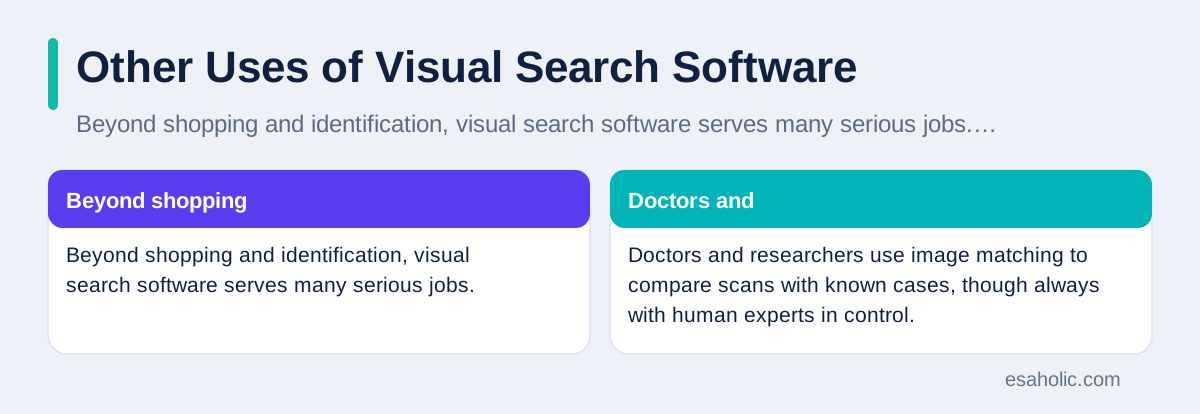
Businesses also use visual search internally. A support team can match a customer photo of a broken part to the right replacement. A warehouse team can photograph a label to find a product record. A design team can search a mood board by image instead of by keyword. If your business holds a large image library, adding visual search to it can save staff real time, but it needs clean data: consistent photos, good lighting, and accurate labels. A visual index built on messy photos will return messy results, no matter how good the model is.
Get Better Results: Practical Tips
Use a clear, well lit photo. Step closer, wipe the lens, and avoid harsh shadows. Crop close to the item you mean, and remove background clutter. If the item is small, photograph it against a plain background. If results look off, add a few words: a brand, a color, a material, or the word "buy". Try a second photo from a different angle if the first fails. And when the engine offers a selection box, adjust it yourself rather than accepting its first guess, since the selection decides what gets matched.

For active visual search, meaning a search where you refine as you go, treat the first result page as a starting point. Tap a close result to see similar items, then refine again. That loop, photo, results, refine, results, usually lands on the right item faster than a single perfect photo. And when the stakes are high, verify with text: search the brand and model number you found, and confirm the details on the seller or maker official page before you spend money or trust an identification.
Conclusion
AI visual search works by turning your photo into a numeric profile, comparing that profile with millions of indexed images, and ranking the closest matches. Vision models read shapes, colors, textures, and text, and shopping tools add price and availability on top. Google Lens, Bing Visual Search, and Pinterest Lens all follow this pattern, with different strengths: everyday identification, web matching, and style inspiration. The matching step is covered in more detail by image search techniques, which explains how a photo is compared with stored images.
The technology is genuinely useful, and it is genuinely limited. It matches patterns, not meaning, so similar items, bad light, and rare objects can fool it. And it is not private by default: your uploads go to provider servers and are governed by general privacy statements, not by special visual search promises. Use it with clear photos, cropped selections, and a few added words for the best results, verify anything important with a second source, and keep private photos out of the upload box. Used that way, visual search becomes what it should be: a fast, practical way to ask the world a question when you do not know the words.
Frequently Asked Questions
How do I do a visual search on Google?
Open the Google app and tap the camera icon, or open Google Lens in Chrome and select an image on a page. Point your camera at the item or upload a photo, then tap the part of the image you mean. Google shows matching results, similar items, and, for products, places to buy. You can add a few words to narrow the results.
Does Bing visual search collect my data?
Yes, in the same way search collects data. When you use Bing image features, the image you provide is sent to Microsoft, along with search terms, location, device details, and cookie identifiers, as described in the Microsoft privacy statement. Uploaded images are handled under that statement, and Microsoft has not published a separate fixed retention time for visual search uploads, so avoid uploading photos of people, documents, or private spaces.
Why does visual search sometimes get the wrong answer?
Visual search matches patterns, not meaning. Similar looking items, bad light, odd angles, and busy backgrounds can all push it toward the wrong match. Rare items may have no good match in the index at all. A clear, well lit photo cropped close to the item, plus a few typed words, usually fixes most bad results.
Written by Ahmad Jajja
Ahmad Jajja is a senior AI research engineer who specializes in generative AI and data systems. He writes Esaholic guides that explain AI work in plain language, with a focus on accuracy and real examples.
Reviewed by Amir Iqbal
Amir Iqbal is a senior AI systems architect and lead technical reviewer at Esaholic. He reviews Esaholic guides for technical accuracy and clarity before publication.
Relevant blogs
Who Is a Generative AI Data Scientist?
Learn what a generative AI data scientist does, and how AI tools are built and tested.
Vheer AI
A plain words guide to Vheer AI, what it does, and how people use it.
Hottest AI Startups in Silicon Valley
The companies, categories, and trends buyers and builders should watch.
Back to all blog guides · Explore Computer Vision Development Services