
Image Search Techniques: A Simple Guide
What is image search? It is searching for pictures instead of web pages, either by typing words that describe a picture or by uploading a picture and asking the engine to find similar or identical images. You might use it to identify a plant from a photo, find where to buy a jacket you saw on the street, check whether a photo in a news story is real, or find a higher quality version of a picture for a presentation. Behind that simple box, search engines do a surprising amount of work, matching pixels, words, and context at once.
Image search matters because a picture often carries what words cannot describe. You may not know the name of a flower, a building style, or a spare part, but you can photograph it. A search engine can then match that photo to pages that show the same or similar things, and the text on those pages supplies the name you lacked. The reverse is also true: when you search with words, the engine must guess which pictures match your meaning, and the better your words, the better its guess. Learning both directions, words to pictures and pictures to words, makes you far more effective than someone who only uses one.
This guide covers the full set of image search techniques in plain language: how image search works, how to search with words well, how to use reverse image search step by step, which filters sharpen results, how to shop and identify things from photos, and how to verify an image before you trust or share it. It also covers the rights question, because finding a picture does not mean you may reuse it, and that mistake causes real trouble for bloggers, teachers, and small businesses.
How Image Search Works Under the Hood
When a search engine indexes the web, which means it visits pages, stores copies, and organizes them for searching, it also collects images and the text around them. That surrounding text matters enormously: the file name, the alt text, which is a short written description of an image for screen readers and search engines, the caption, and the page title all tell the engine what the picture shows. A photo named "sunset-over-lake.jpg" on a page titled "Lake District walks" is easy to classify, while a photo named "IMG_4821.jpg" on a page with no related text gives the engine almost nothing to work with.
Modern engines also analyze the pixels themselves. Image algorithms, which are step by step methods a computer follows, extract features such as dominant colors, edges, shapes, textures, and the arrangement of objects. A newer method, sometimes called visual search, goes further and recognizes objects, faces, text inside images, and even landmarks, by comparing those features with patterns learned from millions of labeled examples. That is why a search engine can now find pictures of "red bicycles" reliably, and why it can sometimes identify a specific breed of dog from a snapshot, even when the page text never mentions dogs.
Ranking then combines both signals: how well the pixels match, how well the surrounding text matches your words, and how trustworthy the hosting page appears, based on factors such as links and quality. That combination explains common surprises. A beautiful photo on a weak page may rank below a mediocre photo on a strong page, because the engine trusts the strong page more. It also explains why adding clear file names and alt text helps your own images rank, a point our guide on how AI visual search works explores in more depth for site owners.
Searching with Words: Say What the Picture Shows
Good word searches describe the picture, not your feelings about it. "Beautiful sunset" returns millions of sunsets, while "sunset over mountain lake with orange sky" narrows the field to pictures that actually show those elements. Name the subject first, then its key features: color, setting, action, and style. For example, "black cat sitting on brick wall" beats "cute cat," and "vintage travel poster Paris Eiffel Tower" beats "old poster." Each added feature removes a crowd of irrelevant results.
Use the engine's vocabulary. Search engines understand common synonyms, but they still match words, so try a second wording if the first fails. If "sofa" returns little, try "couch." If "kids bike" returns toys, try "children's bicycle." For people, places, and products, add the proper name when you know it, because a name is the strongest signal you can give. For styles, add words such as "photo," "illustration," "diagram," or "clip art," because a search for "heart" without a style word mixes medical diagrams, photos, and cartoons in one confusing grid.
Negative words help too. A minus sign before a word excludes it, so "jaguar -car" favors the animal over the car brand, and "apple -iphone" favors the fruit over the phone. Use this sparingly, because excluding too much can remove good results, but one well chosen exclusion often cleans a results page dramatically. These quote and minus habits are part of search operators, which narrow a text search the same way a filter narrows an image search. If results still feel random, check whether you searched the web tab instead of the images tab: web results rank pages, while the images tab ranks pictures, and the two orders differ a lot for visual topics.
Reverse Image Search Techniques, Step by Step
Reverse image search techniques start from a picture instead of words. On a computer, open Google Images, click the camera icon in the search box, and either upload a photo from your device or paste the address of an image already online. On a phone, you can use the Google app or Lens, which is Google's visual search tool, by tapping the camera icon and pointing it at an object or choosing a photo from your gallery. Google's reverse image search help walks through the current steps for each device, and it is worth bookmarking because the buttons move between updates.
Crop before you search. If your photo shows a whole street but you care about one shop sign, crop to the sign first, because the engine matches the whole image and a busy background dilutes the match. If the first search returns near copies, try the "visually similar images" option to widen the net to lookalikes, and try a second engine, because different engines index different parts of the web. TinEye, which is a dedicated reverse image search engine at TinEye, specializes in finding exact and edited copies of an image and in sorting matches by oldest first, which is invaluable when you want the original source.
Read the results as clues, not as answers. A reverse search returns pages that contain the image, and the earliest dated page is often, though not always, the source. Check whether the image appears cropped, flipped, or edited on later pages, because edits are a common way to mislead. Combine the picture results with a word search on the same topic: if the picture claims to show an event in one city, but word searches place that photo at an earlier event elsewhere, you have found a mismatch worth investigating before you share anything.
Filters That Sharpen Results
Filters are the fastest way to turn a wall of pictures into a usable set. Size matters most for practical use: a small thumbnail looks fine on screen but prints badly, so choose "large" when you need a picture for a poster or a slide. Color filters help designers match a palette, and they also help when a subject comes in many colors, such as cars or flowers. Type filters separate photos from line art, clip art, and animated images, which matters when you need a diagram rather than a photograph.
Time filters matter for news and products. A search for a phone model without a time filter mixes five generations of the same name, while limiting results to the past year surfaces the current model. Usage rights filters, which limit results to images labeled for reuse, are essential before you publish anything, and the next section explains why labels alone are not enough. SafeSearch, which filters explicit content, should stay on for shared or classroom devices, and you can adjust it in search settings when you need unfiltered results for legitimate work.
Combine filters with words instead of treating them as alternatives. A search for "golden retriever puppy photo large" with a usage rights filter gives you usable, high quality pictures in one step, while a bare search for "dog" followed by random filtering wastes time. Save the combination that works for a recurring task, such as finding header images for a blog, as a bookmark or a note, so next time you start from a working recipe instead of from scratch.
On a phone, filters live behind a small menu that is easy to miss, so open the filter options deliberately before you scroll through results. Mobile screens show fewer pictures at once, which makes a good filter even more valuable, because it saves you from paging through hundreds of images on a small display. Set the size and rights filters first, then refine with words, and you will usually find a usable picture in the first screen or two.
Shopping, Identifying, and Learning from Photos
Shopping by photo is now an everyday skill. Photograph a product, run a visual search, and you will often find the exact item, similar items at different prices, and secondhand listings. Compare carefully: check the seller, the exact model or size, and the return policy, because lookalike products differ in details a photo hides, such as material or dimensions. For clothes, search with the photo plus a word for the item, such as "jacket," to narrow matches to wearable versions rather than illustrations or costumes.
Identification works the same way for nature, art, and objects. A photo of a plant, a bird, or a building can return a name, and from the name you can read reliable sources to confirm it. Treat the first identification as a hypothesis, not a verdict, especially for anything you might eat, touch, or buy: confirm with a second source, such as a field guide or an expert community, before you act. For art and antiques, visual search can find the artist or maker, but value and authenticity need human expertise, and a search result is not an appraisal.
Learning from photos extends to study and work. Students can photograph a diagram and find explanations of it, mechanics can photograph a part and find its manual, and travelers can photograph a sign in another language and translate it. In each case, the photo is the question, and the search supplies the words you lacked. Keep a habit of saving the source page, not just the image, because the page holds the explanation, the context, and the credit, while a lone image file loses all three the moment you download it.
Verify an Image Before You Trust or Share It
Images mislead more easily than text, because a real photo can be placed in a false context. A genuine photo from one event, reused with a caption about another event, feels true because the photo itself is real. Verification therefore means checking context, not just authenticity. Reverse search the image and look for its earliest appearance. Read the page around it: does the caption match the scene, do details such as weather, clothing, or signs fit the claimed place and date, and do other sources report the same event with the same photo?
Look for technical clues with healthy skepticism. Shadows that fall in inconsistent directions, edges that look unnaturally sharp, text on signs that warps oddly, and hands or faces with wrong details can signal editing, especially in AI generated images, but absence of such clues proves nothing, because good edits hide well. Stronger evidence comes from corroboration: multiple independent sources, ideally including local news or official accounts, using the same image for the same event. One viral post is a rumor. Three independent reports are a lead worth trusting carefully.
Before you share, ask what happens if you are wrong. Sharing a false photo about a person can harm a reputation, sharing a false photo about a disaster can misdirect help, and sharing a false product photo can mislead buyers. A thirty second reverse search is a small price for avoiding that harm. If you cannot verify an image, say so when you share it, or do not share it at all. Caution here is not pessimism, it is the same habit journalists and researchers use, and it protects your own credibility as much as it protects others.
Rights: Finding a Picture Is Not Permission to Use It
Most images you find are owned by someone: a photographer, an agency, or a company. Copyright, which is the legal right to control copying of a creative work, applies automatically when a photo is taken, and search engines do not grant permission by showing the picture. The usage rights filter helps you find images whose owners have allowed reuse, often under licenses such as Creative Commons, which is a set of standard permissions that may require credit, forbid commercial use, or require sharing under the same terms. Always open the source page and read the actual license, because filter labels can be wrong and licenses differ.
For work you publish, build a safe habit. Prefer your own photos, licensed stock images, or images whose license you have read and recorded, with credit given exactly as the license asks. Keep a note of where each image came from and what its license allows, because a question about an image can arrive months after publication, and a note answers it in seconds. Never strip watermarks, which are visible marks that identify an owner, and never claim someone else's photo as your own. Both actions turn a simple mistake into a deliberate one.
Site owners should also help search engines find their own images fairly. Clear file names, honest alt text, and captions that describe what a picture shows help your images appear for the right searches, and they help visitors who use screen readers understand your pages. That work belongs in website development, where image names, alt text, and captions are planned before a page is published. Our guide on when to search and when to type an address covers the basics of reaching trusted sites directly, which is the safest way to find a source page and read its license before you reuse anything from it.
Mistakes That Waste Time or Cause Trouble
The first mistake is trusting the first match. The first result is the engine's best guess, not a verified answer, and for identification, shopping, and news, the second and third results often correct the first. The second mistake is searching with a blurry, dark, or cluttered photo and accepting poor results, when a sharper photo or a tight crop would have worked. Take a second photo in better light, or crop to the subject, before you conclude that a search failed.
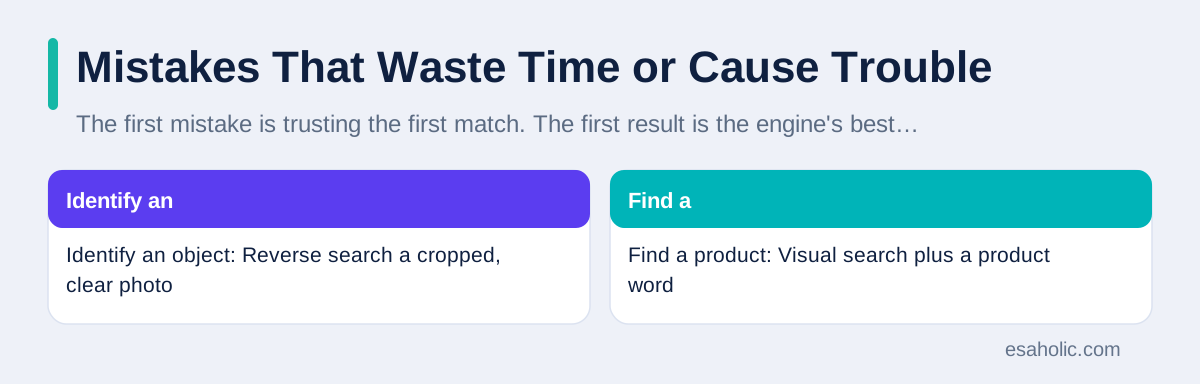
The third mistake is reusing images without checking rights, which can lead to takedown notices, which are formal requests to remove content, or licensing bills long after publication. The fourth mistake is ignoring the source page: an image without its page loses its caption, its date, and its credit, and those three facts are usually what make an image useful or trustworthy. Always visit the source page before you rely on a picture for anything important.
The fifth mistake is searching only one engine. Google, Bing, and TinEye index different corners of the web, and a picture that one misses, another finds. Trying search engines other than Google for the same image can surface a source the first engine buried. For important searches, such as verifying a news photo or finding the original of an artwork, run the same image through two engines and compare. The extra minute often reveals the source that the first engine buried, and it protects you from the false confidence of a single empty result.
| Task | Best technique | Check before you act |
|---|---|---|
| Identify an object | Reverse search a cropped, clear photo | Confirm with a second source |
| Find a product | Visual search plus a product word | Seller, model, size, returns |
| Verify a news photo | Reverse search, earliest page first | Caption, date, and corroboration |
| Reuse an image | Usage rights filter, then read license | Credit and license terms on source page |
| Find a high quality picture | Descriptive words plus size filter | Source page quality and rights |
Conclusion
Image search techniques give you two powerful directions: words to pictures, by describing the subject, its features, and its style, and pictures to words, by reverse searching a clear, cropped photo through more than one engine. Filters for size, color, type, time, and usage rights turn a flood of results into a usable set, and verification, through earliest sources, page context, and independent corroboration, turns a found image into a trusted one. Remember that finding a picture is not permission to reuse it: read the license on the source page, give credit when required, and prefer your own or licensed images for published work. With those habits, image search becomes more than a way to find pictures. It becomes a way to identify things, shop wisely, learn faster, and share only what you can stand behind.
Frequently Asked Questions
What is image search?
Image search is searching for pictures instead of web pages, either by typing words that describe a picture or by uploading a picture and asking the engine to find similar or identical images. Search engines match your words or your picture against images they have indexed, along with the text on the pages where those images appear.
How does reverse image search work?
Reverse image search starts from a picture instead of words: you upload an image or paste its address, and the engine analyzes its visual features, such as shapes, colors, and patterns, then returns pages that contain the same or visually similar images. It is useful for finding the source of a photo, checking whether a photo was reused, and identifying objects or products.
Can I reuse any image I find in image search?
No. Most images are owned by someone, and finding an image in search does not give you permission to reuse it. Use the usage rights filter to find images labeled for reuse, check the license on the source page, and give credit when the license requires it. When in doubt, use your own photo or a licensed stock image.
Written by Syed Zulqurnain
Technical Search Architect and Digital Marketing Director
Syed Zulqurnain is a technical search architect at Esaholic who explains how search engines crawl, index, and rank large websites.
Reviewed by Nabeel Ali
Senior SEO Specialist
Nabeel Ali is a senior SEO specialist at Esaholic who works on enterprise and international search, language versions, and crawler rules.
Relevant blogs
How Does AI Visual Search Work? A Simple Guide
How visual search engines read a photo, match it to results, and handle your data.
Search Google or Type a URL: A Simple Guide
When to search, when to type an address, and how to avoid fake sites.
Ahrefs: A Simple Guide to the SEO Toolkit
What Ahrefs does, how its research tools work, and how to use them without drowning in data.
Semrush: A Simple Guide to the SEO Toolkit
What Semrush does, how its research tools work, and how to use them for search growth.