
What Is a VPN Router?
A VPN router is a home router, which is the box that shares your internet connection with every device in your home, with a VPN client built in, meaning it can run a VPN connection itself instead of relying on an app on each device. With a normal router, each phone, laptop, and TV must run its own VPN app if you want VPN protection. With a VPN router, the router itself connects to the VPN server, encrypts traffic leaving your home, and covers every device that connects through it, including devices that cannot run a VPN app at all, such as many smart TVs, game consoles, and smart speakers. One setup at the router replaces many separate app setups.
That convenience is the main reason to consider a VPN router, but it is not the right choice for every home, and this guide explains when it helps, when an app is simpler, how setup works, what to check before buying, and how to fix the common problems. If you are still deciding whether a VPN itself is worth it, our guide on how encrypted connections protect public Wi-Fi explains the tunnel, the limits, and the provider trust question first, because a VPN router inherits every strength and every limit of the VPN service it connects to. A router cannot fix a bad provider choice, and a good provider cannot fix a weak router.
How a VPN Router Works at Home
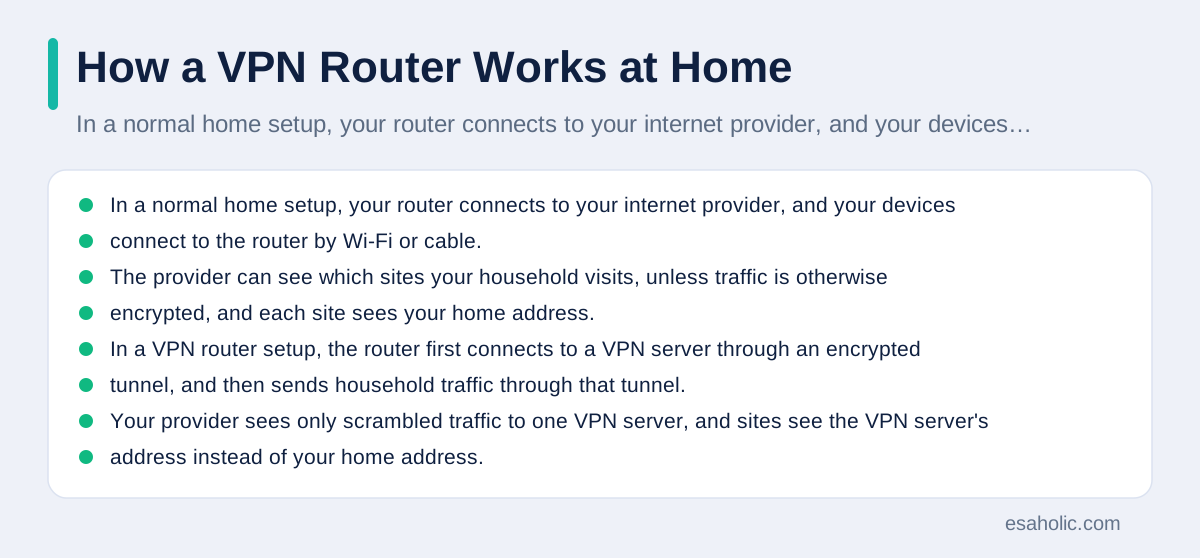
In a normal home setup, your router connects to your internet provider, and your devices connect to the router by Wi-Fi or cable. The provider can see which sites your household visits, unless traffic is otherwise encrypted, and each site sees your home address. In a VPN router setup, the router first connects to a VPN server through an encrypted tunnel, and then sends household traffic through that tunnel. Your provider sees only scrambled traffic to one VPN server, and sites see the VPN server's address instead of your home address. The change happens once, at the router, so every device benefits without any per device work.
The router must be powerful enough to encrypt and decrypt, which means scramble and unscramble, all household traffic in real time. That is why processor power matters so much for VPN routers: a router that handles normal traffic fine can still slow to a crawl when asked to encrypt a fast connection for several devices at once. The VPN client on the router also needs to support modern protocols, keep its software updated, and reconnect cleanly if the VPN connection drops. Some routers run a kill switch at the network level, which blocks internet access for protected devices until the VPN reconnects, so a brief drop does not leak your real address. Check for that feature, because a router without it can silently expose traffic during outages.
A VPN router does not change what happens on each device beyond the network layer. It does not install antivirus software, block phishing, or protect a device that is already infected, and it does not hide you from sites where you log in. Those limits match the limits of any VPN, and they matter more at home because a whole household shares the router: one infected laptop can still harm others on the local network, and one person's weak password still matters. Pair the router with the basics from our guide on steady habits that keep malware out, and treat the router as network protection for the household, not as a replacement for device protection on each machine. For the underlying VPN basics, Mozilla's guide to what a VPN is and Cloudflare's VPN learning page explain the tunnel in plain terms.
VPN Router Versus VPN App: Which Fits Your Home
A VPN app is the simpler choice for most people. You install it on your phone and laptop, turn it on, and you are protected on any network, including public Wi-Fi away from home. It travels with you, it is easy to turn off for one app or one site, and it costs nothing extra beyond the VPN subscription you already pay for. Its weakness is coverage: every device needs its own install, some devices cannot run apps at all, and a forgotten device, such as a smart TV or a child's tablet, stays unprotected. An app also protects only the device it runs on, so a guest's phone or a new smart speaker joins your network unprotected unless you install the app there too.
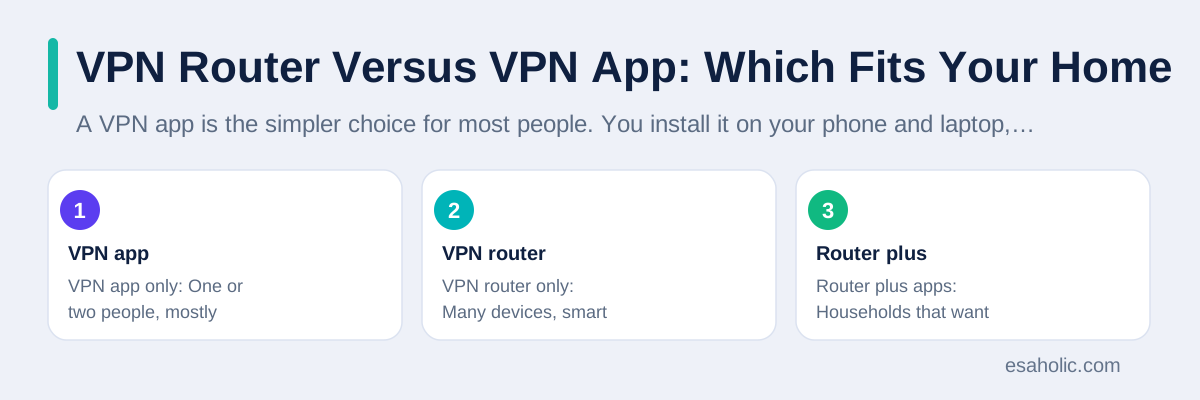
A VPN router flips those tradeoffs. It covers everything at home with one setup, including app-less devices, and it protects guests automatically, which is useful if you host visitors often or run many smart home devices. Its weaknesses are that it does not travel with you, so your phone loses VPN protection the moment you leave home unless you also run an app, and it is less flexible: turning the VPN off for one device or one site takes router settings, not a single tap. It also adds a single point of failure: if the router's VPN setup breaks, the whole home's VPN protection breaks with it, whereas a broken app affects only one device. Many households end up with both, a router for home coverage plus apps for travel, and that combination is often the best answer.
| Choice | Best for | Main drawback |
|---|---|---|
| VPN app only | One or two people, mostly phones and laptops | Leaves app-less devices unprotected |
| VPN router only | Many devices, smart home, frequent guests | No protection away from home |
| Router plus apps | Households that want both home and travel cover | More setup and one more thing to maintain |
Setting Up a VPN Router, Step by Step
Setup varies by router and provider, but the steps follow a common pattern, and knowing the pattern helps you judge whether you are comfortable doing it yourself. First, confirm that your router supports a VPN client, which is different from a VPN server feature or a VPN passthrough setting: a client connects out to a VPN service, while passthrough only lets devices behind the router run their own VPN apps. Check the router's manual or settings for a VPN client section that names OpenVPN or WireGuard, which are the modern protocols most providers support. If your current router lacks a client, you can sometimes add one with third party router software, but that is advanced work with a risk of breaking the router, and most people are better off buying a router with a client built in.
Second, get the connection details from your VPN provider, usually a configuration file, which is a small file with server and encryption settings, plus your account username and password or a set of keys. Upload that file in the router's VPN client section, enter your credentials, choose a server near you for speed, and save. Third, turn the VPN on at the router, enable the kill switch if offered, and test: visit a site that shows your visible address from a device on the home network, confirm it shows the VPN server's location, and confirm that your normal sites and streaming still work. Keep a note of the router admin password and the VPN settings you used, because a factory reset, which wipes the router back to its original settings, will erase them, and rebuilding from memory is frustrating.
Fourth, decide which devices should bypass the VPN, if your router allows it. A work laptop may need a direct connection for company systems, a game console may need lower latency, which is delay, for online play, and a local printer or smart home hub may need to stay on the local network. Many VPN routers let you set bypass rules by device, and setting those rules early prevents a week of mysterious problems blamed on the VPN. Test each bypassed device after you set its rule, and revisit the rules when you add a new device. A setup that works for every device on day one, with bypasses documented, is a setup you will actually keep, while a setup that breaks one family member's work will be turned off within days.
Router setup also involves keys and certificates, and public key infrastructure explains how those trust chains work.
Choosing the Right VPN Router for Your Home
Start with processor power and protocol support, because those decide real world speed. Look for a router whose maker or independent reviews report VPN speeds, not just Wi-Fi speeds, because Wi-Fi speed without VPN tells you nothing about encrypted throughput. A router with a modern multi-core processor and WireGuard support will usually outperform an older router that only supports OpenVPN, because WireGuard is lighter and faster. If your internet plan is very fast, such as gigabit, which is 1,000 megabits per second, check VPN speed reports carefully: many consumer routers cannot encrypt at gigabit speed, and you may need to accept a slower VPN speed or choose a higher end model. Match the router to your plan, not to a marketing headline.
Next, check Wi-Fi coverage for your home's size and layout, because a VPN router that cannot reach the far bedroom is a poor router regardless of its VPN features. A single router suits a small flat, while a larger home may need a mesh system, which is a set of Wi-Fi units that share coverage, with VPN support on the main unit. Our guide on how mesh Wi-Fi nodes share coverage explains mesh tradeoffs in plain terms. Also check the number of wired ports, USB ports for a backup drive or printer, and whether the router receives regular security updates from its maker. A router is a security device that sits at the edge of your home, so a maker that stops updating it leaves your whole network exposed, and that support record matters as much as any feature list.
Finally, confirm provider compatibility before you buy. Most VPN providers publish a list of supported routers and setup guides, and buying a router on that list saves hours of troubleshooting. Confirm that you can switch providers later without buying new hardware, because a router locked to one provider is a poor long term choice if that provider raises prices or changes its logging policy. Check the return policy too: VPN router performance depends on your internet plan, your home layout, and your provider's servers, so a test at home is the only reliable review. Buy from a seller with a fair return window, test thoroughly in the first week, and return promptly if speeds or coverage disappoint.
Speed Tradeoffs You Should Expect
Encryption costs speed, and a VPN router pays that cost for the whole household at once. Expect some slowdown compared with no VPN, and expect the slowdown to vary by time of day, server load, and how many devices are active. A nearby, lightly loaded server with WireGuard usually gives the best result, while a distant, crowded server with an older protocol gives the worst. Test speeds at different times and on different servers before concluding the router is at fault, because server choice often matters more than hardware. Also test with one device at a time and then with the whole household active, so you learn whether the bottleneck is the router, the server, or simply a busy evening.
Three settings most affect speed. The protocol matters, with WireGuard usually fastest, OpenVPN slower but widely compatible, and IKEv2 in between and strong on mobile. The server location matters, because distance adds delay and each extra network hop adds a little more. The router processor matters, because a weak processor caps encrypted speed no matter how fast your internet plan is. If speeds are poor, try in order: a nearer server, a different protocol, a different time of day, and then a router firmware update, which is new software for the router itself. If none of those help, the router may simply be underpowered for your plan, and no setting will fix a hardware limit. For background on the protocol itself, the WireGuard project site explains its design goals in clear terms.
Latency deserves a note for gamers and video callers, because speed tests show download speed, not delay. A VPN adds a hop through the VPN server, which raises latency by a small amount, and that delay can matter for competitive gaming or for calls where people talk over each other. If gaming or calls suffer, try a nearer server, try a bypass rule for the console or work laptop, or accept that the VPN router may not suit that device. A household compromise, VPN for most devices and a bypass for the latency sensitive one, is often better than turning the VPN off for everyone because one device struggled. Document the compromise so future troubleshooting starts from the real setup, not from an assumption that every device is on the VPN.
Guests, Smart Devices, and Separate Networks
A VPN router shines with guests and smart devices, but it needs a little network hygiene to do so safely. Set up a guest Wi-Fi network, which is a separate network name for visitors that cannot reach your main devices, so a guest's infected phone cannot easily reach your computers or storage. Put smart home devices, such as cameras, speakers, and thermostats, on their own network segment if your router allows it, because those devices often receive infrequent updates and can become entry points into a home network. The VPN tunnel covers traffic leaving your home from each network, but local separation still matters, because the tunnel does not protect devices from each other inside your home.
Smart devices also raise a compatibility question: some of them need to reach their maker's servers in a specific region, or need local discovery, which is the ability for an app on your phone to find a device on the same network, and a VPN can interfere with both. If a camera or speaker stops working after the VPN router goes live, check whether a bypass rule or a separate network without VPN fixes it, and check whether the device needs a firmware update. Do not disable the VPN for the whole home to fix one device. Isolate the problem device, test a targeted fix, and keep the rest of the household protected. The same rule applies to work devices: a company laptop with its own VPN should usually bypass your home VPN, because two tunnels stacked on each other, called double VPN, add delay and can break company access controls.
Children's devices deserve the same separation plus conversation. A VPN does not replace parental controls, content filters, or agreed screen time rules, and it can in fact bypass some school or parental filters if misused, so discuss its purpose openly: the home VPN protects network traffic, it does not grant permission to visit blocked sites, and attempts to bypass family rules will be noticed. Use the router's parental controls as a separate layer, keep children's devices on a network segment you can monitor, and review connected devices regularly in the router's admin page. A quick monthly check of unknown devices on your network can reveal a neighbor on your Wi-Fi, a forgotten smart device, or a device you did not know was connected.
Troubleshooting a VPN Router That Misbehaves
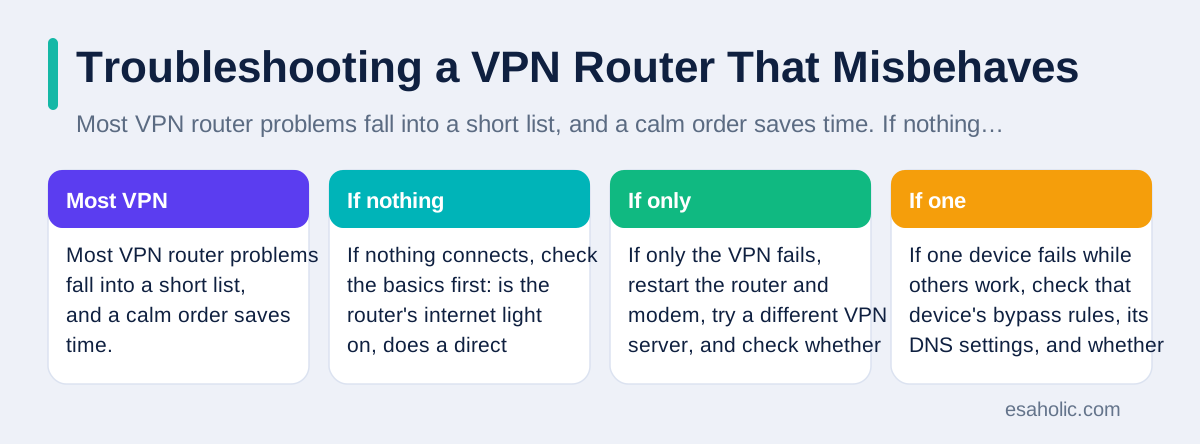
Most VPN router problems fall into a short list, and a calm order saves time. If nothing connects, check the basics first: is the router's internet light on, does a direct connection without VPN work, and is the VPN account still active and paid up. If only the VPN fails, restart the router and modem, try a different VPN server, and check whether the provider reports an outage. If one device fails while others work, check that device's bypass rules, its DNS settings, and whether its app blocks VPN traffic. If speeds collapse at a certain hour, test a nearer server and a different protocol before assuming hardware failure, because evening congestion is common and temporary.
If a specific site or service breaks, such as a bank app or a streaming service, the likely cause is VPN detection, not a broken router. Those services may block known VPN addresses or require a location match with your account. Try a different server, try a bypass rule for that device or service, and accept that some services will require the VPN off. If the router admin page becomes unreachable after a settings change, do not factory reset at once: try a wired connection, try the router's default admin address from its manual, and check whether the change altered the local network address range. A factory reset is a last resort, and it erases your VPN settings, Wi-Fi names, and bypass rules, so export or photograph your settings before any risky change.
Keep the router's firmware updated, because firmware fixes security flaws and VPN bugs, and set it to check automatically if that option exists. Change the default admin password at setup, disable remote admin access unless you truly need it, and review the router's logs occasionally for repeated failed login attempts, which can indicate someone probing your network from outside. If problems persist after the steps above, contact your VPN provider's support with specifics, such as the router model, the protocol, the server tried, and the error message, because vague reports get vague answers. If setup and upkeep still feel heavy after a fair try, ongoing device support can help keep a home network, including router updates and VPN checks, on a regular schedule.
Conclusion
A VPN router is a home router that runs a VPN connection itself, so every device at home, including devices that cannot run a VPN app, gains encrypted network protection with one setup. It suits households with many devices, smart home gear, and frequent guests, and it pairs well with VPN apps for phones that travel. It is not a cure for malware, weak passwords, or fake sites, and it needs a strong processor, a modern protocol, a trustworthy VPN provider, and a little testing to perform well. Choose on VPN speed reports and provider compatibility, set bypass rules for devices that need a direct connection, test for leaks and speed in the first week, and keep the firmware updated. Done that way, a VPN router turns a chore, protecting every device, into a single setting that quietly covers the whole home.
Frequently Asked Questions
Do I need a VPN subscription to use a VPN router?
In most cases, yes. A VPN router is the hardware that runs the VPN connection, but it still needs a VPN service account to connect to, with servers, a logging policy, and support. A few routers include a trial or a bundled service, but check what happens when the trial ends, what the renewal costs, and whether you can switch to a different provider later.
Will a VPN router slow down my whole home internet?
It can, because encryption takes processor power, and a weak router processor becomes a bottleneck for the whole home. A router with a strong processor and a modern protocol, connected to a nearby server, usually keeps the slowdown small for browsing and video. If speeds matter, test with the VPN on and off, and try a different server before blaming the router.
Can I turn the VPN off for just one device?
Many VPN routers allow this through policy based routing, which is a rule that sends some devices through the VPN and others straight to the internet, or through a separate Wi-Fi network that bypasses the VPN. Check for this feature before you buy if you have a game console, a work laptop, or a streaming device that needs a direct connection.
Written by Amir Iqbal
Senior AI Systems Architect and Lead Technical Reviewer
Amir Iqbal is a senior AI systems architect at Esaholic who reviews code and architecture and keeps live AI systems fast and reliable.
Reviewed by Ahmad Jajja
Senior AI Research Engineer and Generative AI Specialist
Ahmad Jajja is a senior AI research engineer at Esaholic who specializes in generative AI and data systems grounded in real documents.
Relevant blogs
Virtual Private Networks: How VPNs Protect You
How a VPN encrypts your connection, hides traffic on public Wi-Fi, and what it cannot protect.
What Is Wmn? Wireless Mesh Networks Explained Simply
How mesh Wi-Fi nodes share coverage across a home or office, and when mesh beats a single router.
Computer Virus Prevention: A Simple Home Guide
Simple steps that keep malware off your computer, from updates and safe downloads to backups and quick recovery.
Prevent LLM From Accessing Confidential Data in Development
Practical controls, redaction, local models, and code checks that keep secrets out of AI tools.
Back to all blog guides · Back to Cybersecurity and Networking guides · Explore Support and Maintenance Services