
Google Deletes Apps From Play Store: Why And What To Do
One day an app works fine. The next day it is gone from the Play Store, and you cannot find it by searching, cannot reinstall it, and cannot tell whether it was your phone, your account, or the app itself. That confusion is common, because Google rarely announces each removal to the public. This guide explains why google deletes apps from play store listings, what removal means for users and developers, and how to check an app before you trust it. It does not claim a specific deletion event, number, or date, because those details change constantly and only Google can confirm a given case.
Start with the basic idea. The Play Store is a shop with house rules, called the Developer Program Policy, which every developer agrees to when they publish an app. The rules cover safety, privacy, payments, content, and honesty. When Google finds an app that breaks a rule in a serious way, or breaks a rule repeatedly after warnings, it can remove the app, suspend the developer account in severe cases, or both. Removal is not the same as a bug, a regional restriction, or a phone problem, although those can look similar at first. The rest of this guide helps you tell those cases apart and act on the right one.
If you are a user, the key question is practical: is my data safe, can I keep using the app, and what should I install instead? If you are a developer, the key question is different: what rule did I break, how do I fix it, and how do I appeal? Both groups benefit from understanding the same policy reasons, because a removal notice always points to a rule, and the fix always starts with that rule. Read the notice, not the rumor. Social posts about a removal often guess at the reason, while the notice names it.
The Main Reasons Google Removes Apps
The most serious reason is malware, which is software designed to harm a device, steal data, or control a phone without clear permission. Malware can hide inside a useful looking app, such as a flashlight, a cleaner, or a free game, and then read messages, steal passwords, show unwanted ads, or sign the user up for paid services. Google uses automated scans and human review to catch malware, and it removes such apps quickly because every extra day of availability puts more users at risk. If you ever see a warning that an app is harmful, treat it seriously even if the app seemed useful, because usefulness is exactly how malware spreads. To understand one well known form of that harm, read what is ransomware.
Fraud and deception form the second large group. An app that promises a feature it does not deliver, fakes reviews or ratings, pretends to be another well known app, or tricks users into payments breaks trust in the whole store. Impersonation, which means copying another brand, logo, or developer name to mislead users, is treated strictly, because users cannot judge safety when they do not know who really made the app. The same applies to apps that hide their true purpose, for example an app that claims to be a simple photo editor but quietly collects contacts or location in the background.
Privacy violations are the third major group, and they have grown more important as phones hold more personal data. An app must explain what data it collects, why it collects it, and who it shares it with, and it must ask for permission before it accesses sensitive data such as location, contacts, photos, or messages. An app that collects data it does not need, shares data without disclosure, or keeps collecting after the user says no can be removed. Children deserve extra care: apps aimed at children face stricter content and data rules, and violations there are handled with particular seriousness.
Policy Violations, Explained in Plain Words
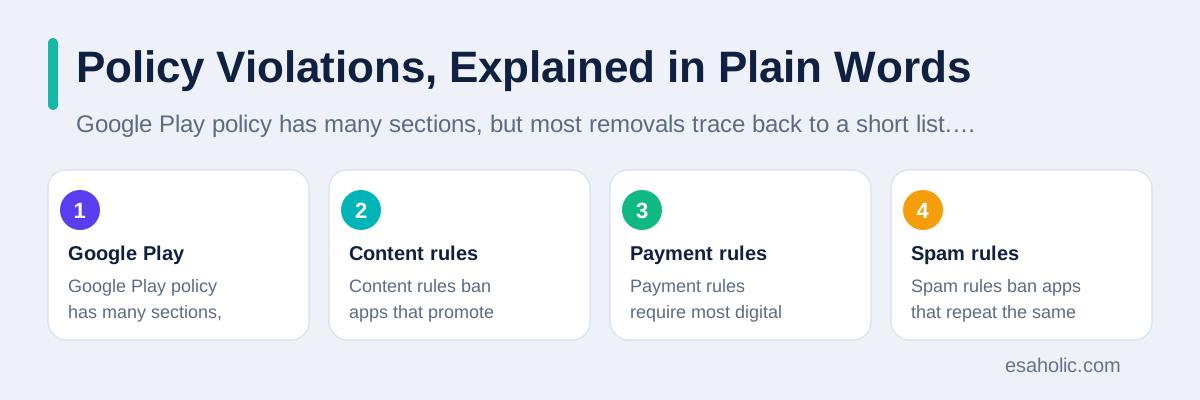
Google Play policy has many sections, but most removals trace back to a short list. Content rules ban apps that promote violence, hate, or illegal activity, and apps that show sexual content involving minors or non consensual material. Payment rules require most digital purchases inside an app to use Google Play billing, with defined exceptions, so that buyers get refunds and fraud protection. Spam rules ban apps that repeat the same low quality content, copy other apps with only small changes, or flood the store with near identical listings. Intellectual property rules ban apps that use another company's trademarks, music, or code without permission.
Two rules surprise developers most often. The first is the rule on misleading claims in the store listing itself. An app can be removed not for what its code does, but for what its description promises: a free app that is not free, a health claim without support, or screenshots that show features the app does not have. The store listing is part of the product, and Google treats false listings as deception. The second surprise is the rule on functionality. An app that crashes constantly, does nothing useful, or exists only to show ads can be removed for poor quality, even if it contains no malware. The store is meant for working apps, not for placeholders that waste user time.
Developers should read the official policy before they publish, not after a removal. Google Play developer policy help explains enforcement, including warnings, removals, and account suspensions, and it links to each policy section. Keep that page bookmarked, and check it when Google updates a policy, because an app that was compliant last year can become non compliant after a rule change. Many removals happen not because a developer acted in bad faith, but because a rule changed and nobody on the team noticed.
What Removal Means for Users
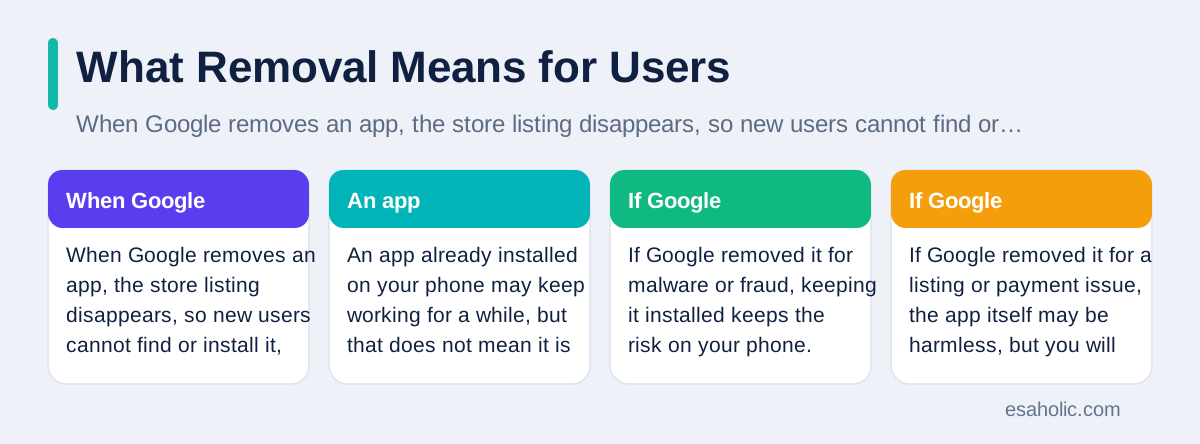
When Google removes an app, the store listing disappears, so new users cannot find or install it, and existing users usually cannot reinstall it from the store. An app already installed on your phone may keep working for a while, but that does not mean it is safe. If Google removed it for malware or fraud, keeping it installed keeps the risk on your phone. If Google removed it for a listing or payment issue, the app itself may be harmless, but you will still lose updates, which means security fixes stop arriving. In both cases, the safest default is to remove a flagged app and look for a trusted replacement, rather than keeping it because it still opens.
Payments need care. If you bought the app or made purchases inside it, check your order history in Google Play, under Payments and subscriptions, then Budget and history, to see what you paid for. A removed app does not automatically refund every purchase, because refund rules depend on what you bought, when you bought it, and whether the developer or Google handles that purchase. Contact the developer first for a subscription or content issue, and use Google Play support if the developer does not respond or the app is gone entirely. Keep screenshots of receipts and of any error messages, because support staff can help faster with dates and order numbers in hand.
Your data deserves a separate check. If the removed app had access to your contacts, photos, location, or accounts, review those permissions in your phone settings and remove access you no longer trust. Change the password for any account you used inside the app, especially if you reused that password elsewhere, and turn on two step verification, which means a second check beyond your password, for important accounts. These steps sound cautious, but they cost minutes and they close the most common paths by which a bad app causes lasting harm after it disappears from the store.
What Developers Should Do After a Removal
Do not panic, and do not immediately resubmit the same app. The first step is to open Play Console, which is the dashboard developers use to manage Play apps, and read the removal email and notice in full. The notice names the policy section and, in many cases, gives an example of the problem, such as a specific screen, permission, or listing claim. Fix that exact problem first. A common error is fixing a different problem the developer guessed at, resubmitting, and receiving a second rejection, which wastes time and can worsen the account standing.
Next, test the fix as a user would. Install the corrected app on a real phone, walk through the flagged flow, check every permission the app requests, and read the store listing word by word for claims you cannot support. Remove any third party code, called a software development kit or SDK, that collects data you did not disclose, because developers are responsible for code inside their app even when another company wrote it. If the problem was a misleading screenshot or description, rewrite the listing in plain, checkable words. Then submit an appeal through Play Console, explaining what changed, where the reviewer can see it, and what you will do to prevent a repeat. Short, specific appeals beat long, emotional ones.
Repeated violations carry heavier consequences. Google may suspend an app, then suspend the developer account for repeated or severe violations, and a suspended account loses its apps and cannot simply open a new account to evade the suspension. That is why small teams should treat the first warning as a serious signal, not as noise. Build a pre launch checklist: policy read, permissions justified, data disclosure complete, listing claims checked, and third party code reviewed. Teams that run that checklist rarely face removals, and when they do, they fix them faster, because they already know where the evidence lives. Our custom software development services follow the same checklist discipline for client apps, and our guide on Google AI controls shows how Google settings, in general, reward users who check them deliberately.
How to Check an App Before You Install It
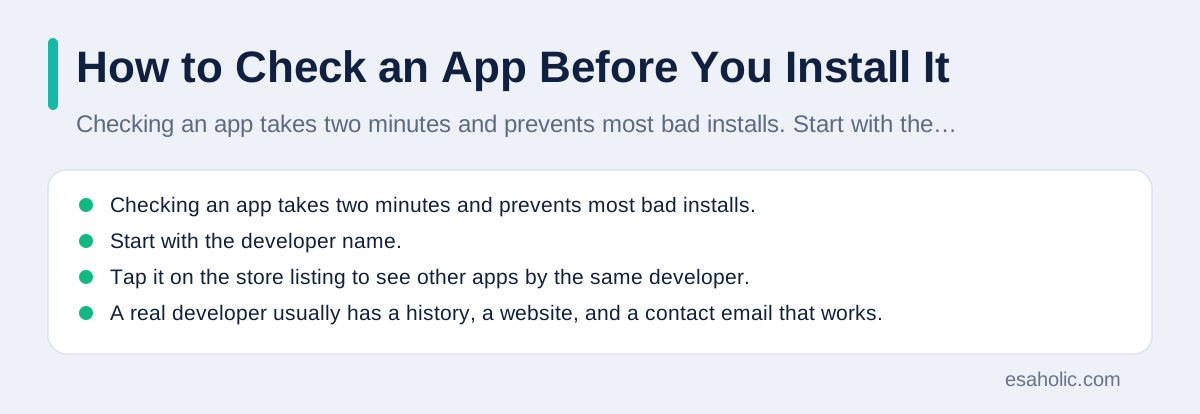
Checking an app takes two minutes and prevents most bad installs. Start with the developer name. Tap it on the store listing to see other apps by the same developer. A real developer usually has a history, a website, and a contact email that works. A developer with one app, no website, and a generic name deserves extra caution, especially if the app asks for sensitive permissions. Next, read recent reviews, not only the star rating. A high rating with many short, similar reviews can be faked, while detailed recent reviews often mention crashes, hidden charges, or permission requests that the listing hides.
Then check permissions before you tap install, and again after you open the app. An app should ask only for access it needs for its job. A note taking app does not need your contacts. A wallpaper app does not need your location. A game does not need to read your messages. Android lets you grant permissions only while using the app, or deny them entirely, and you can change them later in Settings, then Apps, then the app name, then Permissions. Deny first, grant later only if a feature you actually want needs it. That habit alone blocks most data hungry apps, whether or not Google has removed them yet.
Also check the basics: when the app was last updated, how many installs it reports, and whether its description matches its screenshots. An app with no update in years may still work, but it may also miss security fixes for newer Android versions. An app that promises money, prizes, or a famous brand feature for free is a classic warning sign. If a deal looks too good, search the web for the app name plus words such as scam, review, or removed, and see what independent sources say. One bad review proves little, but a pattern of complaints about charges or data should stop the install. Google Play Help Centre explains how to report a problem app, request a refund, and manage permissions, and it is worth bookmarking before you need it. Using search operators can narrow that check to the app name plus words such as scam or removed.
Play Protect, Warnings, and Safe Alternatives
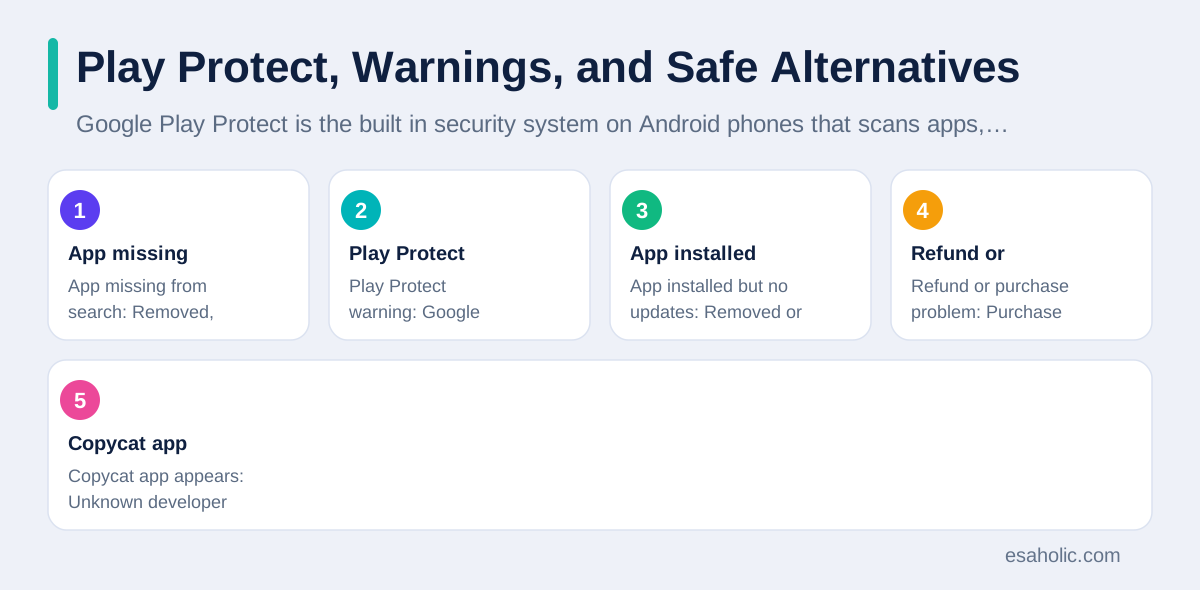
Google Play Protect is the built in security system on Android phones that scans apps, including apps installed from outside the Play Store, for harmful behavior. When Play Protect flags an app, it may warn you, disable the app, or remove it, depending on the risk. Do not dismiss a Play Protect warning without reading it. If the warning says an app is harmful, remove the app, even if you installed it from a website you trusted. If the warning is about an app you need for work, contact your IT team or the developer and ask for a safe version, rather than turning Play Protect off. Turning off a safety system to keep one app is rarely a good trade.
Reporting a bad app helps other users too. On the Play Store listing, or in Play Protect, you can flag an app that misleads users, charges without clear consent, or behaves in a way the listing did not disclose. A report should describe what happened in plain words, with dates and screenshots where possible, because a clear report helps reviewers act faster than a vague complaint. You do not need to prove a policy violation yourself. You only need to show what you saw, and let Google decide whether the app breaks a rule.
Apps installed from outside the Play Store, a practice called sideloading, deserve extra care. Sideloading means installing an app file directly, instead of through the store, and it bypasses store review. Some legitimate apps use sideloading, for example during testing, but sideloaded apps carry higher risk, because no store checked them and updates may not arrive automatically. If you sideload, get the file only from the developer's official site, check that Play Protect stays on, and remove the app if it asks for permissions unrelated to its job. For most users, the Play Store, with its review and its refund path, remains the safer default.
When a favorite app disappears, look for a safe alternative by need, not by name. Write down what the app actually did for you, such as scan documents, track workouts, or edit photos, then search the Play Store for that function from a developer with a clear history and recent updates. Compare permissions before you install, and prefer an app that does the job with fewer permissions. Avoid copies that reuse the removed app's name, icon, or screenshots, because copycat apps often appear after a popular removal, and they carry the same risks that caused the original removal, or worse. A slightly less famous app from a transparent developer beats a perfect copy from an unknown one.
| Situation | What it usually means | Best next step |
|---|---|---|
| App missing from search | Removed, region restricted, or renamed | Check your library, then search by developer name |
| Play Protect warning | Google flagged harmful behavior | Remove the app, do not dismiss the warning |
| App installed but no updates | Removed or abandoned by developer | Find a maintained alternative with fewer permissions |
| Refund or purchase problem | Purchase rules depend on timing and type | Check order history, contact developer, then Play support |
| Copycat app appears | Unknown developer reusing a known name | Do not install it, report it through Play Store |
Conclusion
Google removes apps to protect users from malware, fraud, privacy abuse, and deception, and every removal points back to a policy rule. Users should check their library and payments, review permissions, and choose replacements by function from transparent developers. Developers should read the removal notice, fix the exact problem, test the fix, and appeal with clear evidence. Checking an app before you install it, and keeping Play Protect on, prevents most problems before a removal ever affects you.
Frequently Asked Questions
Why would Google delete an app from the Play Store?
Google deletes an app when it breaks Play policy, for example by spreading malware, misleading users, mishandling personal data, breaking payment rules, or copying another app. Removal protects users, and the developer receives a notice that names the policy problem to fix.
If an app I use disappears, do I lose what I paid for?
Not always. An app that is already installed often keeps working for a time, but you cannot reinstall it from the store after removal, and in app purchases may stop working. Check your Google Play order history and contact the developer or Google Play support about a refund for the specific case.
Can a developer get a removed app back on the Play Store?
Yes, in many cases. The developer must read the removal notice, fix the exact problem named in it, test the fix, and submit an appeal through Play Console. Appeals succeed more often when the fix is complete and the developer shows what changed, rather than arguing that the policy should not apply.
Written by Danish Mustafa
Senior Agentic AI Engineer and Systems Architect
Danish Mustafa is a senior agentic AI engineer at Esaholic who builds AI agents and software systems for real customers. He writes about app safety, system design, and practical controls in plain words.
Reviewed by Ahmad Jajja
Senior AI Research Engineer and Generative AI Specialist
Ahmad Jajja is a senior AI research engineer who specializes in generative AI and data systems. He reviews Esaholic guides for technical accuracy and clarity before publication.
Relevant blogs
How to Turn Off Google AI Explained Honestly
There is no single off switch. Use the Web filter, Gemini settings, and app controls that actually exist.
Ai Governance Business Context Strategic Visibility Guide
How leaders set rules, see risk clearly, and keep AI work honest in plain language.
On-Device AI News: Phones, Privacy, And Local AI
How phones run AI locally, why privacy and speed improve, and what limits remain.
Best AI Coding Assistants Explained Simply
What well known coding assistants do, how to test them on your own code, and the privacy checks most teams skip.
Back to all blog guides · Back to AI News and Regulation guides · Explore Custom Software Development Services