
Search Google or Type a URL: A Simple Guide
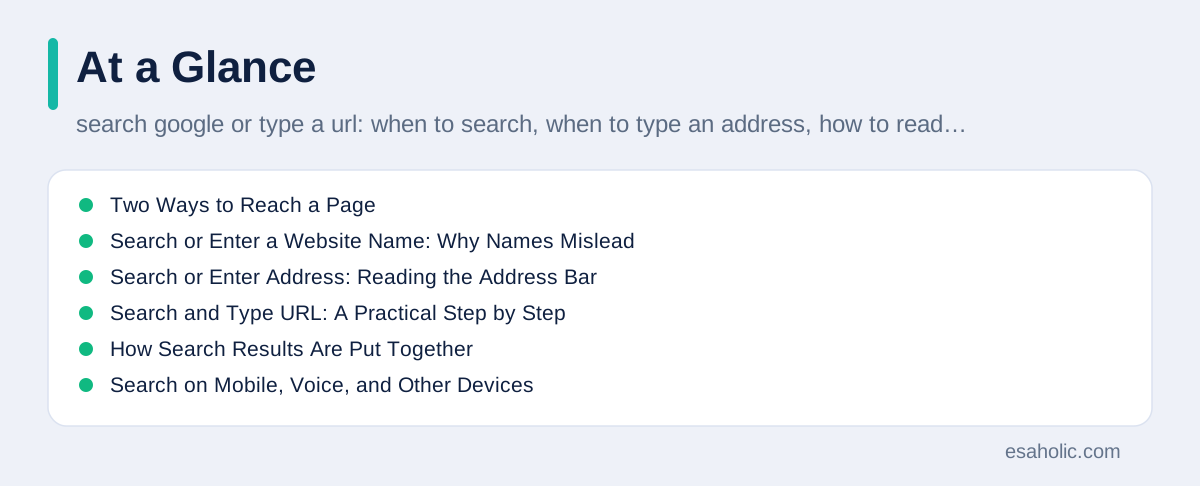
Every time you open a browser, you face a small choice: search Google or type a URL. A URL, which stands for Uniform Resource Locator, is simply the address of a page on the web, such as example.com/news. Searching means asking Google to find pages that match your words. Typing an address means going straight to a page you already know. Both routes can reach the same place, but they suit different situations, and picking the wrong one can waste time or, worse, land you on a fake site that imitates the real one.
The choice matters more than it used to, because modern browsers blur the two actions together. The long bar at the top of your browser is called the address bar, and in browsers like Chrome it also works as a search box. When you type text that looks like an address, the browser goes there directly. When you type anything else, it sends your words to your default search engine, which is the search service your browser uses unless you change it, and shows results. This convenience is helpful, but it hides an important detail: you should know whether you are navigating to a known address or asking a search engine to guess what you mean.
This guide explains both routes in plain language. You will learn when to search and when to type an address, how to read a search results page, how to spot lookalike sites, and how to use the address bar safely on phones and computers. The advice here applies to everyday tasks such as banking, shopping, reading news, and doing homework. It also helps you understand how search engines work, which is useful if you run a website and want people to find it.
Two Ways to Reach a Page
Searching is the right choice when you know what you want but not where it lives. If you want the best way to remove a stain, compare two phone models, or find a plumber near you, a search lets many pages compete to answer you, and you can compare them. A good search starts with a few clear words that describe the thing itself, not the question in full sentences. For example, "fix leaking kitchen tap" works better than "my tap is doing something weird and I do not know what to do," because search engines match words to pages, and extra words dilute the match.
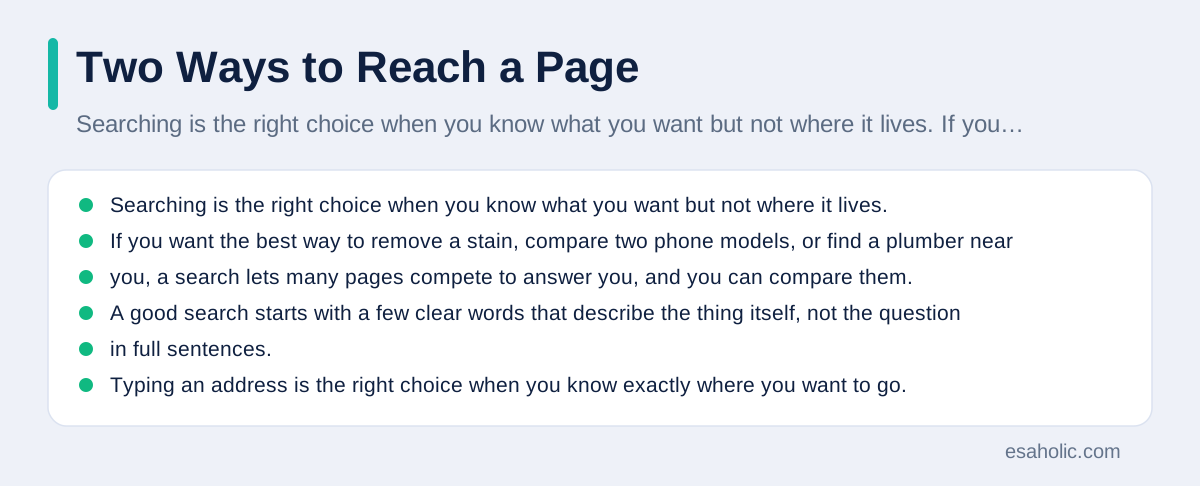
Typing an address is the right choice when you know exactly where you want to go. If you want your bank, your email, or your favorite news site, typing the address or using a bookmark, which is a saved shortcut to a page, is faster and safer than searching. Searching for a bank can show ads or lookalike results above the real site, and one tired click can hand your login details to a stranger. For any task that involves money, passwords, or personal data, go straight to the address you trust, and check it before you sign in.
There is also a middle case: you partly know the site. Perhaps you remember a company name but not its address. In that case, search for the company name, then read the result addresses carefully before you click. The real site usually has a clean, short domain, which is the main part of the address, while imitators add extra words, hyphens, or odd endings. Once you confirm the real site, bookmark it, so next time you can go straight there without searching again. That one habit removes most of the risk from repeat visits.
Search or Enter a Website Name: Why Names Mislead
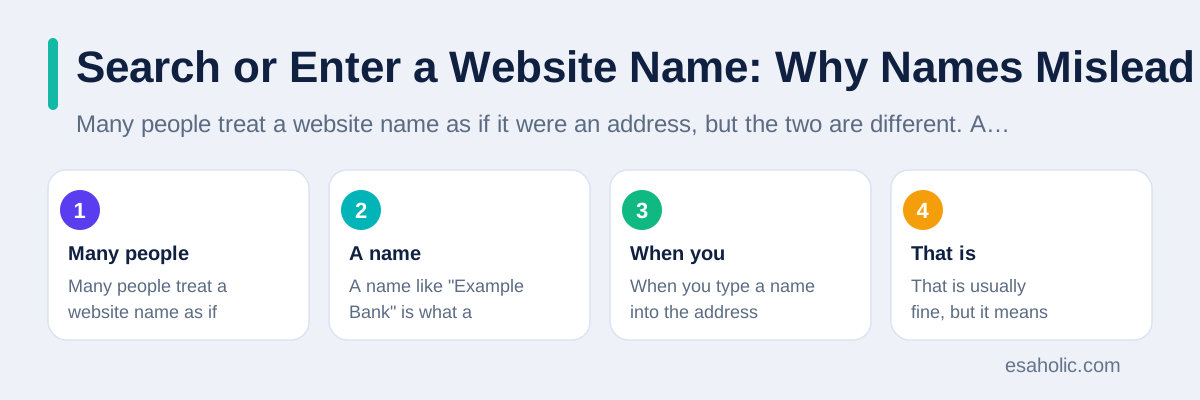
Many people treat a website name as if it were an address, but the two are different. A name like "Example Bank" is what a company calls itself, while its address might be examplebank.com. When you type a name into the address bar, the browser treats it as a search, because a name alone is not an address. That is usually fine, but it means you are trusting the search results to show the real site first, and results can be gamed by advertisers and imitators who buy similar names.
Lookalike domains are the main trap. An imitator might register example-bank.com, examplebank-support.com, or examplebank.net, and design the site to look identical to the real one. A hurried reader sees the familiar name and clicks, then enters a password or card number on a fake page. The defense is simple: read the domain, not the page design. The domain is the part between the protocol, such as https://, and the first single slash after it. If the domain is not exactly the one you expect, leave, even if the page looks perfect, because page design is easy to copy and a domain is not.
Search results add another layer to check. At the top of results you may see ads, which are paid placements marked as sponsored, followed by regular results, which Google calls organic results because nobody paid for that position. Ads are not necessarily bad, but they are not a seal of trust, and scammers do buy ads for fake sites. For sensitive tasks, skip the ads and look for the official result, or better, type the address yourself. Google's own search help pages explain how results and ads are labeled, and reading them once will make every future search easier to judge.
Search or Enter Address: Reading the Address Bar
The address bar tells you where you really are, and learning to read it is the most valuable browser skill you can build. A full address has parts: the protocol, usually https, which means the connection is encrypted, so data sent between you and the site is scrambled; the domain, which identifies the site; and the path, which identifies the page inside the site, such as /news/today. The domain is the part that matters for trust. Everything before the domain in a longer address is decoration, and everything after the first slash is just a page on that domain.
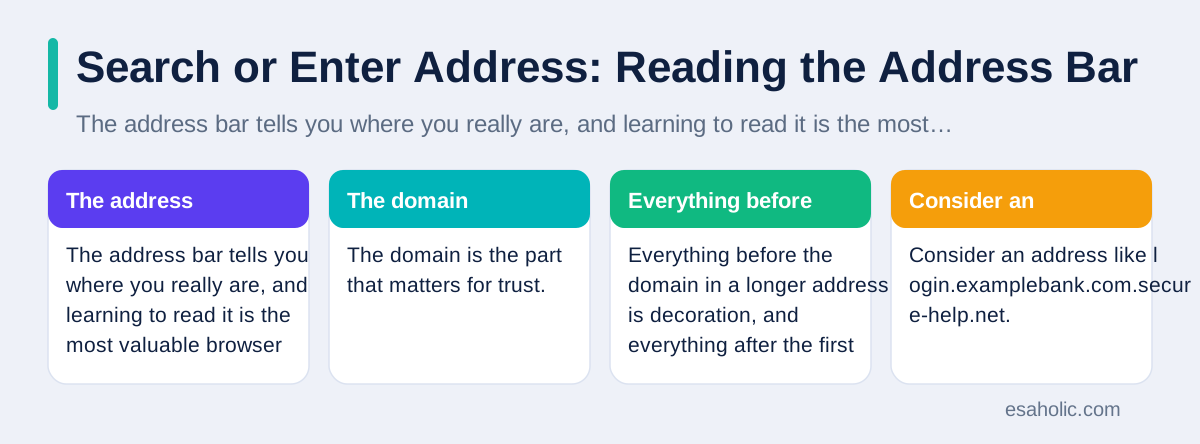
Consider an address like login.examplebank.com.secure-help.net. A quick glance sees "examplebank" and feels safe, but the real domain is secure-help.net, because the domain is the last two parts before the first slash, ignoring the page path. The words examplebank and login are subdomains, which are labels a site owner can put in front of any domain they control. Scammers exploit exactly this confusion. When in doubt, read the address from right to left up to the first slash, and ask whether that domain is the one you trust.
The lock icon beside an address means the connection is encrypted, but it does not mean the site is honest. Anyone can get a lock icon for any domain, including a fake one, because encryption only protects data in transit, it does not verify the owner's identity. Treat the lock as a minimum requirement, not as proof. A real bank site should have both the lock and the exact domain you expect. If either is missing, stop. Chrome's address bar help shows how the bar displays security status, and it is worth a quick read if you have never checked these icons before.
Search and Type URL: A Practical Step by Step
When you search, start with the core words, then refine. Suppose you want to learn how to prune roses. Start with "prune roses guide" and scan the titles and addresses of the first few results. If the results are too broad, add a word, such as "prune roses spring," or use quotes around an exact phrase, such as "prune climbing roses," to require those words together. Quotes are one of the search operators that narrow results to an exact phrase, a site, or a file type. If results are too narrow, remove a word. Each search is a conversation: the first result set teaches you better words, and the second search uses them.
When you type an address, type it fully and slowly, then check it before you press enter. A single swapped letter can send you to a different site, because scammers register common misspellings of popular sites, a trick called typosquatting, which means owning typo versions of famous domains to catch mistakes. If you mistype and land somewhere unexpected, do not sign in or download anything. Go back, retype carefully, or use your bookmark. For sites you visit often, bookmarks are the safest route of all, because they remove typing errors entirely.
On a phone, the same rules apply, but the address bar is smaller and often hides part of the address. Tap the bar to see the full address before you enter sensitive details, and be extra careful with links inside messages and social apps, which can hide the destination. A link in a text message that claims to be from your bank deserves the same suspicion as a stranger's directions: open your bank app or type the address yourself instead. That habit alone blocks most phishing, which means fake messages designed to steal passwords or money.
How Search Results Are Put Together
A search results page mixes several kinds of content, and knowing the kinds helps you judge them. Paid ads appear at the top or bottom and are labeled. Organic results are pages Google's systems judged relevant, based on factors such as words on the page, links from other sites, and how well the page matches the search. Featured snippets, which are short answers pulled from a page and shown above the results, can save time, but they can also oversimplify, so open the source page for anything important. Knowledge panels, which are boxes of facts about a person, place, or company, come from public sources and are useful for quick facts, not for decisions.
Ranking is not a vote on truth. A page can rank well because it is popular, well written, or well linked, even when its advice is outdated or wrong for your situation. Check the date on pages about fast changing topics, compare two or three independent sources, and prefer official sources for facts that matter, such as government pages for laws and company pages for their own products. If two sources disagree, the one that shows its evidence, names its author, and explains its limits is usually the safer bet. The same check applies to pictures, and image search techniques explains how to reverse search a photo before you trust it. This habit matters for website owners too: our guide on making content easy for AI answers to cite explains why clear, factual pages earn trust from both readers and machines. For owners, website development that keeps headings, titles, and addresses clean makes pages easier to find in the first place.
Personalization also shapes results. Google may use your location, language, and past activity to tailor results, which is helpful for local services but can hide other views on debated topics. If you want a neutral set of results, you can sign out, use a private window, or add neutral words to your search. For research that matters, such as health or money decisions, run the same search twice with different wording and compare. Different wording surfaces different pages, and the overlap between them is often where the most reliable answers sit.
Search on Mobile, Voice, and Other Devices
Voice search changes how you phrase searches. When you speak, you naturally use full questions, such as "What is the weather tomorrow in Chicago?" Voice assistants handle that well, because they are built to parse questions. But the same safety rules apply to the answers: a spoken answer gives you no address bar to check, so for anything sensitive, open the result on screen and verify the site before you act. Never speak passwords, card numbers, or personal details into a voice search, because a search is not a secure form.
On mobile, the address bar often sits at the bottom or top depending on your browser, and it may shrink as you scroll. Tap it to reveal the full address, and use the share or bookmark controls to save sites you trust. Mobile browsers also let you search from the home screen widget, which is convenient but skips the address bar entirely, so results deserve the same careful reading as on a computer. If a mobile result asks you to install an app or grant permissions before showing content, treat that as a warning sign and look for the same information elsewhere.
Other devices add their own twists. Smart TVs, voice speakers, and car systems often show shortened results with no visible address at all. Use them for quick facts, music, and directions, and move anything involving accounts or payments to your phone or computer, where you can verify the site. A good rule is simple: the more sensitive the task, the bigger the screen and the clearer the address bar should be. Convenience is wonderful for finding a recipe, but it is a poor reason to enter a password blind.
Mistakes to Avoid and Habits That Protect You
The most common mistake is clicking the first result without reading its address. Speed feels efficient, but one wrong click on a fake login page can cost far more than the seconds saved. Build a pause into sensitive tasks: read the domain, check the lock, and confirm the page is the one you meant. The second mistake is trusting a link copied from a message, email, or social post. Links can display one address while leading to another, so for banks, email, and shopping, type the address or use a bookmark instead of following the link.
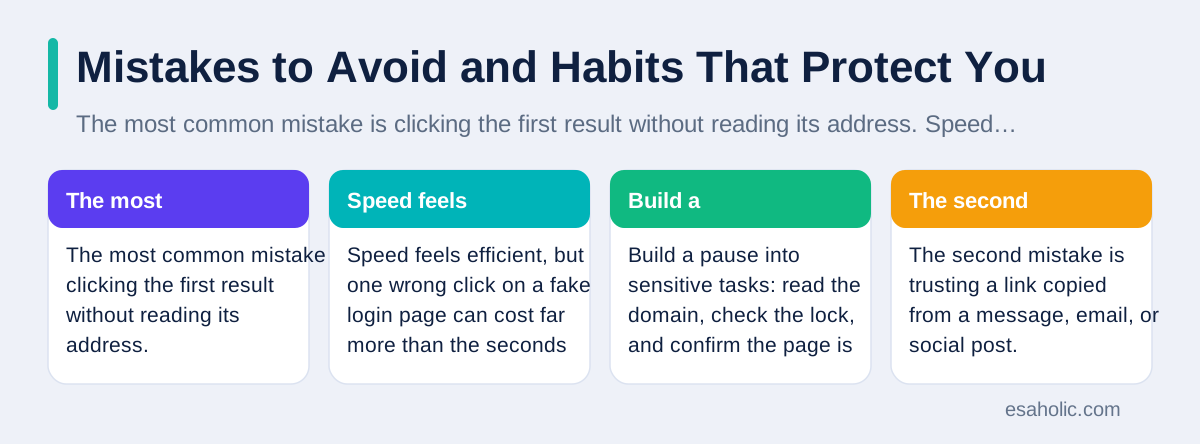
The third mistake is reusing the same password across sites, which turns one fake site into a key for many real accounts. Use a password manager, which is a tool that creates and stores unique passwords for each site, so a password stolen from one place cannot open others. The fourth mistake is ignoring browser warnings. When a browser says a site's certificate, which is the document that proves a site's identity for encryption, is invalid, or that a site may be deceptive, believe it and leave. Warnings are rare for real sites, and overriding them is almost never worth it.
Good habits compound. Bookmark the sites you use for money and email. Keep your browser updated, because updates patch security holes that scammers exploit. Check the address bar before you sign in, every time, until it becomes automatic. Teach the same habits to family members who are less confident online, especially older relatives, who are often targeted by fake support and banking sites. A two minute conversation about reading domains can prevent a loss that takes months to undo. For a deeper look at how search engines read pages, our guide on how AI visual search works shows what happens behind a results page.
Staying Safe While You Search
Safety starts before you search, with a browser you keep updated and a default search engine you trust. Chrome, which you can get from the official Chrome download page, and other major browsers all show security icons and warnings, but only if you keep them current. Turn on automatic updates, and do not install extensions, which are small add on programs for a browser, from unknown sources, because a malicious extension can read pages you visit and change results. Review your extensions once in a while and remove any you no longer recognize.
When a result looks suspicious, report it instead of just leaving. Google provides reporting options on search results and in its help pages, and reports help protect the next person who searches the same words. If you already entered details on a fake site, act fast: change the password from the real site, turn on two factor authentication, which means a second check, such as a code from your phone, in addition to your password, and contact your bank if payment details were involved. Speed matters, because stolen details are often used within hours.
Finally, remember that searching is a skill that improves with practice. Try different wordings, compare sources, and notice which pages consistently give clear, sourced answers. Over time you will build a mental list of trusted sites for news, health, money, and learning, and you will reach them by address or bookmark instead of by search. That is the ideal end state: search to discover, then navigate directly to what you trust. The address bar and the search box are partners, not rivals, and knowing which one to use, and when, is what turns a browser from a maze into a tool.
Conclusion
Search Google or type a URL is a choice you make dozens of times a day, and the right answer depends on what you know. Search when you know what you want but not where it lives, using clear words and refining as results teach you better terms. Type an address, or use a bookmark, when you know exactly where you want to go, especially for banks, email, and shopping, where a lookalike result can steal your details. Read the domain before you trust a page, treat the lock icon as a minimum rather than proof, and never follow links from messages for sensitive tasks. With those habits, the address bar and the search box stop competing and start working together: one to discover, one to return safely.
Frequently Asked Questions
Should I search Google or type a URL?
Search when you know what you want but not where it lives, and type a URL when you know the exact address of the site you trust. Typing the address is safer for banks, email, and shopping, because search results can include lookalike sites, while searching is better for questions, comparisons, and new topics.
What is the difference between a search box and an address bar?
An address bar takes you to a specific address you type, while a search box on a search engine page asks the engine to find matching pages. In most modern browsers the same bar does both jobs: text that looks like an address goes straight to that site, and anything else becomes a search.
How can I tell a real result from a fake site?
Read the domain, which is the main part of the address, such as example.com, and ignore extra words around it. Check for the lock icon, beware of misspellings and extra hyphens, and for sensitive tasks type the address yourself or use a bookmark instead of clicking a result.
Written by Syed Zulqurnain
Technical Search Architect and Digital Marketing Director
Syed Zulqurnain is a technical search architect at Esaholic who explains how search engines crawl, index, and rank large websites.
Reviewed by Ahmad Haseeb Cheema
International SEO Consultant and Technical Auditor
Ahmad Haseeb Cheema is an international SEO consultant at Esaholic who audits page structure, canonical tags, and link value.
Relevant blogs
Ahrefs: A Simple Guide to the SEO Toolkit
What Ahrefs does, how its research tools work, and how to use them without drowning in data.
Semrush: A Simple Guide to the SEO Toolkit
What Semrush does, how its research tools work, and how to use them for search growth.
Image Search Techniques: A Simple Guide
How to search with pictures, use reverse image search, and verify images before you trust them.
How Does AI Visual Search Work? A Simple Guide
How visual search engines read a photo, match it to results, and handle your data.