
Insert Key on Surface Pro: Where It Is and How to Use It

You are editing a document on your Surface Pro, you type a word in the middle of a sentence, and instead of pushing the rest of the sentence forward, your new letters start eating the old letters, one by one. Something has switched your typing into overwrite mode, and you need the Insert key to switch it back, but you look down at the keyboard and you cannot find a key labelled Insert anywhere. That confusing moment is common on Surface Pro devices, because compact keyboards save space by leaving some keys off, sharing keys, or moving them to a second function. This guide explains, in general terms, where to look for the Insert key on a Surface Pro keyboard, how insert and overwrite modes work, and what to do when your keyboard has no Insert key at all.
The Insert key, often labelled Ins on keyboards that have it, is a toggle key, which means each press switches a setting on or off, rather than typing a character. In most text apps, Insert toggles between two typing modes. Insert mode is the normal mode: new letters push existing letters forward, so you can add words in the middle of a sentence without losing anything. Overwrite mode is the other mode: new letters replace the letters that sit under the cursor, so typing over a sentence deletes it as you go. Most people want insert mode almost all the time, and overwrite mode is useful only in narrow cases, such as editing fixed width forms, which are documents where each character must sit in an exact column. If your typing suddenly starts replacing text, you are almost certainly in overwrite mode, and one toggle back to insert mode fixes it.
Surface Pro keyboards vary, because the device is sold with different keyboards over different years, and because people also use external keyboards, Bluetooth keyboards, and the on screen keyboard with a Surface Pro. This guide therefore avoids claiming that one exact key position holds for every model, and instead gives you a reliable search order: check the physical keyboard, check shared keys and second functions, check the on screen keyboard, and check the app setting. Work through that order once, note what works on your own keyboard, and you will never need to hunt for Insert again. If you also use undo and redo shortcuts often while editing, our guide on the redo shortcut for Windows and Mac pairs well with this guide, because undo can rescue text that overwrite mode already replaced.
Insert Mode and Overwrite Mode, in Plain Terms
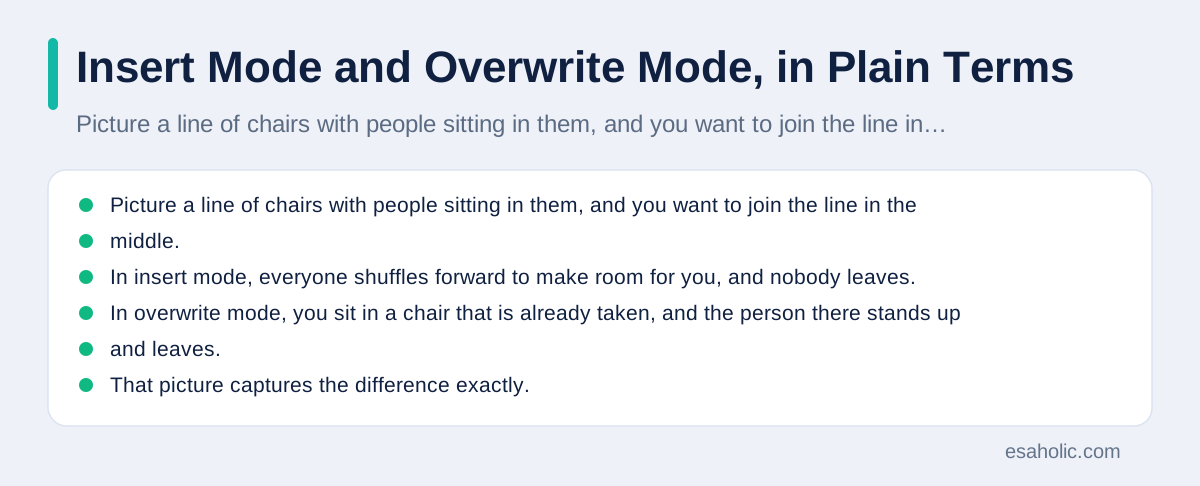
Picture a line of chairs with people sitting in them, and you want to join the line in the middle. In insert mode, everyone shuffles forward to make room for you, and nobody leaves. In overwrite mode, you sit in a chair that is already taken, and the person there stands up and leaves. That picture captures the difference exactly. In insert mode, the cursor, which is the blinking line that shows where typing will go, pushes text forward. In overwrite mode, the cursor replaces text, character by character, as you type. The danger of overwrite mode is not that it is broken, but that it deletes silently: there is no warning, no confirmation, and the replaced letters are gone unless you undo at once.
It helps to know that overwrite mode is an app level setting in many apps, not a device wide setting that changes the whole Surface Pro at once. That means toggling Insert in Word changes typing in Word, but it may not change typing in another app, and closing and reopening an app may reset the mode to insert, depending on the app. That app by app behavior explains why overwrite mode can feel random: you may have pressed Insert by accident in one app, switched to another app, and found normal typing there, then returned to the first app and found overwrite still on. When you fix overwrite mode, fix it in the app where the problem is happening, and test in that same app, not in a different one.
Where to Look for Insert on a Surface Pro Keyboard
Start by looking at your own keyboard, in good light, because the label you want is short and easy to miss. On a full size keyboard, the Insert key is usually labelled Ins, and it often sits in a group of editing keys above the arrow keys, near Delete, Home, and End, or in the top right area of the keyboard. On a compact keyboard, such as many detachable keyboards made for tablets, that editing group is often missing or compressed, because the keyboard is smaller and the maker must choose which keys to keep. In that case, Insert may be shared with another key, so one key carries two labels, with Ins as the smaller, second label, and you reach it by holding a function key, often labelled Fn, and pressing that shared key. The Fn key is a modifier key that switches shared keys to their second function, much like Shift switches letters to capitals.
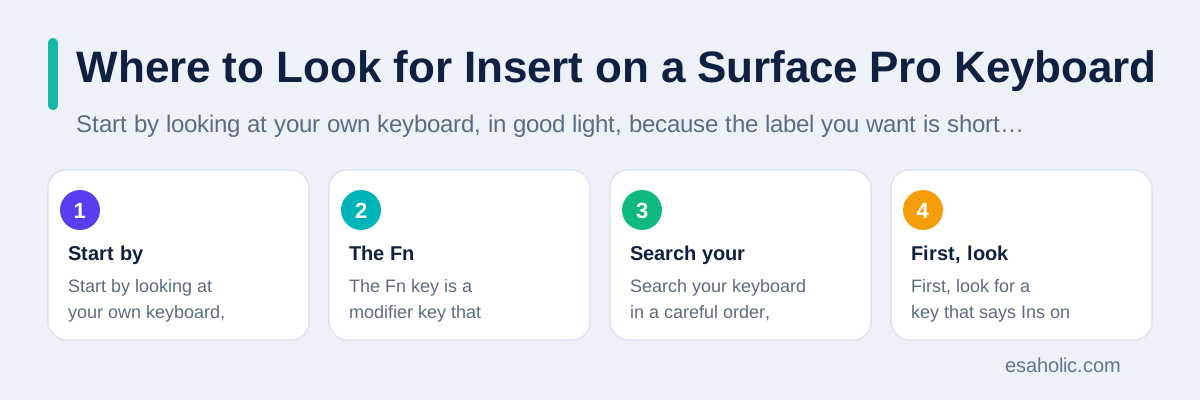
Search your keyboard in a careful order, rather than scanning it at random. First, look for a key that says Ins on its own. Second, look for a key with Ins as a second, smaller label, especially near Delete, the arrow keys, or the top row of function keys. Third, check whether a function lock, often called Fn Lock, changes how those shared keys behave, because on some keyboards Fn Lock reverses which function is the main one. If you find an Ins label, test it in a test document: click into the middle of a sentence, press the key once, type a few letters, and watch whether old letters move forward or disappear. If nothing changes, try the same key with Fn held down, and test again. One of those two tries usually toggles the mode, if the keyboard has an Insert function at all.
If you use an external keyboard with your Surface Pro, such as a USB keyboard, a Bluetooth keyboard, or a full size desktop keyboard, check that keyboard separately, because its layout may differ completely from the detachable keyboard. A full size external keyboard almost always has a dedicated Ins key, and it is often the simplest fix for heavy editing work: connect the external keyboard when you need to edit long documents, and use it for Insert, Delete, Home, and End, which are the editing keys compact keyboards often compress. Keep the external keyboard's manual or a photo of its layout handy the first week, so you do not need to hunt for keys during real work. Our guide on how tab width works in editors covers another small keyboard habit that makes long editing sessions smoother.
When Your Keyboard Has No Insert Key at All
Many compact Surface Pro keyboards have no Insert key, in any form, and that is normal, not a fault in your device. Keyboard makers leave Insert off compact layouts because most users never need overwrite mode, and because space is precious on a small keyboard. If you have searched carefully, checked shared labels, and tried the Fn combination, and still cannot find Ins, stop hunting and use one of the reliable alternatives in this section. The goal is to toggle the mode, not to find a physical key at any cost, and the alternatives below do the same job without a dedicated key.
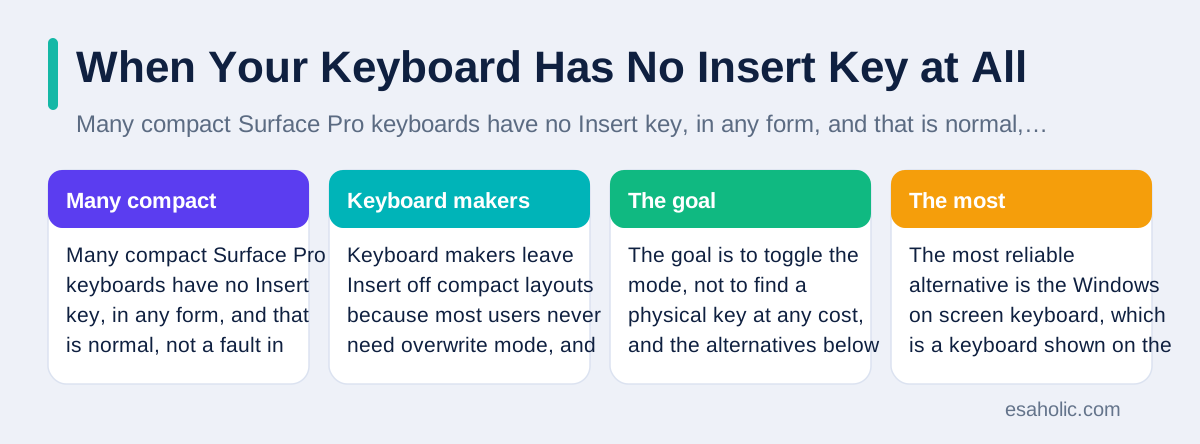
The most reliable alternative is the Windows on screen keyboard, which is a keyboard shown on the screen that you can tap with a finger, pen, or mouse. Open it through Windows settings or search, and look for the Ins key in its layout. The on screen keyboard layout can vary with settings, so if the first layout you see has no Ins key, look for an option to show a fuller layout, and check again. When you find Ins on the screen keyboard, tap it once, then return to your document and test typing in the middle of a sentence. That tap toggles the mode in the same way a physical key press would, and it works even when your physical keyboard has no Insert key at all. Close the on screen keyboard when you are done, so it does not cover your document.
A second alternative is the app setting itself, which is often the cleanest fix in Word and similar apps. In Word, overwrite mode can be controlled through the editing options, where you can turn the overwrite setting off, or turn off the option that lets Insert toggle overwrite at all, so an accidental Insert press can never switch you into overwrite again. That second option is worth turning on if you never want overwrite mode: it removes the problem at its root, rather than fixing it each time it happens. In other apps, look in settings or options for words such as overwrite, insert mode, or typing mode, and set the mode to insert. If an app has no such setting, use the on screen keyboard method, or simply undo any overwritten text at once with Ctrl plus Z, and retype it in insert mode.
Toggle Insert and Overwrite Step by Step
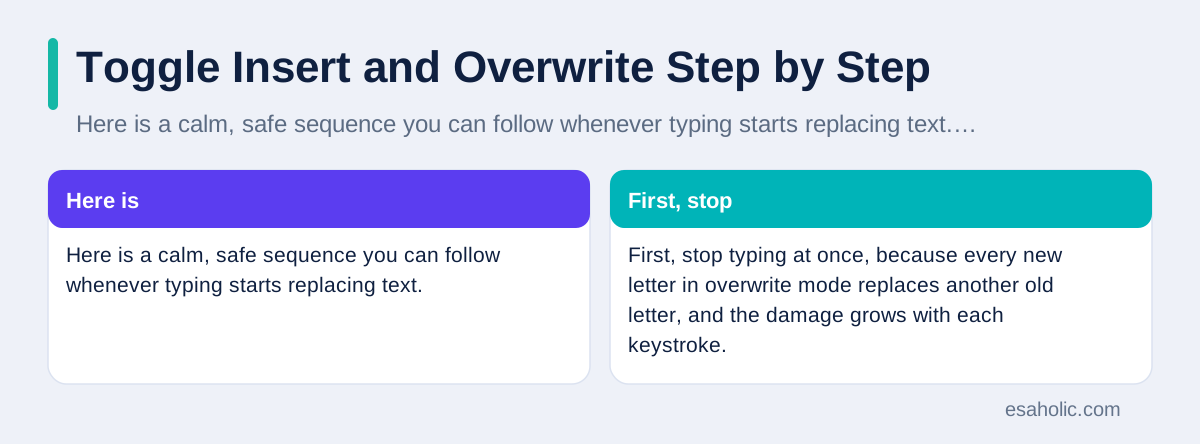
Here is a calm, safe sequence you can follow whenever typing starts replacing text. First, stop typing at once, because every new letter in overwrite mode replaces another old letter, and the damage grows with each keystroke. Second, press Ctrl plus Z once, and watch the screen, to undo the most recent replacement, and repeat slowly, one press at a time, only until the replaced text returns. Third, toggle the mode, using the physical Insert key if you found one, the on screen keyboard Insert key if you did not, or the app setting described above. Fourth, test in a safe spot: click into the middle of a sentence, type a test word, and confirm that old letters move forward. Only then should you continue editing the real sentence, because a test takes seconds and prevents a second round of replacements.
If toggling once does not change the mode, toggle again, slowly, and test after each toggle, because a toggle key needs two presses to return to the starting mode, and it is easy to lose track of how many times you pressed it. If the mode still does not change, check that the document window has focus, which means the document is the active window your typing goes to, and not a sidebar, a search box, or another app. Click directly into the document text, make sure the cursor blinks there, and try the toggle again. If you are using a detachable keyboard, detach and reattach it firmly, because a loose magnetic connection can make keys behave oddly, and test again after reattaching. Those checks sound basic, but they solve a surprising share of keyboard complaints, because a key press that goes to the wrong window looks exactly like a broken key.
For long documents, add one more safety habit: save before you edit a long passage, using Ctrl plus S, so a mistake costs a few seconds, not an afternoon. If overwrite mode replaced a large section before you noticed, undo slowly, save a copy under a new name first, and then repair the section, rather than continuing to edit a damaged document. Version history in cloud documents can also help, because it lets you copy the lost section from an earlier saved version and paste it back, without restoring the whole document. The habit that ties all of this together is the same as in our guide on redo shortcuts: press once, look at the screen, and only then decide the next step, because blind, fast key presses are how small mode changes become large losses.
Insert in Word, Browsers, and Other Apps
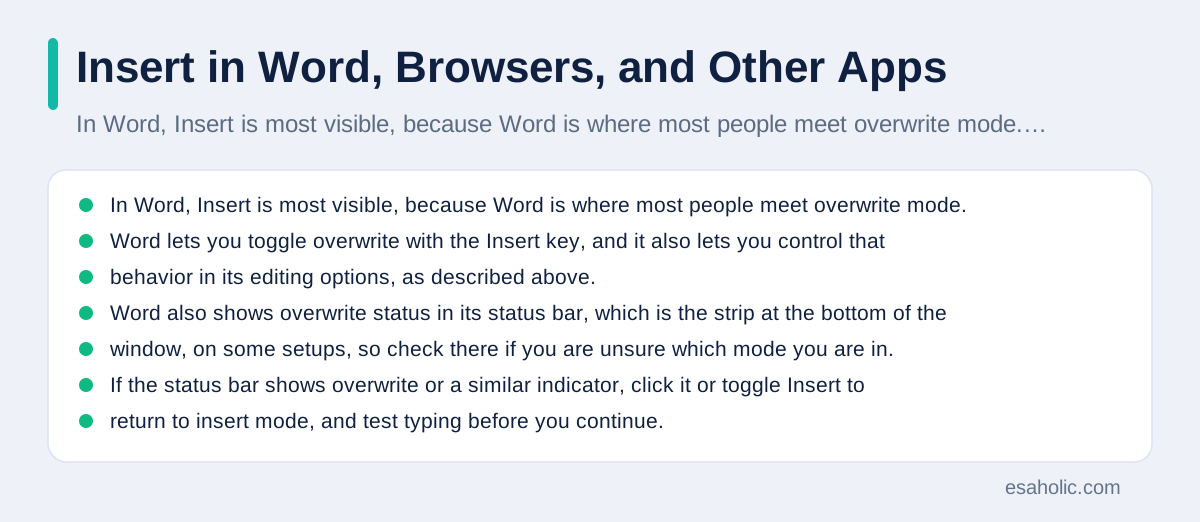
In Word, Insert is most visible, because Word is where most people meet overwrite mode. Word lets you toggle overwrite with the Insert key, and it also lets you control that behavior in its editing options, as described above. If you work in Word often and never want overwrite, turning off the Insert toggle in Word options is the single best change you can make, because it stops accidental toggles for good, while still letting you edit normally. Word also shows overwrite status in its status bar, which is the strip at the bottom of the window, on some setups, so check there if you are unsure which mode you are in. If the status bar shows overwrite or a similar indicator, click it or toggle Insert to return to insert mode, and test typing before you continue.
In browsers, Insert behaves differently, because a browser text field, such as an email draft or a comment box, may or may not honor the Insert key, depending on the site and the browser. Some sites handle keys in their own way, and some ignore Insert entirely, so a toggle that works in Word may do nothing in a web form. If typing replaces text in a browser field, try the on screen keyboard Insert key, try the same text in a desktop app instead, and always copy important web text before you edit it heavily, so a replacement mistake does not lose a long draft. In code editors, Insert often toggles overwrite too, but many editors also show a clear mode indicator, and many coders turn overwrite off entirely, because replacing code by accident is especially costly. Check the editor settings for an overwrite or insert mode option if you code on a Surface Pro.
In notes apps, email apps, and spreadsheets, the same general rule holds: Insert toggles overwrite where the app supports it, and the app setting is the backup when the key is missing. In a spreadsheet, overwrite mode can be confusing, because typing in a cell already replaces the cell content, and Insert does not change that cell behavior in the same way it changes text editing. If a spreadsheet behaves oddly, check whether you are editing inside a cell or in the formula bar, which is the strip that shows a cell's full content, because the editing context matters more than the Insert key there. When in doubt, test in a plain text document first, confirm which mode you are in, and then return to the app where the problem happened, with a clear idea of what to toggle.
Fix a Keyboard That Misses Keys or Types Oddly
Sometimes the problem is not Insert at all, but a keyboard that misses keys, repeats keys, or types the wrong character. Start with the physical checks: detach the keyboard, check the magnetic edge and the connector for dust or damage, reattach it firmly until it sits flat, and test in a plain text app. Update Windows and check for keyboard driver updates through Microsoft's official Surface support update process, because driver updates fix known keyboard problems, and do not download a driver from a random site, which may install harmful software. If the keyboard works in one app but not another, the problem is likely an app setting, not the hardware, and the app checks in this guide are the right path.
If only some keys fail, test whether the problem follows the keyboard or the device. Connect a different keyboard, such as a USB keyboard, and test the same keys. If the new keyboard works, the original keyboard or its connection is the likely cause, and official support can advise on repair or replacement, based on your model and warranty, which is the maker's repair promise. If the new keyboard shows the same problem, the cause is more likely a Windows setting, a language layout change, or an app setting, and checking the keyboard language in Windows settings is a good next step. A layout change can move symbols and make a familiar key type a different character, which feels like a broken keyboard but is actually a setting.
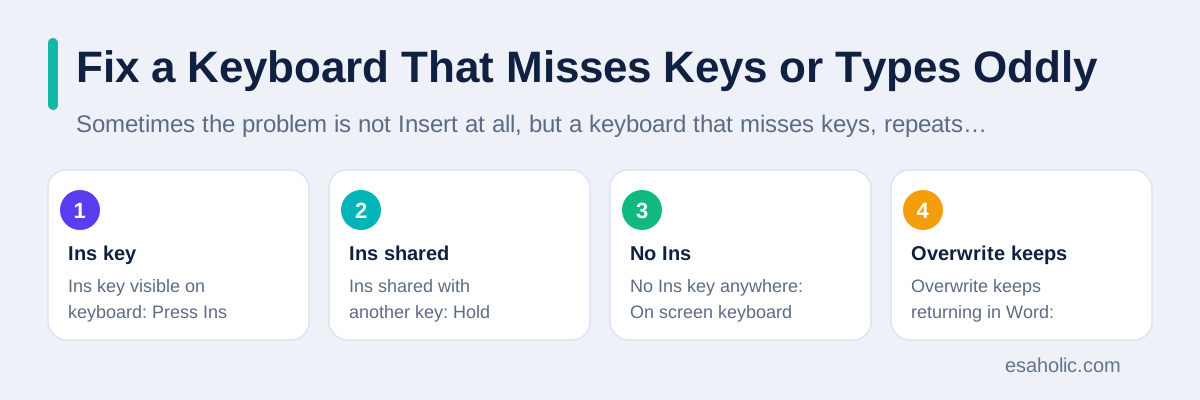
| Your situation | Best next step | Why it works |
|---|---|---|
| Ins key visible on keyboard | Press Ins once, test typing | Direct toggle, fastest fix |
| Ins shared with another key | Hold Fn, press shared key, test | Fn reaches the second function |
| No Ins key anywhere | On screen keyboard Ins, or app setting | Same toggle, no physical key needed |
| Overwrite keeps returning in Word | Turn off Insert toggle in Word options | Removes accidental toggles for good |
Work Comfortably Without Overwrite Worries
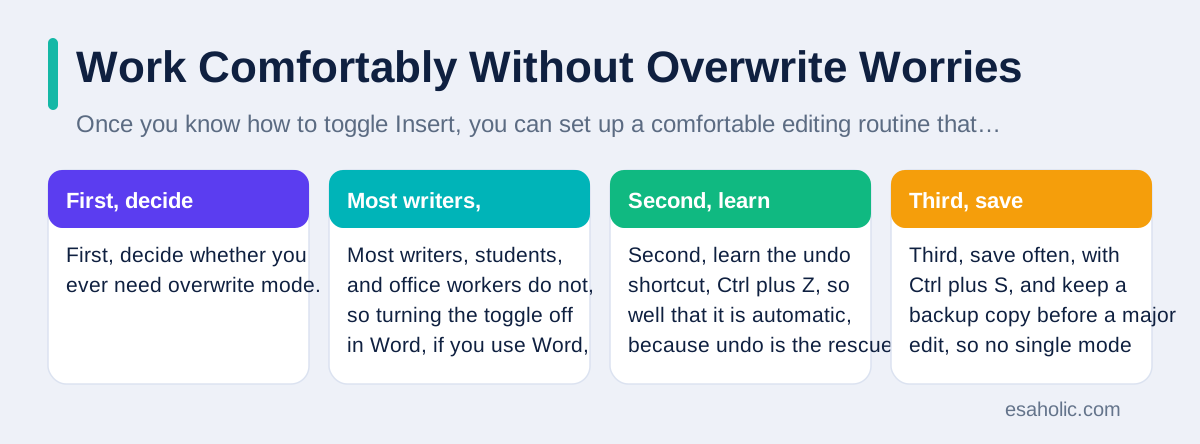
Once you know how to toggle Insert, you can set up a comfortable editing routine that makes overwrite worries rare, and support and maintenance help is available if keyboard problems persist. First, decide whether you ever need overwrite mode. Most writers, students, and office workers do not, so turning the toggle off in Word, if you use Word, is a sensible default. Second, learn the undo shortcut, Ctrl plus Z, so well that it is automatic, because undo is the rescue for any replacement that happens before you notice the mode. Third, save often, with Ctrl plus S, and keep a backup copy before a major edit, so no single mode mistake can cost a whole document. Those three habits, one setting, one shortcut, and one save habit, together remove almost all overwrite risk. That slow, look-before-you-press rhythm is also the core of how to focus, which plans editing work so a single mistake does not derail a session.
Finally, remember that not knowing where Insert is does not mean you are bad with technology. Compact keyboards hide or omit keys by design, apps handle Insert differently, and overwrite mode itself is an old feature from a time when fixed width editing was far more common. The skill that matters is not memorizing one key position for one model, but knowing the search order in this guide: look for Ins, try Fn, try the on screen keyboard, check the app setting, and test after each step. That search order works on a Surface Pro, on a laptop with a compact keyboard, and on a desktop with an unfamiliar layout, and it turns a frustrating mystery into a two minute check.
Conclusion
Insert key on Surface Pro devices is a search, not a single fixed position, because keyboards vary and compact layouts often omit Insert or share it with another key. Look for a key labelled Ins, try it with Fn if it is a shared key, and if no Insert key exists, use the on screen keyboard Insert key or the overwrite setting in the app you are using, such as Word. Remember that insert mode pushes text forward while overwrite mode replaces it, so test typing in the middle of a sentence after each toggle, and stop typing at once if replacements start, so undo can rescue the text. Turn the Insert toggle off in Word if you never want overwrite mode, save often, and keep undo ready. With that search order and those habits, a missing Insert key stops being a mystery and becomes a quick, calm fix.
Frequently Asked Questions
Where is the Insert key on a Surface Pro keyboard?
Look for a key labelled Ins, usually near the top right of a full size keyboard, or shared with another key on a compact keyboard. Many compact Surface Pro keyboards have no separate Insert key at all, so if you cannot find Ins on your keyboard, that is normal, and the on screen keyboard or the app setting in this guide is the safer way to toggle insert and overwrite.
How do I turn off overwrite mode on a Surface Pro?
Press the Insert key once if your keyboard has one, or use the on screen keyboard Insert key, or change the overwrite setting in the app you are using, such as Word. After you toggle it, type a test word in the middle of a sentence: if new letters push old letters forward, you are back in insert mode.
What is the difference between insert mode and overwrite mode?
In insert mode, new letters push existing letters forward, so nothing is lost. In overwrite mode, new letters replace the letters under the cursor, one by one, so old text disappears as you type. Most people want insert mode for normal writing, and overwrite mode is useful only for careful, fixed width editing.
Written by Umar Abbas
Founder, Principal AI Architect and Operator
Umar Abbas is the founder of Esaholic and a principal AI architect who designs reliable large scale AI systems for regulated industries.
Reviewed by Amir Iqbal
Senior AI Systems Architect and Lead Technical Reviewer
Amir Iqbal is a senior AI systems architect at Esaholic who designs resilient systems and reviews guides for practical, testable detail.
Relevant blogs
Redo Shortcut: Windows, Mac, and App Guide
Restore an undone step safely on Windows, Mac, and common apps.
Not Enough Memory to Open This Page: Fixes
Safe browser and phone steps when a page will not open for lack of memory.
How Many Spaces Is a Tab? A Practical Editor Guide
The short answer is eight columns historically and four in most modern editors, plus how to set tab width.
Lun As a Storage Term: What a LUN Really Is
A plain language explainer of logical unit numbers in storage.