
How Many Spaces Is a Tab? A Practical Editor Guide
Press the Tab key in a code editor and the cursor jumps forward, but how far it jumps is not fixed. The answer depends on whether you mean the tab character itself, which is a single control character stored in the file, or the spaces you see on screen. The tab character does not store a number of spaces at all. It stores an instruction: move to the next tab stop, which is a column position where the cursor is allowed to land. How far apart those stops sit is a display setting, and different tools choose different spacings. That single distinction explains nearly every argument about tabs, and it explains why the same file can look tidy in one editor and messy in another.
The short answer, for most readers, is this: historically, tab stops sit every eight columns, so a tab displays as eight spaces in terminals and in many plain text tools. In most modern code editors, a tab displays as four spaces, because four keeps code readable without pushing deeply nested lines off the right edge of the screen. Some languages and teams use two spaces instead, and some editors let each reader choose their own width, which is one of the real advantages of tabs. If you only need one number for a test or a quick setting, use four, because that is the width most modern editors show by default. If you need to understand why files sometimes break, read on, because the difference between a tab character and a space character is where the trouble starts.
This guide covers the mechanics first, then the practical choices: tabs versus spaces, how editors and terminals display tabs, how to set the width in common editors, where the choice actually changes program behavior, and how teams keep a whole project consistent. It stays focused on what you will meet in real files, not on trivia, because the goal is a file that looks right everywhere and behaves the same for every teammate. For editor specific detail, VS Code's guide to indentation explains its tab size and detection settings clearly, and the EditorConfig site explains the shared settings file that teams use to agree on these choices across editors.
Tab Stops: Why Eight Is the Historic Default
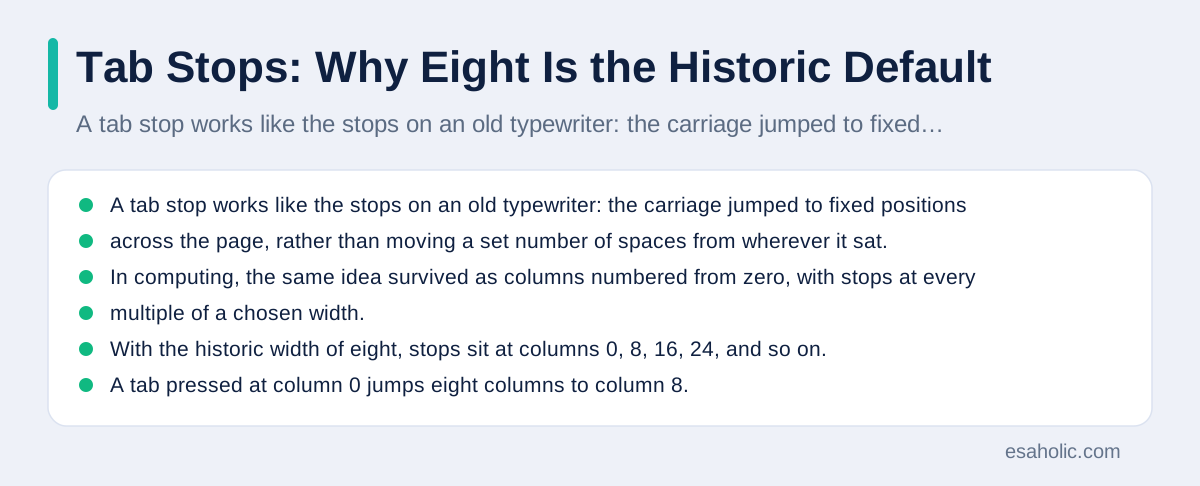
A tab stop works like the stops on an old typewriter: the carriage jumped to fixed positions across the page, rather than moving a set number of spaces from wherever it sat. In computing, the same idea survived as columns numbered from zero, with stops at every multiple of a chosen width. With the historic width of eight, stops sit at columns 0, 8, 16, 24, and so on. A tab pressed at column 0 jumps eight columns to column 8. A tab pressed at column 5 jumps only three columns, to column 8, because the next stop is what matters, not a fixed jump length. That is why a tab is not "eight spaces" in the strict sense, even though people say so as shorthand. It is a jump to the next multiple of eight.
Eight became the default because early terminals, which are text based screens for running programs, and early text tools adopted it, and later tools kept it for compatibility, which means the ability to work with older files and habits without breaking them. A plain text viewer, a terminal pager, and many command line tools still use eight today, which is why a file that looks fine in an editor set to four can look strangely wide when you print it, view it in a terminal, or paste it into a plain text window. When you see that wide look, the file has not changed. The viewer has simply used a different stop width. Knowing that saves a lot of confusion, because the fix is a display setting in the viewer, not a rewrite of the file.
Why Four Became the Modern Editor Default
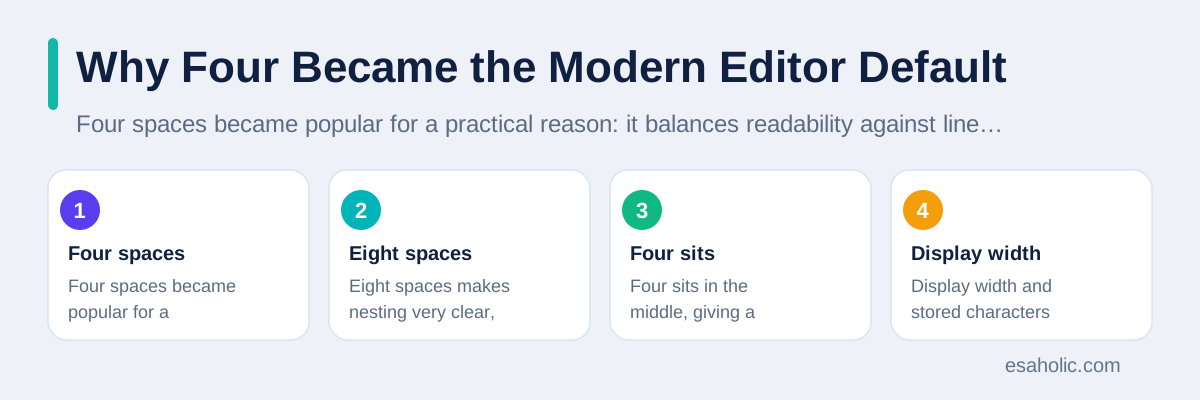
Four spaces became popular for a practical reason: it balances readability against line width. Two spaces can make nesting hard to see, because each level of indentation, which is the extra space at the start of a line that shows which block it belongs to, moves only slightly right. Eight spaces makes nesting very clear, but it pushes code far right after only a few levels, forcing horizontal scrolling or awkward line breaks. Four sits in the middle, giving a visible step at each level while keeping most lines on screen. That balance is why many editors, style guides, and language communities settled on four as a display width, and why many teams also use four actual spaces for indentation, so the file looks the same in every viewer.
Display width and stored characters are separate choices, and editors let you control both. An editor can store a tab character but display it as four columns, or it can store four space characters and display them as four columns, and the screen looks the same either way. The difference appears when someone opens the file in a tool with a different display width, or when a program reads the file and treats tab characters specially. That is why teams agree on both choices, not only on the number four: they agree on the display width, and they agree on whether files store tabs or spaces. Our guide to frontend layers makes a similar point about shared conventions: a rule the whole team follows beats a clever setting that only one person uses.
Tabs Versus Spaces: The Honest Trade Off
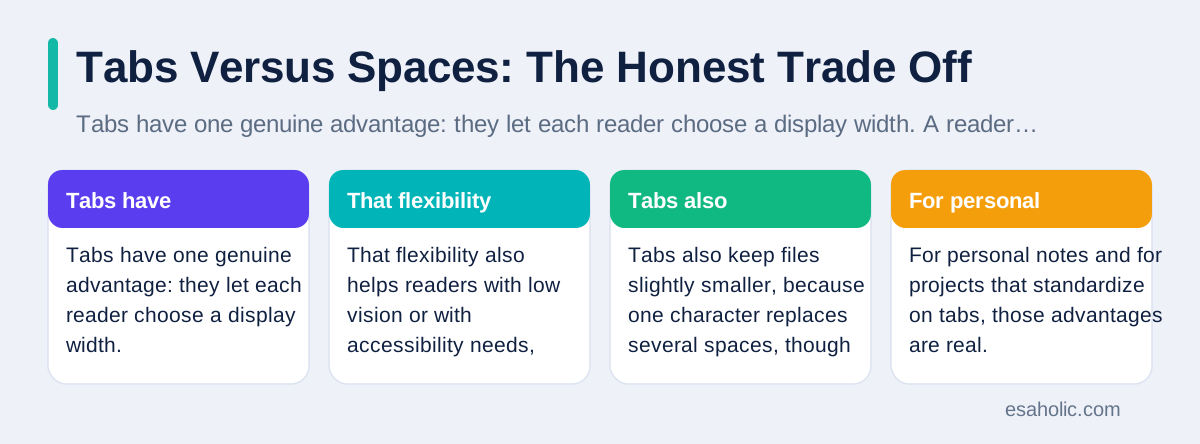
Tabs have one genuine advantage: they let each reader choose a display width. A reader who prefers two columns sees narrow indentation, a reader who prefers eight sees wide indentation, and the file itself never changes, because it stores tab characters rather than a fixed number of spaces. That flexibility also helps readers with low vision or with accessibility needs, because they can widen indentation without editing anyone else's file. Tabs also keep files slightly smaller, because one character replaces several spaces, though that saving rarely matters on modern machines. For personal notes and for projects that standardize on tabs, those advantages are real.
Spaces have a different advantage: they look the same everywhere, in every editor, terminal, diff view, and printed page, because the file stores the exact spacing. That predictability matters when alignment must line up, such as in a table written in comments or in code where continuation lines must align under an opening bracket. Spaces also avoid a class of bugs in languages where indentation changes meaning, which the next section covers, because a mix of tabs and spaces in such a language can make two lines look aligned while the program treats them as different levels. For teams that value identical appearance over reader choice, spaces win, and that is why many large projects and style guides require spaces.
The real enemy is mixing the two for indentation in one file. A line indented with a tab and a line indented with spaces may look aligned in your editor, because your editor displays a tab as four columns, while another editor displays it as eight and shows a clear mismatch. Worse, a program that reads indentation may count a tab differently from your editor, and report an error on a line that looks correct on your screen. Diffs, which are lists of changed lines between versions, also become noisy when a file mixes styles, because a reformatting pass touches lines that did not change in meaning. Pick one style per project, enforce it with a formatter, which is a tool that rewrites code to a standard layout, and the argument largely disappears.
How Editors and Terminals Display Tabs
Editors show tabs according to a tab size setting, which sets the distance between tab stops for display. In most editors you can change that setting for one file or for all files, and many editors also guess the setting from the file itself, by looking at the indentation already present. That guessing, called detection, is helpful when you open someone else's project, but it can also surprise you, because it may guess wrong on a small file or on a file with mixed indentation. When a file looks wrong, check the tab size shown in the editor's status bar, which is the strip at the bottom of the window that reports the current file settings, before you start editing, because changing the display setting often fixes the view without touching the file at all.
Terminals are less flexible. A terminal usually uses eight column stops, and while some terminals let you change that width, many tools that print to a terminal assume eight. That assumption affects commands that show file contents, diffs, and logs, so a file indented with tabs can look twice as wide in a terminal as it does in an editor set to four. Tools that expand tabs, which means they replace each tab character with the spaces needed to reach the next stop, exist for exactly this reason: they let you preview or print a file with a chosen width, without changing the original file. If you paste tab indented code into a web page, a chat window, or a document, check the result, because those destinations may also expand tabs to eight, or may collapse them in ways that break alignment.
Setting Tab Width in Common Editors
In VS Code, open Settings, search for "tab size," and set the number you want, such as 4. For a single file, click the "Spaces" or "Tab Size" label in the status bar and choose a new size, or choose "Indent Using Tabs" versus "Indent Using Spaces" to change what the editor inserts when you press Tab. VS Code also has a setting that detects indentation from file content, which you can turn off when it guesses wrong. For a project wide rule, add an EditorConfig file, described below, or add workspace settings to the project's .vscode folder, so every teammate gets the same behavior when they open the project.
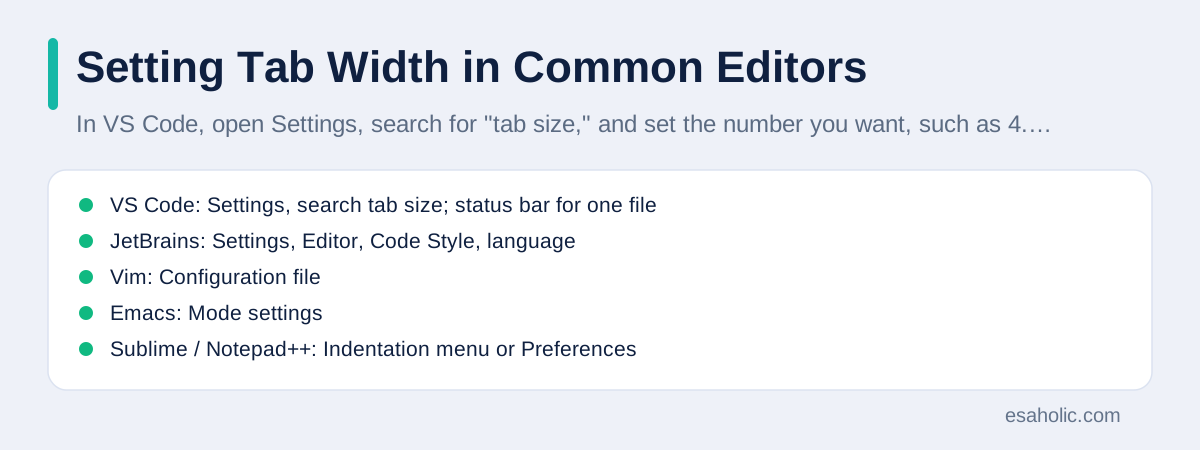
In JetBrains editors, such as IntelliJ IDEA and WebStorm, open Settings, then Editor, then Code Style, then your language, and set the tab size and the indent size, plus whether the editor uses tabs or spaces. In Vim, a terminal based editor, the settings are tabstop for display width, shiftwidth for indentation steps, and expandtab to insert spaces instead of tab characters, set in your configuration file. In Emacs, another long lived editor, the variable tab-width controls display, and the mode for your language controls whether indentation uses tabs or spaces, with Emacs's own guide to spaces and tabs. In Sublime Text, use the indentation menu in the bottom right or in Preferences, and in Notepad++, use Settings, then Preferences, then Language, to set tab size and to replace tabs with spaces. The menus differ, but the three questions are always the same: what width do I display, what do I insert when I press Tab, and does this project override my personal choice.
| Editor | Where to set it | Key setting |
|---|---|---|
| VS Code | Settings, search tab size; status bar for one file | Tab size, indent using tabs or spaces |
| JetBrains | Settings, Editor, Code Style, language | Tab size and indent size |
| Vim | Configuration file | tabstop, shiftwidth, expandtab |
| Emacs | Mode settings | tab-width and indent style |
| Sublime / Notepad++ | Indentation menu or Preferences | Tab width and translate tabs to spaces |
Where the Choice Changes Program Behavior
In most languages, indentation is cosmetic: the program runs the same whether you indent with two spaces, four spaces, or tabs, because the language ignores leading whitespace except for readability. In a few languages, indentation is part of the syntax, which means it changes what the program does. Python is the best known example: blocks of code are defined by their indentation level, so a line indented differently belongs to a different block, and mixing tabs and spaces in one file can raise an error, even when the lines look aligned on screen. Python's style guide recommends four spaces, and Python's own tools warn about mixed indentation, so Python projects should use spaces unless the project explicitly says otherwise.
Makefiles, which are files that tell the make build tool how to build a project, are the famous opposite case: recipe lines must start with a tab character, and spaces will not work. A Makefile edited in an editor that converts tabs to spaces will fail with a confusing error about a missing separator, even though the lines look identical. Go, another language, takes a middle path: its standard formatter uses tabs for indentation, and Go developers are expected to run that formatter, so Go files use tabs by convention and look consistent because the tool enforces it. The lesson is to check the language before you choose: follow the language formatter or style guide first, and only then apply a personal preference, because a formatter that runs on save settles the question for the whole team.
Alignment inside a line deserves a separate rule from indentation at the start of a line. Indentation shows structure, and it can use tabs or spaces according to project rules. Alignment lines up parts of a line, such as values in a column or arguments under an opening bracket, and it should use spaces, because spaces keep the alignment exact in every viewer. A file that indents with tabs but aligns with spaces gives readers the best of both: flexible indentation width, plus alignment that never shifts when a reader changes their tab size. Formatters handle this distinction automatically, which is another reason to let a formatter, rather than manual spacing, own the layout of shared code.
Sharing the Rule With EditorConfig and Formatters
EditorConfig is a small file named .editorconfig that sits at the root of a project and states rules such as indent style, indent size, end of line, and trailing whitespace, in a form that many editors understand, either built in or through a plugin. A project that includes one gives every teammate the same settings on open, without anyone copying settings by hand, and it reduces the "it looked fine on my machine" problem to a rare event. A typical file sets indent_style to space and indent_size to 4 for most files, with exceptions for files such as Makefiles that need tabs, and it states the charset and line endings too, so files stay consistent across operating systems.
Formatters go one step further by rewriting code to a standard layout on save or before a commit, which is a saved snapshot of changes in version control. When a formatter runs, tab width arguments become mostly moot, because the tool applies the project rule to every file, and reviewers see diffs that contain only real changes, not spacing noise. Set up the formatter early in a project, run it on the whole code base once, and then enforce it in checks that run before merging, so new code cannot drift. Teams that adopt a formatter rarely return to manual indentation debates, because the tool answers the question the same way every time, and developers can spend their review time on behavior instead of spacing. Our guide to tracking code changes explains the review workflow where those checks run, and our custom software development work sets up formatters as part of every new project.
Fixing a File With Mixed Indentation
First, make the invisible visible. Turn on visible whitespace in your editor, so tabs show as arrows and spaces show as dots, and the mixed lines stand out at once. Next, decide the target style for the file, from the project rule or the language guide, and convert the whole file in one pass, using the editor's convert command, such as "Convert Indentation to Spaces" or "Convert Indentation to Tabs," rather than fixing lines by hand. A whole file conversion creates one clear diff, while hand fixes scattered across a file create a diff that reviewers must check line by line for accidental changes.
After converting, run the project formatter and the tests, which are programs that verify behavior, before committing, because a conversion that looks safe can still shift alignment in a comment table or in a string that contains spaces. If the file belongs to a language where indentation changes meaning, such as Python, run the tests with extra care, and review the diff for lines whose indentation level changed, not only for lines whose spacing changed. Finally, add the file to the formatter's scope, or fix the editor setting that caused the mix, so the same file does not drift again next week. A fix that also prevents recurrence is worth more than a fix that merely cleans the current copy. Running those tests follows software testing basics, which plans what to check before a change ships.
Conclusion
A tab character jumps to the next tab stop, not by a fixed number of spaces: eight columns by the historic default, and four in most modern editors. Tabs let each reader choose a display width, spaces look identical everywhere, and mixing the two for indentation causes the errors and messy diffs that teams complain about. Check your language guide, set your editor width, share the rule with EditorConfig, and let a formatter enforce it, and the question of how many spaces a tab is will stop being a recurring argument and become a setting your team agreed on once.
Frequently Asked Questions
How many spaces is a tab by default?
A tab character moves to the next tab stop, which is every eight columns by the historic default. Most modern code editors display a tab as four spaces instead, because four keeps indentation readable without pushing code too far right, and many editors let you change that width.
Should I use tabs or spaces in code?
Follow your project rule first, because consistency matters more than the choice itself. Use spaces when a language or a team guide requires them, use tabs when the project uses tabs, and never mix the two for indentation in the same file, because mixed indentation causes confusing errors and messy diffs.
How do I change tab width in VS Code?
In VS Code, open Settings and search for tab size, then set the value you want, such as 4. You can also click the Spaces or Tab Size label in the status bar at the bottom of the window to change the setting for the open file, and use EditorConfig to share the choice with your team.
Written by Danish Mustafa
Senior Agentic AI Engineer and Systems Architect
Danish Mustafa is a senior agentic AI engineer at Esaholic who builds AI agents and full stack back ends for real customers.
Reviewed by Umar Abbas
Founder, Principal AI Architect and Operator
Umar Abbas is the founder of Esaholic and a principal AI architect who designs reliable large scale AI systems for regulated industries.
Relevant blogs
Best Coding Interview Books: How to Pick the Right One
What the leading interview guides cover, who each one suits, and how to practise with them effectively.
Feature Sliced Design: A Simple Guide to Frontend Layers
How grouping frontend code by feature and layer keeps large apps clear, testable, and easier to change.
Version Control Systems Explained Simply for Teams
How teams track changes, branch safely, review code, and recover earlier versions without losing work.
Rapid Prototyping: A Simple Guide to Fast Product Tests
How teams turn an idea into a testable model in days and learn fast without wasting budget.
Back to all blog guides · Back to Software Development guides · Explore Custom Software Development Services