
Productivity Tools: A Simple Guide for Busy Teams
Most busy people do not suffer from a shortage of tools. They suffer from too many places to check. Tasks live in email, notes live in three apps, files live in a shared drive nobody trusts, and the plan for the week lives only in one person's head. The result is familiar: work gets repeated, deadlines surprise people, and a simple question like "who is doing this" takes four messages to answer. Productivity tools promise to fix that mess, but only when a team picks a small set on purpose and uses them the same way every day.
A productivity tool is simply software that helps you capture work, organise it, and finish it with less friction. Capture means getting a task out of your head and into a trusted list before you forget it. Organise means sorting that work by priority, owner, and due date, so the important work is easy to see. Finish means having the file, the message thread, and the decision in one place when you sit down to do the job. A tool that does those three things well beats a fancy tool that only looks impressive in a demo, because real productivity comes from fewer decisions about where things live, not from more features.
This guide keeps the whole subject practical. You will learn the main kinds of tools, how to match a tool to a real job, how to run a daily system without spending your day inside the tool, and how to measure whether the tool actually helps. It also covers the traps that waste money, such as buying a tool for every problem and letting old tools linger beside the new one. If your team also plans projects, our guide on planning templates that stay useful pairs well with this one, and if focus is your main problem, our guide on practical steps for deep work covers attention itself.
What Counts as a Productivity Tool
The label covers a wide family, and that breadth causes confusion. A task list, a calendar, a note app, a document store, a chat app, a time tracker, and an automation tool can all claim the label, yet they solve different problems. A task list answers the question "what must I do next." A calendar answers "when will I do it." A note app answers "where did I write that down." A document store answers "where is the current version." When a team buys tools by category instead of by question, it ends up with five apps that overlap and none that fully answers the question that matters most.
A useful test is to name the pain before you name the tool. Write down the three moments in your week when work stalls. Perhaps approvals wait because nobody sees them, or handoffs fail because the brief lives in chat, or reports take hours because numbers live in scattered sheets. Each pain points to a job, and each job points to a tool type. Approval delays point to a task tool with clear owners and due dates. Lost briefs point to a shared document home with one current version. Slow reports point to a dashboard, which is a single screen that shows key numbers, fed by one source. Start from the pain and the tool choice becomes obvious, and often smaller than expected.
Tools also differ in who they serve. A personal tool helps one person remember and plan. A team tool helps a group share work and hand tasks to each other. A company tool adds admin controls, which are settings that let managers control access, security rules, and reports across many teams. Judge a tool by the group that will actually use it every day, not by the size of the company that sells it.
The Five Types Worth Knowing
Task managers form the first type, and they are the backbone for most teams. A good task manager lets you add a task in seconds, assign it to one owner, set a due date, add a short description, and see all open work on one board or list. The owner rule matters most: a task with two owners usually has no owner, because each person assumes the other will act. Strong task tools also let you repeat routine tasks, such as a weekly report, so nobody has to remember to recreate them. Keep tasks small and concrete, with a verb at the start, such as "send the invoice" rather than "invoices," because vague tasks stay open forever.
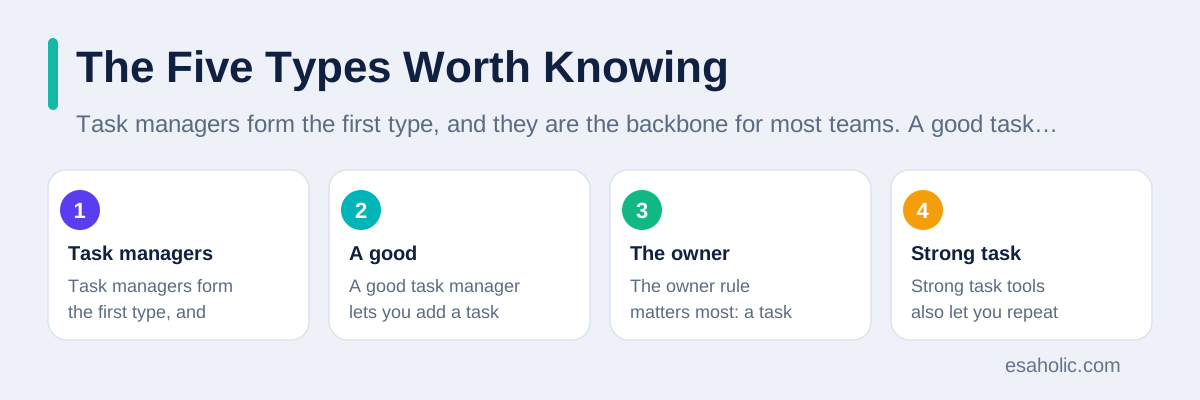
Note and document tools form the second type. Notes capture quick thinking, meeting outcomes, and ideas. Documents hold the polished version: the brief, the policy, the guide, the proposal. The best setups connect the two, so a meeting note can link to the project document it belongs to, and a reader can move from a quick note to the full source in one click. Our guide on building a help center teams trust covers the shared knowledge side of this in more depth, and it is worth reading if your documents keep going stale.
Calendars and time tools form the third type. A calendar protects time for deep work, which is focused work on one hard task without interruption, and it makes availability visible so meetings stop colliding. Time tracking, which means recording how long tasks actually take, helps a team price work honestly and spot tasks that always run over. Use time data to plan better, not to watch people minute by minute, because surveillance destroys the trust that makes a team share honest estimates. A weekly review of where time went is far more useful than a daily report of who was active.
Communication tools form the fourth type, and they deserve a warning. Chat is fast, but chat is also where work goes to hide. A decision made in chat is hard to find a month later, and a task mentioned in chat is easy to miss. Good teams use chat for quick questions and urgent news, and move decisions and tasks into the task tool or document the moment they are agreed. That single habit prevents more lost work than any new chat feature ever will.
Automation tools form the fifth type. Automation means the tool does a routine step for you, such as creating a task when a form is submitted, or sending a reminder when a due date nears. Start with one boring, repeated job, such as copying form answers into a tracker, and automate only that job. Teams that try to automate everything at once build fragile chains that break quietly. Esaholic builds careful automation in its workflow automation work, where each automated step has a clear owner and a visible failure alert.
How to Choose Without a Long Trial
Choosing well starts with a short list of must have features, written before you open any vendor site. A must have is a feature the team cannot work without, such as mobile access for field staff, or guest access for clients. A nice to have is a feature that sounds good but would not block work if it were missing, such as a colourful dashboard theme. Write at most five must haves, because a list of twenty must haves describes no real tool and guarantees a long, unhappy search. Then test only tools that pass all five, and ignore the rest no matter how attractive their marketing looks.
Test with real work, not with demo data. Take one real project, with real tasks, real files, and real deadlines, and run it in each finalist tool for one week. Ask three different people to use it: the person who plans the work, the person who does most of it, and the person who only checks in occasionally. If the occasional user cannot find their tasks without training, the tool will fail in real life, because most teams have many occasional users and few power users. A tool that only experts love will slowly fall out of use, and work will drift back to email.
Check the exit before you enter. Ask how you export your tasks, notes, and files, and test the export with a small sample. A tool that locks your data inside it, which means it makes leaving painful or lossy, should lose points no matter how polished it looks. Also check what happens to your data when you cancel, how long the vendor keeps it, and whether you can download it in a common format. A thirty minute export test now can save weeks of manual copying later, and it tells you how much the vendor respects its customers.
A Simple Daily System That Sticks
A tool only helps when it shapes a daily habit. The simplest system that works has three moments: a morning plan, a midday check, and an end of day close. In the morning, pick at most three priorities for the day, and write them at the top of your task list. Three is a deliberate limit, because a list of twelve priorities is not a plan, it is a wish list that guarantees a feeling of failure by evening. Put the hardest priority first, while energy is highest, and protect that slot from meetings when you can.
At midday, spend five minutes checking what changed. New urgent work may have arrived, a task may be blocked because you wait on someone else, or a meeting may have moved a deadline. Update the list to match reality, rather than clinging to the morning plan. This check also catches blocked tasks early, when a quick message can still unblock them before the day ends.
At the end of the day, close the loop. Mark done work as done, move unfinished work to a real future date instead of leaving it overdue, and capture any new task that arrived during the day. An overdue list that grows every day teaches the brain to ignore due dates, which is the opposite of what a task tool should do. A clean close takes five minutes and gives the next morning a fresh start.
Productivity Tools for Teams, Not Just Individuals
Team use adds rules that personal use never needs. The first rule is one home per kind of work. Tasks live in the task tool, files live in the document store, decisions live in the document or the task comment, and chat holds only quick discussion. When the same work lives in two places, nobody knows which copy is current, and the team wastes time reconciling copies instead of doing the work. Write the rule down, share it with new joiners, and repeat it kindly when someone posts a task only in chat.
The second rule is visible work. A shared board where every task shows its owner, its status, and its due date removes the need for status meetings that only ask "where are we." A manager can see progress without interrupting anyone, and a teammate can see what is blocked without a round of messages. Visibility also builds fairness, because overloaded people become visible before they burn out, and quiet contributors get credit for work that used to hide in private lists. For the team side of that visibility, team collaboration tools should share the same board and the same owners, not a second copy of the work.
The third rule is a named owner for the system itself. This person keeps the board tidy, archives finished projects, updates the templates, and trains new joiners. Without an owner, boards accumulate stale tasks, dead projects, and duplicate lists, and the team slowly stops trusting what it sees. The owner does not need to be a manager, and often the best owner is the person who uses the tool most and cares most about order. Give that person real time for the job, not just the title, or the system will decay within a quarter.
Focus, Distraction, and Notifications
Every productivity tool can also become a distraction machine. Notifications, which are alerts that pull your attention to new messages or changes, are the main culprit. A team that leaves every notification on will interrupt deep work dozens of times a day, and each interruption costs far more than the seconds it takes to read it, because the brain needs time to return to the hard task. Turn off notifications for routine updates, keep them only for direct mentions and urgent items, and check the rest in batches two or three times a day.
Batching means grouping similar small jobs together instead of handling each one the moment it arrives. Check messages in batches, process email in batches, and approve small requests in one sitting. The tool should support this by offering a single inbox or notification digest, which is a summary of changes, rather than a stream of single alerts. If your tool cannot batch, use the operating system focus mode, which silences alerts during chosen hours, and tell the team when you will reply so nobody worries.
Meetings deserve the same discipline. A tool that schedules meetings easily can also fill a week with meetings that should have been messages. Before booking, ask whether the decision needs live discussion, or whether a shared document with comments would reach the same result with less interruption. When a meeting is needed, give it an agenda, a decision to make, and a note taker, and store the outcome in the task tool the same day. Our guide on writing meeting minutes people use shows how to capture outcomes so meetings actually move work forward.
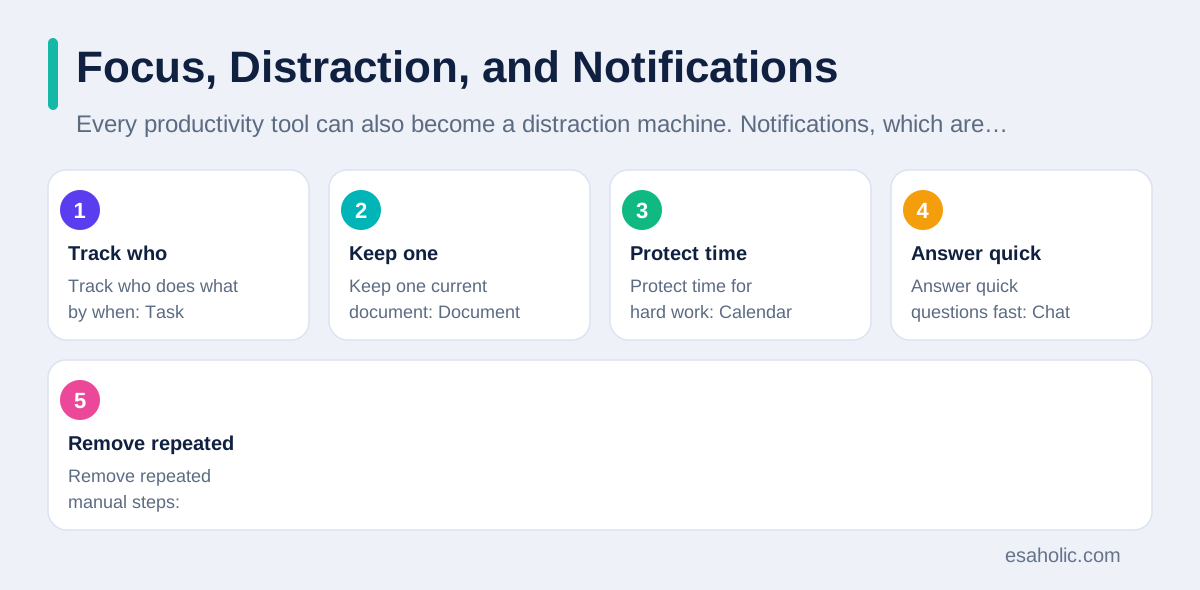
| Job to do | Best tool type | Watch out for |
|---|---|---|
| Track who does what by when | Task manager | Tasks with no owner or no date |
| Keep one current document | Document store | Copies in chat and email |
| Protect time for hard work | Calendar with focus blocks | Meetings with no agenda |
| Answer quick questions fast | Chat | Decisions that stay only in chat |
| Remove repeated manual steps | Automation | Chains nobody owns when they break |
Measuring Whether the Tool Helps
A tool should change a number you care about, not just feel modern. Pick one measure before you adopt a tool, such as the share of tasks finished by their due date, the time from request to first response, or the number of status meetings per week. Measure it for a month before the change and for a month after, using the same definition both times. If the number does not move, the tool may be solving the wrong problem, or the team may not be using it consistently, and both findings are useful.
Also watch the human signals that numbers miss. Ask the team every month whether finding work got easier, whether handoffs got smoother, and whether the tool saves time or adds admin. A short survey with three questions beats a long report nobody reads, because it surfaces frustration early, while it is still cheap to fix. Pay special attention to the quietest team members, because loud complaints often come from power users, while silent abandonment comes from everyone else.
Our guide on measures that help teams improve explains how to set targets that motivate without distorting behaviour, which matters here too. A target such as "every task closed on time" sounds strong, but it encourages people to set easy dates or close tasks early. A better target pairs timeliness with quality, such as "tasks closed on time and reopened rarely," so the team cannot game one number by harming another. Good measures make the tool serve the work, not the other way round.
Free Plans, Paid Plans, and Hidden Costs
Free plans suit many small teams, and they are a sensible way to test a tool with real work. Check seats, which means user accounts, storage, guest access, version history, and support speed. A free plan that limits history to thirty days can hurt when a dispute arises months later, and one that blocks guest access forces clients into email, which breaks the one home rule. Test the exact limits that matter to your team, because marketing pages often describe the paid plan as if it were free.
Paid plans add value in three places: controls, support, and scale. Controls include permissions, which decide who can see or change each item, audit logs, which record who changed what, and single sign on, which lets staff log in with one company account. Support means a faster reply when the tool breaks during a deadline week. Scale means more seats, more storage, and more automation runs without hitting a ceiling. Pay for those only when your team actually needs them.
The largest hidden cost is not the subscription, it is the time spent maintaining the system. Someone must tidy boards, update templates, train joiners, and fix broken automations. Budget that time honestly, even if it is only two hours a week. A cheap tool that nobody maintains soon costs more in confusion than a cared for system, because confused teams redo work and miss deadlines.
Setting Up in One Week
A one week setup beats a one month rollout, because momentum matters more than perfection. On day one, agree on the one home rule and the must have list, and pick the tool. On day two, create the structure: a few projects, a simple task template, and a short guide that fits on one page. On day three, move one real project into the tool, with real tasks and real owners, and close the old tracker for that project so nobody works in two places.
On day four, train the team in thirty minutes using that real project, not slides. Show how to add a task, how to hand it over, and how to find your own work. On day five, run the first daily close together, fix the friction people report, and retire one old tool for good. Retiring the old tool is the step teams skip most, and it is the step that decides whether the new system lives or dies, because parallel systems always win against the new habit.
Plain language guidance from the US plain language site and the Google developer documentation style guide support the same principle: write the one page guide in short sentences, use words the team already uses, and test it on a new joiner. If a new joiner cannot follow it without help, fix the guide, and the tool becomes easier for everyone.
Conclusion
Productivity tools work when they make work visible, owned, and easy to find. Pick a small set based on real pains, not on feature lists. Give every kind of work one home, give every task one owner and one date, and move decisions out of chat into the place where work lives. Run a short daily system of planning, checking, and closing, control notifications so the tool serves focus instead of breaking it, and measure one number that matters before you declare success. Then retire the old tools, keep the system tidy with a named owner, and review the setup every quarter. A quiet, boring system that the whole team actually uses will beat a brilliant system that only a few people love, every single time.
Frequently Asked Questions
How many productivity tools does a small team really need?
Most small teams do well with four tools at most: one place for tasks, one place for documents, one place for messages, and one calendar. Adding more tools usually adds more places to check, more passwords, and more duplicate work, so start small and add a tool only when a clear job has no home.
Are free productivity tools good enough for real work?
Free productivity tools are good enough for many small teams, especially for tasks, notes, and basic documents. They fall short when a team needs guest access controls, long version history, advanced reports, or admin controls, so check those limits in a trial with real work before you move your whole team onto a free plan.
Why do productivity tools fail even when the tool is good?
Productivity tools fail when nobody owns the system, when the team keeps working in chat and email instead, and when the tool holds a messy copy of work that lives somewhere else. A tool works when one person owns it, the team agrees on one home for each kind of work, and old tools are closed so the new system is the only source of truth.
Written by Danish Mustafa
Senior Agentic AI Engineer and Systems Architect
Danish Mustafa is a senior agentic AI engineer at Esaholic who builds systems that find trusted answers in real documents and keep them easy to use.
Reviewed by Umar Abbas
Founder, Principal AI Architect and Operator
Umar Abbas is the founder of Esaholic and a principal AI architect who designs reliable large scale AI systems for regulated industries.
Relevant blogs
Project Planning Templates: A Simple Guide for Teams
How to pick a template, fill it honestly, and keep a plan useful from start to finish.
How to Focus: Practical Steps for Deep Work
Practical steps to protect attention, plan deep work, and finish important tasks without burnout or constant distraction.
KPI Examples: Measures That Help Teams Improve
Practical measures for sales, marketing, support, and operations, with targets and traps to avoid.
Knowledge Base Software: A Simple Guide for Teams
What a help center is, how teams choose it, and how to build one people trust and use.
Back to all blog guides · Back to Business and Productivity guides · Explore Workflow Automation Services