
Cloud Storage Alternatives Explained Simply
Cloud storage sounds like one simple thing: your files live on someone else's computers, and you reach them over the internet. In practice, the choice is far richer, and far more consequential, than that sentence suggests. Different storage types suit different work, different providers charge in different ways, and the cheapest option for storing files can become the most expensive option when you need those files back in a hurry. This guide compares the main alternatives in general terms, without quoting prices that change often or features that vary by plan, so you can judge any provider on the factors that actually matter.
Start with a simple truth: storage is not only about space. A photo archive that nobody opens for years needs different storage from a video editing project that a team opens every day, and a medical record system needs different controls from a public marketing library. Access speed, retrieval cost, security rules, data location, backup behavior, and exit terms all shape the real cost and the real risk.
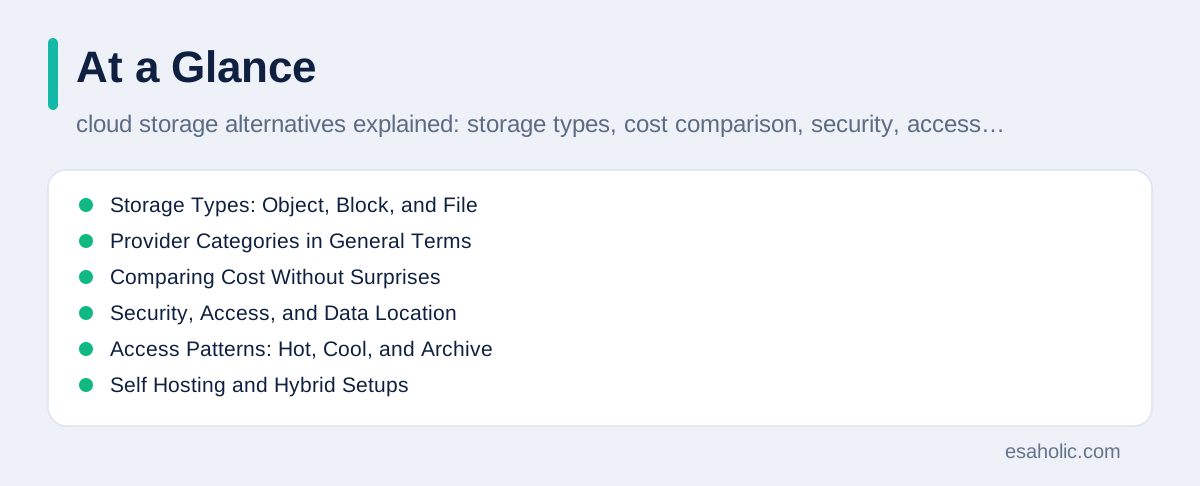
This guide walks through storage types, provider categories, cost comparison, security, access patterns, self hosting, hybrid setups, and migration planning, in that order. The guide deliberately avoids naming a single winner, because the winner depends on your files, your users, and your rules. If you want the database side of the same decision, our guide to shared and isolated tenancy designs covers how structured data lives beside files, and the Google Cloud storage documentation explains one major platform's storage classes in clear terms.
Storage Types: Object, Block, and File
Object storage holds files as objects, where each object is a file plus metadata, which is extra data about the file, such as its name, size, and tags. Object storage scales to huge numbers of files, it works well over the internet, and it suits photos, videos, backups, and web content. It does not behave like a normal hard drive: you cannot easily edit a small part of an object in place, and listing millions of objects needs care. For most cloud file work, object storage is the default choice, and teams should start there unless they have a specific reason to choose another type. The AWS object storage overview describes how one major platform presents object storage, and the Google Cloud storage classes guide explains how tiers differ by access pattern.
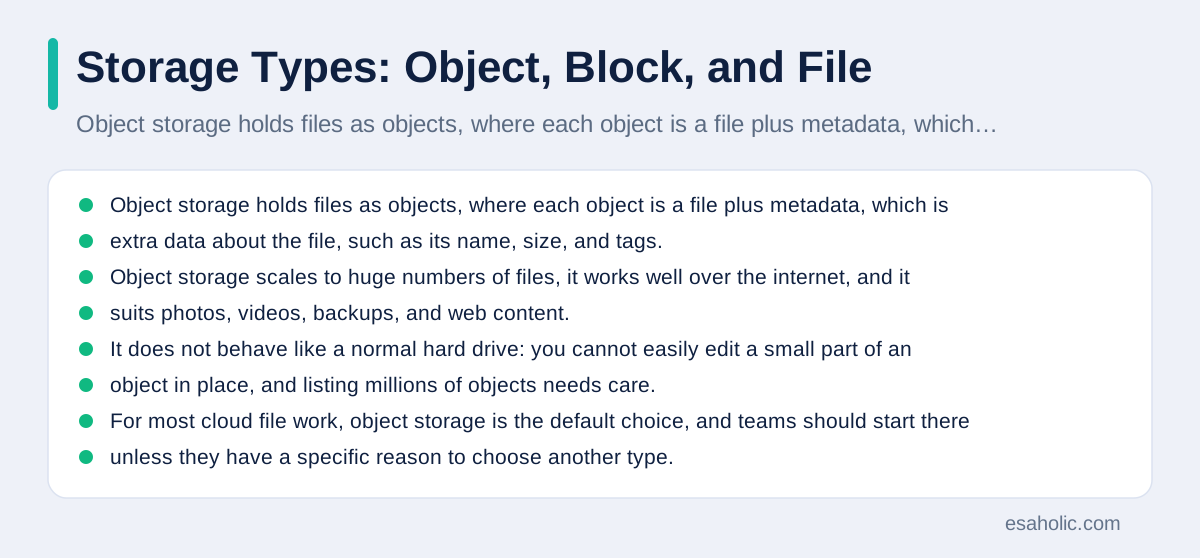
Block storage acts like a hard drive attached to a server. The server sees a volume, which is a chunk of storage that behaves like a disk, and it can read and write small parts of that volume quickly. Block storage suits databases, virtual machines, and applications that need fast, random access to parts of a file, rather than whole file downloads. It usually lives close to the server that uses it, so it does not travel well over the open internet, and it needs a backup plan of its own, because a volume attached to one server is not automatically a backup. Use block storage for live application data, and object storage for files that users download or archive.
File storage shares folders over a network, so many users and servers can open the same files through familiar folder paths. Network file systems, which are systems that let many computers share files over a network, suit teams that already work in shared folders, such as design teams that pass large project files between members. File storage can grow expensive at large scale, and it can slow down when many users open the same large files at once, so teams should test it with real team sizes and real file sizes before committing.
Provider Categories in General Terms
Large cloud platforms offer storage as one part of a much wider set of services, including computing, databases, and networking. Their strength lies in scale, in global data centers, in integration with other services, and in mature security and compliance programs. Their weakness, for some teams, lies in complexity: pricing pages with many variables, many storage classes to choose between, and retrieval fees that surprise teams that only budgeted for storage space. Large platforms suit teams that already use their other services, or teams that need global reach and strong compliance evidence, as long as someone on the team owns cost monitoring.
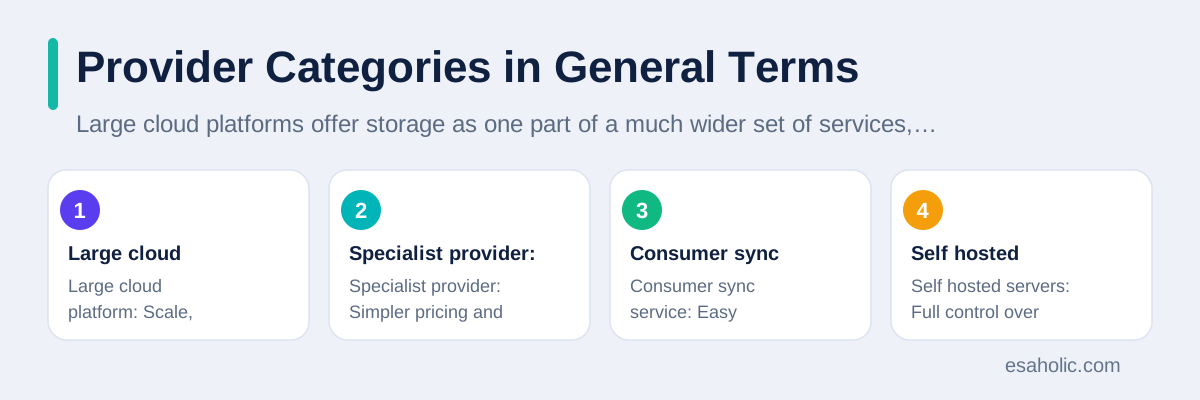
Specialist storage providers focus on storage alone, often with simpler pricing and a clearer story about one use case, such as backups, media delivery, or privacy focused file sharing. Their strength lies in simplicity and focus, and some offer predictable pricing that includes transfers, which removes one common surprise. Their weakness lies in narrower integration: a specialist may not connect as smoothly with your other tools, and a small provider may offer fewer data regions, which are geographic locations where data is stored, than a large platform. Specialist providers suit teams with one clear storage job and a preference for simple bills, as long as the team checks the provider's longevity, backup behavior, and exit terms.
Consumer file sync services, which keep the same files updated across a person's devices, form a third category, and teams often misuse them as business storage. Sync services excel for personal files and small team sharing, with easy apps and familiar folders. They struggle as business archives, because they may lack the access controls, audit logs, version policies, and retention rules that a business needs, and because a sync mistake, such as a deleted folder syncing to every device, can spread fast. Use sync services for collaboration on active files, and use proper cloud or self hosted storage for archives, records, and anything an auditor might ask about.
| Category | Strength | Watch out for |
|---|---|---|
| Large cloud platform | Scale, regions, compliance evidence | Complex pricing and retrieval fees |
| Specialist provider | Simpler pricing and focus | Fewer regions and integrations |
| Consumer sync service | Easy sharing across devices | Weak business controls and retention |
| Self hosted servers | Full control over data and access | Staff time, backups, and repairs |
Comparing Cost Without Surprises
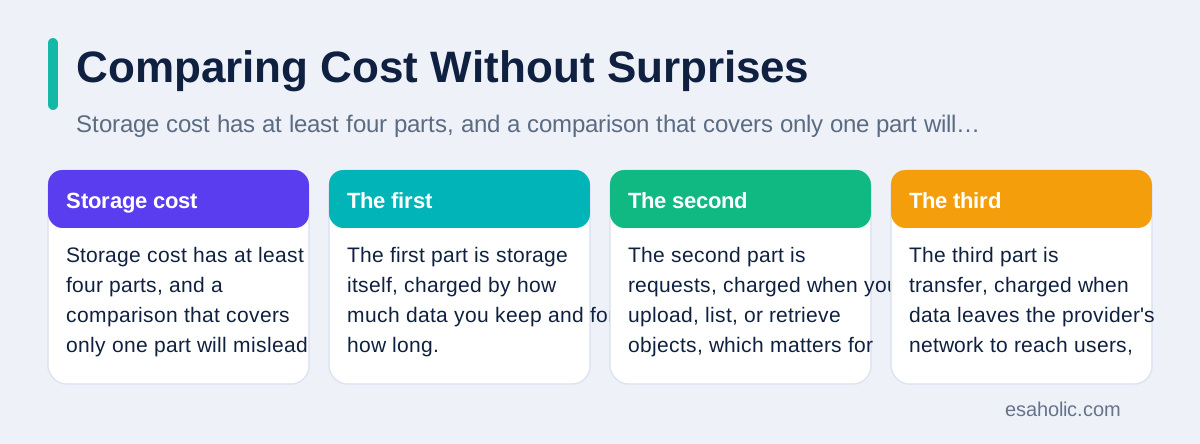
Storage cost has at least four parts, and a comparison that covers only one part will mislead you. The first part is storage itself, charged by how much data you keep and for how long. The second part is requests, charged when you upload, list, or retrieve objects, which matters for systems that make millions of small requests. The third part is transfer, charged when data leaves the provider's network to reach users, which matters for popular downloads and video streaming. The fourth part is retrieval, charged when you pull data back from cooler or archive tiers, which matters most when you rarely need data but need it urgently when you do need it. Add all four parts for your real pattern, not for a generic example.
Model growth, not only day one size, because storage decisions last for years. A team that stores ten terabytes today and grows by half each year will hold far more in three years, and a pricing model that looks cheap at ten terabytes may look painful at forty. Also model the cost of getting data back, because some archive tiers charge heavily for fast retrieval, or take hours to restore data, which is fine for a legal archive and terrible for a system outage. Ask every provider for a worked example based on your numbers: your total size, your monthly uploads, your monthly downloads, and your expected retrievals from each tier. A provider that cannot produce that example is asking you to sign a blank check.
Watch for hidden cost drivers that do not appear on a pricing page summary. Minimum storage durations can charge you for months even if you delete a file early. Minimum object sizes can charge small files as if they were larger. Version history, which keeps old copies of changed files, can double or triple stored size if every small edit keeps a full old copy. Lifecycle rules, which automatically move files between tiers by age, can save money, but only if someone reviews them, because a rule that moves active files to a slow tier will frustrate users and trigger expensive retrievals. Review the bill monthly and tag costs by project or team.
Security, Access, and Data Location
Security for storage starts with access control, which means each person and each application sees only the files its job needs. Use separate accounts for applications, give each account the smallest permission that lets it do its job, and require multi factor authentication, which is a second proof of identity beyond a password, for human accounts with broad access. Public links deserve special care: a link that anyone can open is effectively public, even if you only shared it in one email, because emails get forwarded and links get copied. Set expiry dates on shared links, review public buckets, which are storage containers that can be set to public access, on a schedule, and treat any unexpected public setting as an incident, not as a curiosity.
Encryption protects files in two places: in transit, while files travel over the network, and at rest, while files sit on disks. Most providers encrypt at rest by default, but teams should check who holds the keys, because provider managed keys and customer managed keys give different control and different responsibilities. Customer managed keys let you revoke access by disabling a key, but they also let you lock yourself out if you lose the key, so key backup and key rotation, which is replacing keys on a schedule, need a written plan. Version history and object locking, which prevents deletion or change for a set period, protect against ransomware and accidental deletion, and they belong in the plan for any storage that holds records a business cannot afford to lose.
Data location and compliance shape provider choice for regulated teams. Some rules require data to stay in a specific country or region, some require audit logs that show who accessed each file and when, and some require retention periods that forbid early deletion. Check that a provider offers data regions that meet your rules, that its logs cover storage access in enough detail, and that its retention controls cannot be bypassed by an ordinary user. Also check what happens when you leave: can you export every file with its metadata, how long does export take, and does the provider certify deletion after you leave. A provider that answers these questions clearly earns trust, while a provider that waves them away with general assurances should prompt a second look.
Access rules are part of wider governance, and data governance frameworks explain who should decide who may see what.
Access Patterns: Hot, Cool, and Archive
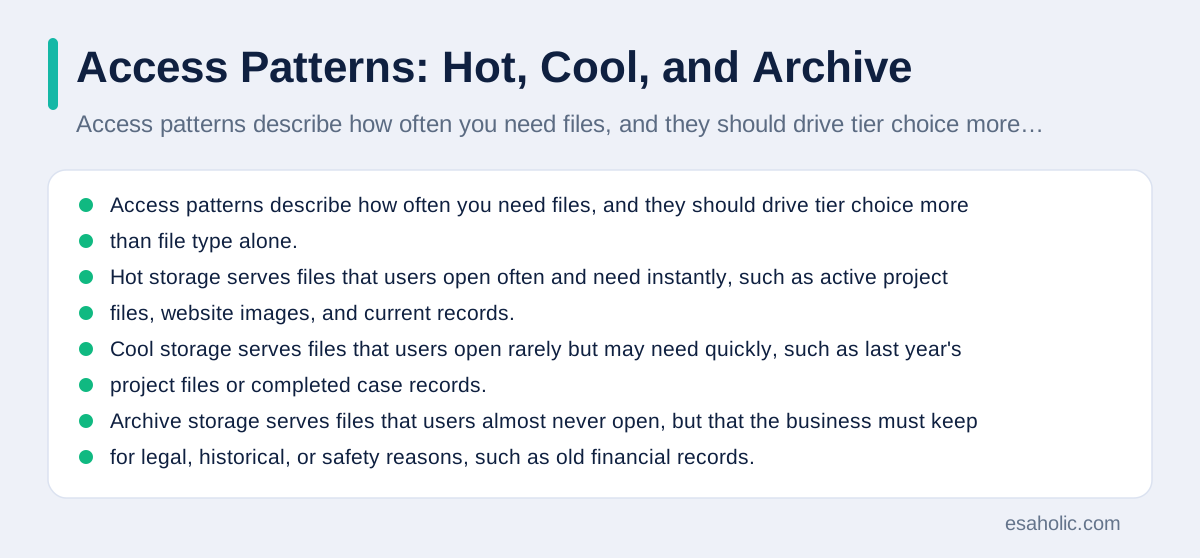
Access patterns describe how often you need files, and they should drive tier choice more than file type alone. Hot storage serves files that users open often and need instantly, such as active project files, website images, and current records. Cool storage serves files that users open rarely but may need quickly, such as last year's project files or completed case records. Archive storage serves files that users almost never open, but that the business must keep for legal, historical, or safety reasons, such as old financial records. Each tier trades speed and retrieval cost against storage cost, and the right tier for a file can change as the file ages.
Lifecycle rules automate that aging, by moving files between tiers after a set time, or by deleting files after a retention period ends. A sensible rule might keep project files hot for ninety days, move them to cool storage after a year of no access, and move them to archive after three years, with deletion only after a legal review. The danger lies in rules nobody reviews: a rule that archives active files will slow a team and trigger retrieval fees, while a rule that never archives anything will inflate the bill year after year. Review lifecycle rules quarterly, sample files in each tier, and ask users whether the files they need arrive fast enough, because user complaints are often the first sign of a bad tiering rule.
Speed from real locations matters as much as tier choice. A storage region far from your users will add delay to every download, and that delay hurts video, large images, and interactive applications most. Test download speed from the places your users actually sit, not only from your office, and consider a content delivery network, which is a network of servers that caches popular files close to users, for public files that many people download. A delivery network adds cost and complexity, but for popular public content it can cut both delay and transfer cost, because it serves repeat downloads from nearby servers instead of from the origin storage every time. Measure before and after, because a delivery network that nobody configures well can add cost without adding speed.
Self Hosting and Hybrid Setups
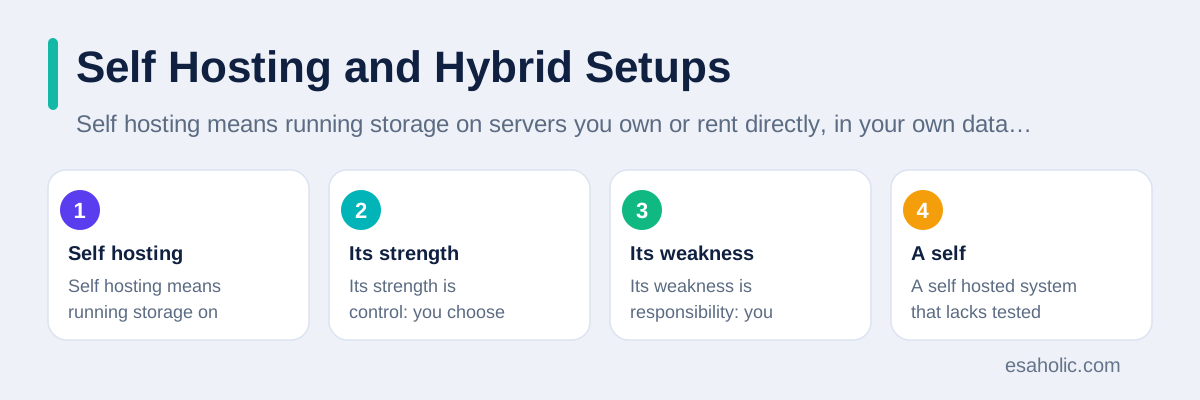
Self hosting means running storage on servers you own or rent directly, in your own data center or in a rented rack, with software you control. Its strength is control: you choose the hardware, the software, the access rules, and the data location, and no provider can change prices or terms under you. Its weakness is responsibility: you own backups, repairs, security patches, power, cooling, and the staff time to do all of it well. A self hosted system that lacks tested backups is not a storage system, it is a hope, and a self hosted system that nobody patches is a security risk waiting for an attacker. Count staff time honestly when you compare self hosting with cloud pricing, because an engineer who spends half a week on storage cannot spend that week on product work.
Hybrid setups mix cloud and local storage, and they suit teams with mixed needs. A common hybrid keeps active files local for speed, backs them up to cloud storage for safety, and archives old files to cloud archive tiers for cheap long term retention. Another hybrid keeps sensitive records local for compliance, while public files live in cloud object storage for global reach. Hybrid designs need clear rules about which files live where, and about how files move between places, or the team will lose track of the authoritative copy, which is the one true version of a file. Keep a simple inventory that says, for each collection, where the primary copy lives, where the backup lives, and how often each copy is verified.
A final hybrid pattern worth knowing is multi cloud storage, where a team uses more than one cloud provider, often to avoid dependence on one provider or to use the best service from each. Multi cloud adds resilience, but it also adds complexity: different pricing, different access rules, different logs, and transfer costs when data moves between providers. Most small and medium teams gain more from doing one provider well, with a tested exit plan, than from juggling two providers badly. Choose multi cloud when dependence on one provider is itself a business risk, such as a contractual requirement or a scale that justifies the overhead, and staff it accordingly, because an unstaffed multi cloud setup is worse than a well run single provider setup.
Migration Without Losing Files
Migration, which is moving files from one storage system to another, fails most often through haste, not through technology. Start with an inventory: list every collection, its size, its owner, its access pattern, and its retention rule, and find the collections nobody owns, because unowned collections usually hold surprises, such as personal files mixed with business records. Clean before you move, or you will pay to store and transfer files nobody needs, and you will carry old permission mistakes into the new system. Decide, for each collection, whether it moves as is, whether it moves to a different tier, or whether it should be deleted under a proper approval, and record each decision.
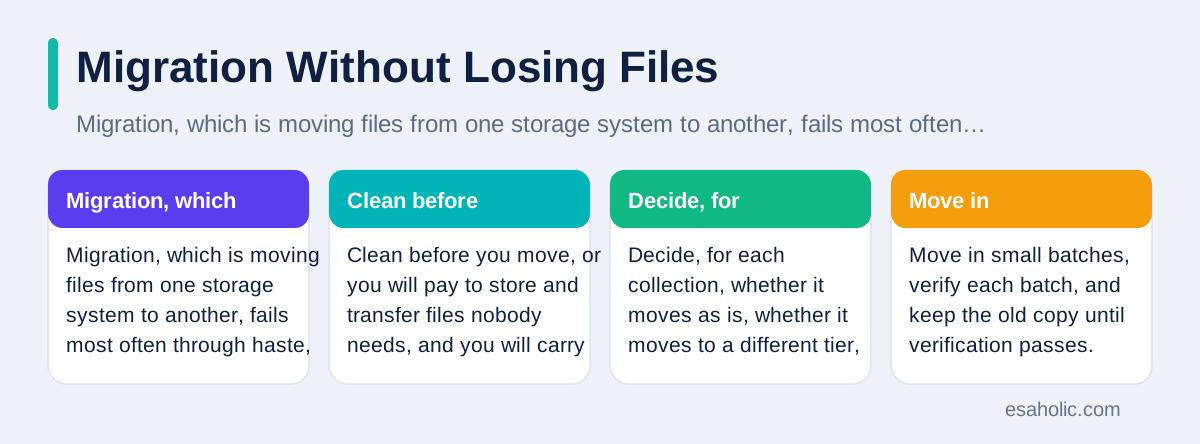
Move in small batches, verify each batch, and keep the old copy until verification passes. Verification should check file counts, total sizes, and content hashes, which are short fingerprints computed from file contents that reveal even a small corruption, for a sample of files, and it should check that permissions, metadata, and version history survived the move where they matter. Test access from real user accounts, not only from admin accounts, because admin access can hide permission errors that real users will hit on day one. If a batch fails verification, stop, fix the cause, and remigrate that batch, rather than pressing on and hoping later batches will somehow compensate for an early failure.
Plan the cutover, which is the moment users switch from old storage to new storage, with the same care. Tell users what changes, when it changes, and where to get help, and choose a quiet period for the switch where possible. Keep the old system read only for a retention period after cutover, so users can recover a file that verification missed, and only delete the old copy after that period ends and after a final check with collection owners. Document the new system, including tier rules, access rules, backup schedules, and exit terms, and assign an owner for cost reviews and lifecycle reviews. A migration that ends with documentation and an owner will stay healthy, while a migration that ends at cutover will slowly drift back into the same mess it was meant to fix. Our guides to faster query habits and to pipeline and warehouse work cover the structured data side of the same housekeeping discipline.
For a move that needs tailored tooling, custom software development services can build the migration around your existing systems.
Conclusion
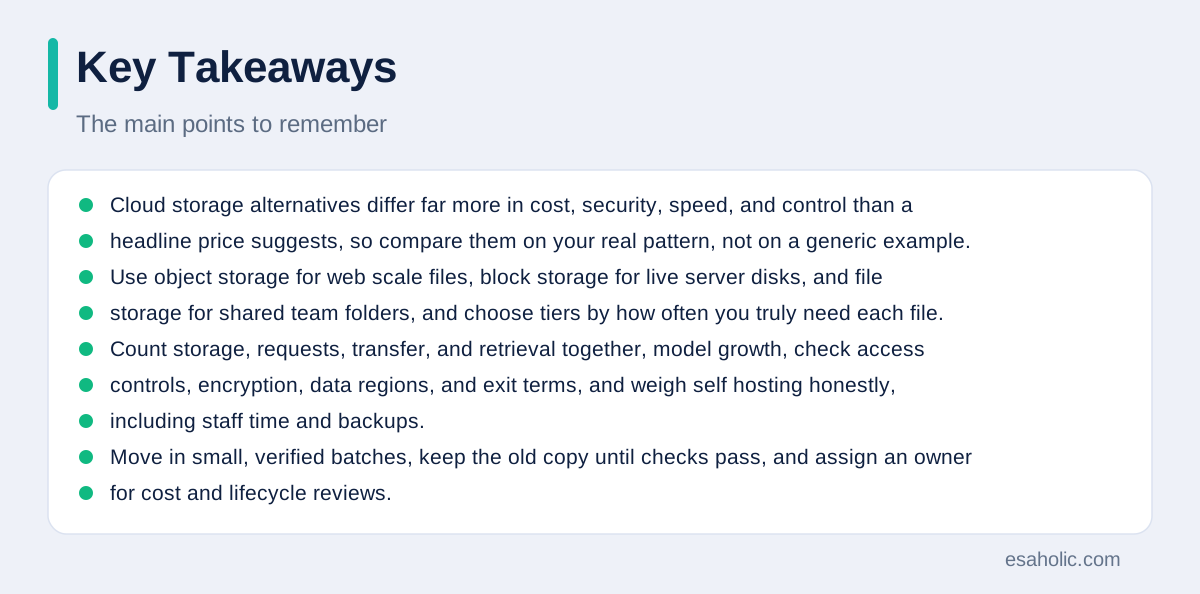
Cloud storage alternatives differ far more in cost, security, speed, and control than a headline price suggests, so compare them on your real pattern, not on a generic example. Use object storage for web scale files, block storage for live server disks, and file storage for shared team folders, and choose tiers by how often you truly need each file. Count storage, requests, transfer, and retrieval together, model growth, check access controls, encryption, data regions, and exit terms, and weigh self hosting honestly, including staff time and backups. Move in small, verified batches, keep the old copy until checks pass, and assign an owner for cost and lifecycle reviews. A storage choice made that way stays affordable, stays safe, and stays easy to leave, which is the real test of any storage decision.
Frequently Asked Questions
What are cloud storage alternatives?
Cloud storage alternatives are the different places and services where you can store files outside your own computer, including large cloud platforms, smaller specialist providers, self hosted servers, and hybrid setups that mix cloud and local storage. The right alternative depends on cost, security, speed, and how often you need the files.
Is self hosted storage cheaper than cloud storage?
Self hosted storage is not automatically cheaper than cloud storage. Hardware is only one part of the cost: staff time, backups, repairs, power, and upgrades all add up, and cloud storage often wins for variable or growing workloads, while self hosting can win for large, stable, predictable archives.
What should you check before moving files to a new storage provider?
Before moving files, check total cost including retrieval fees, data regions and compliance rules, access controls and encryption, backup and version history, exit terms, and support hours. Then move a small set of files first, verify every file, and keep the old copy until all checks pass.
Written by Umar Abbas
Founder, Principal AI Architect and Operator
Umar Abbas is the founder of Esaholic and a principal AI architect who designs reliable large scale AI systems for regulated industries.
Reviewed by Danish Mustafa
Senior Agentic AI Engineer and Systems Architect
Danish Mustafa is a senior agentic AI engineer at Esaholic who builds AI agents, voice systems, and messaging systems for real customers.
Relevant blogs
Multitenant Database Containers Explained Simply
Shared and isolated tenancy, containers, security, and backups in plain language.
Database Optimization: A Practical Guide
Indexes, query tuning, caching, and monitoring for faster, calmer databases.
Data Engineering Services Explained Simply
What pipeline, warehouse, and integration work covers, and how teams choose help wisely.
What Is a Vector Database Explained Simply
Embeddings, similarity search, use cases, and honest limits in plain language.
Back to all blog guides · Back to Data, Cloud and Databases guides · Explore Workflow Automation Services