
Framevuerk Explained
Every Vue developer eventually faces the same question: should the team build each button, form field, and table from scratch, or use a ready-made set of interface pieces? Building from scratch gives full control, but it costs weeks of styling, testing, and fixing small behaviors such as keyboard navigation and responsive layouts. A UI framework, which is a library of ready-made interface components with shared styling, trades some control for speed: the team assembles screens from tested pieces and focuses on the product logic that makes the app unique. Framevuerk is one such framework for Vue, and it has a distinctive history that any team considering it should understand before adopting it.
In its own words, Framevuerk is a fast, responsive, configurable UI framework based on Vue.js, with support for multiple languages and for both directions of text. Direction matters more than many developers realize: most Western languages read left to right, while languages such as Arabic and Persian read right to left, and a framework that handles both directions saves a team from mirroring layouts by hand. Framevuerk also emphasizes configurability, which means a team can adjust colors, spacing, and layout choices to match its brand, rather than accepting one fixed look. This guide explains what the framework includes, how its pieces fit together, how to start with it, and, crucially, why its current archived status changes the recommendation for new projects.
Read the archived warning first, because it shapes everything else in this guide. The framework's GitHub repository was archived by its owner on May 30, 2025, and it is now read-only. Archiving does not delete the code, and existing apps built with it keep running, but it means the original project no longer accepts changes, so future Vue updates, browser changes, and security fixes cannot be expected from that repository. This guide therefore treats Framevuerk honestly: as a useful study of a compact Vue UI kit, and as a legacy option for apps that already use it, rather than as a recommended starting point for a new product in 2026. The official Framevuerk repository shows the archived status, the MIT license, and the setup instructions used in this guide.
What Framevuerk Is, and Which Vue It Targets
Framevuerk began in 2017, in the Vue 2 era, and its documentation and examples use Vue 2 patterns, such as creating an app with a Vue constructor and registering the framework as a plugin, which is an add-on that extends Vue with global components and helpers. A plugin model matters for beginners, because it means that after one registration step, the framework's components become available throughout the app without importing each one on every page. That convenience is common to many Vue UI kits, and it is one reason teams choose a framework over hand-built pieces: the team learns one set of component names and uses them everywhere, instead of inventing a naming scheme per project.
The Vue 2 heritage is also the framework's main practical limit today. Modern Vue development uses Vue 3, with a different app creation style and a different component API in places, and a Vue 2 era kit does not automatically work in a Vue 3 project. Teams sometimes try to force an old kit into a new project with compatibility layers, but that adds risk: behaviors may differ subtly, documentation examples may not run, and community help for the combination will be thin. For a new project, the safer path is an actively maintained kit that targets your Vue version. For an existing Vue 2 app that already uses Framevuerk, the framework remains a known quantity, and the work is maintenance and planning, not new adoption. The Vue.js introduction guide explains the current Vue version and its setup, which helps you judge whether an older kit fits your stack.
Components, Grouped by Job
The repository's component folder shows a compact but complete kit, organized around the jobs a business app interface needs. Layout components shape the page: Layout, Header, Footer, Sidebar, Content, and the fvMain wrapper that holds the app shell. A shell, in this context, means the fixed frame around changing content, such as a header at the top, a sidebar at the side, and a content area that swaps as the user navigates. Teams that start with a shell avoid rebuilding the frame on every page, and they keep navigation consistent, which users notice even when they cannot name it. The shell pieces are the first components a new Framevuerk developer meets, because every screen sits inside them.
Form components handle user input: Form, FormElement, Input, InputBox, InputGroup, Select, SelectOption, Check, Switch, Slider, and Datepicker. Together they cover the ordinary inputs of a business app, from text fields and dropdowns to toggles, sliders, and date selection, with the datepicker also supporting Jalali dates, which are dates in the Persian calendar, when an optional date library is added. Data components display lists and records: List, ListItem, Table, TableField, and TableRow, plus Pagination for splitting long lists into pages. Feedback and overlay components handle states and interruptions: Loading for waiting states, Dialog for modal windows, which are popups that demand attention before the user continues, and Menu for navigation choices. ThemeProvider wraps the app with theme settings, so colors and direction apply consistently. That range is enough for dashboards, admin panels, and internal tools, which were the natural home for kits of this size.
How to Start, Step by Step
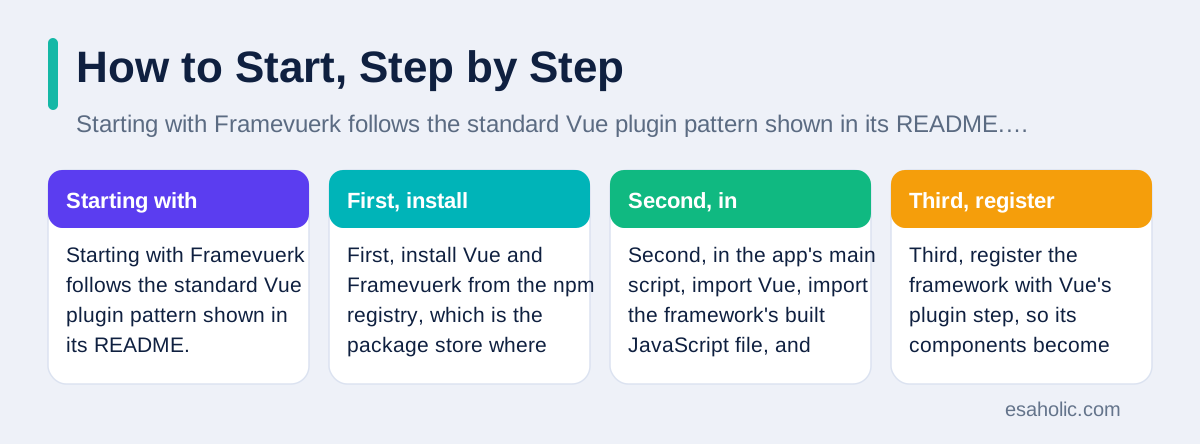
Starting with Framevuerk follows the standard Vue plugin pattern shown in its README. First, install Vue and Framevuerk from the npm registry, which is the package store where JavaScript libraries are published, using the package manager's install command. Second, in the app's main script, import Vue, import the framework's built JavaScript file, and import its stylesheet, which holds the visual rules for all components. Third, register the framework with Vue's plugin step, so its components become available globally. Fourth, create the Vue app and mount it, which means attach it, to an element on the page. Finally, wrap the app's template in the fvMain component, which serves as the shell described above, and place the app's content inside it. Those steps are enough for a first screen, and they mirror how many Vue 2 kits were set up.
Optional pieces extend the setup for specific needs, and the README names them clearly. An optional date library adds Jalali date support for the datepicker. An optional touch library adds active touch actions, which are gestures such as taps and swipes handled with extra polish on touch devices. An optional icon font supplies icons for components that display them. Each optional piece is only needed if the app uses the feature it supports, so a team can start without them and add them later. That restraint keeps the first setup small, and it reflects the framework's stated goal of working without required dependencies beyond Vue itself. When following any older README, test each step in a fresh sample project before adding it to a real app, because package registries and tooling change over time, and an old example may need a small adjustment to run today.
Customization: Colors, Direction, and Language
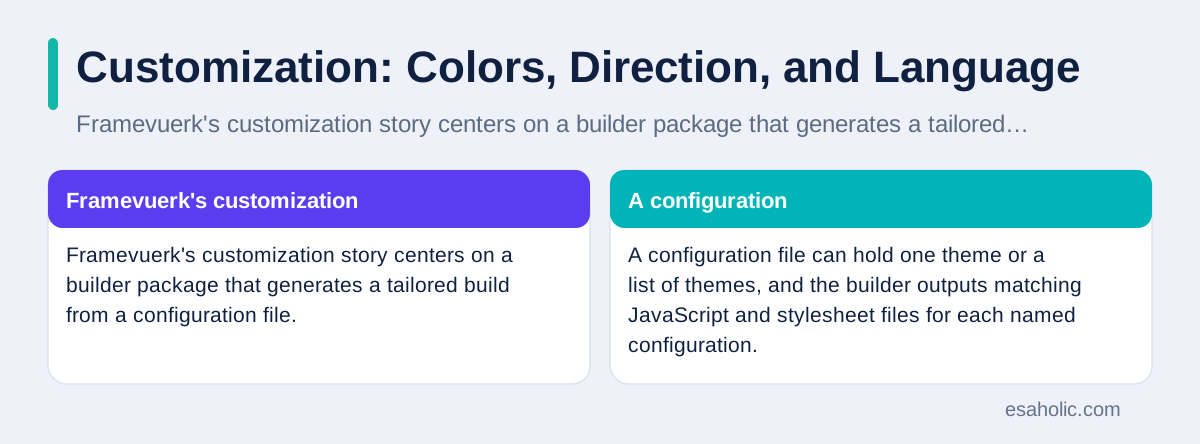
Framevuerk's customization story centers on a builder package that generates a tailored build from a configuration file. The configuration names colors for the primary, secondary, danger, warning, and info roles, background colors for the header, sidebar, and footer, plus padding, transition speed, border radius, and shadow size. A configuration file can hold one theme or a list of themes, and the builder outputs matching JavaScript and stylesheet files for each named configuration. In practice, that means a team can ship a branded build, such as a client theme with its own primary color and sidebar shade, without editing the framework's source code. It also means theme changes are repeatable: change the configuration, rebuild, and the whole app updates consistently.
Direction and language support deserve separate attention, because they affect every screen, not only a few components. The configuration sets direction to left to right or right to left, and the framework's styles mirror layouts accordingly, so sidebars, menus, and form alignment flip for right-to-left languages. Multi-language support, in this context, means the framework's own labels and messages can adapt to different languages, while the app's own content remains the team's responsibility to translate. Teams building for audiences in both directions should test with real translated content, not only with a direction flag flipped on English text, because translated text changes length, line breaks, and the feel of a layout. A framework that supports direction well still needs a team that tests both directions on real screens.
Testing direction support takes more than flipping a setting and glancing at one page. Check navigation order, because a right-to-left reader should encounter menu items in the order that feels natural for that reading direction, not in a mirrored order that looks correct but reads oddly. Check form alignment, so labels, inputs, and error messages stay attached to the right fields after mirroring. Check icons that imply direction, such as arrows for forward and back, because an arrow that points forward in a left-to-right layout should point the other way in a right-to-left layout, while icons such as a magnifying glass should not flip at all. A team that tests these details with real content in both directions will catch the small breaks that a single screenshot misses.
Forms and Tables in Practice
Forms are where a UI kit earns or loses trust, because forms carry the app's real work: signing up, entering orders, filtering lists, and editing records. Framevuerk's form pieces follow a container pattern: a Form holds FormElement items, and each element wraps an input type, such as a text input, a select, a check box, or a switch. That pattern helps consistency, because labels, spacing, and error placement follow the same rules across forms, instead of each developer inventing a layout per form. InputGroup groups related inputs, such as a set of fields that belong together, so a complex form reads as sections rather than as a long undifferentiated list. Teams using the kit should still validate input on the server as well as in the browser, because browser checks can be bypassed, and a UI kit never replaces server-side safety.
Tables follow a similar pattern: a Table holds TableRow items, and each row holds TableField items, with Pagination splitting long results into pages. That structure suits admin lists, such as orders, users, or tickets, where each row shows the same fields and the user scans, sorts, or pages through results. SlideContent and SlideLabel add collapsible sections, which are blocks that expand and collapse to hide detail until the user asks for it, useful for settings pages and long forms. The lesson for teams evaluating any kit is to test its form and table pieces with real data volumes and real validation cases before committing, because a kit that looks good with five demo rows may feel slow or awkward with five thousand real rows. Demo beauty is cheap; real data behavior is the test.
How Framevuerk Compares in General Terms
Compared with larger Vue UI libraries, Framevuerk is best understood as a compact, focused kit from an earlier Vue era, while the larger kits are broader ecosystems with active maintenance, larger component catalogs, and documentation for current Vue versions. A larger kit typically offers more specialized components, such as data tables with built-in sorting and filtering, charts, and complex navigation patterns, plus themes, accessibility work, which means making interfaces usable for people with different abilities, and community answers for common problems. A compact kit offers a smaller surface to learn, a lighter set of styles, and fewer opinions to override, which some teams prefer for internal tools where a full design system would be overkill. Neither size is better in the abstract: the right size depends on the app's needs, the team's Vue version, and how much maintenance the team can accept. Organising a frontend kit also benefits from feature sliced design, which groups frontend code by feature and layer.
The comparison that matters most today is maintenance, not component count. An archived kit cannot promise fixes for new browsers, new Vue versions, or newly found issues, so a team that adopts it for a new long-lived product accepts that maintenance burden itself, either by forking the code, which means copying it into its own repository to maintain independently, or by planning a migration later. An actively maintained kit spreads that burden across its maintainers and community, and its documentation stays current with the framework it builds on. For a short-lived internal tool or a learning project, the archived status may not matter. For a customer-facing product expected to live for years, it should be decisive. Teams should also weigh hiring: developers familiar with a widely used current kit are easier to find than developers familiar with a small archived one, and that hiring reality affects long-term cost more than the initial setup speed.
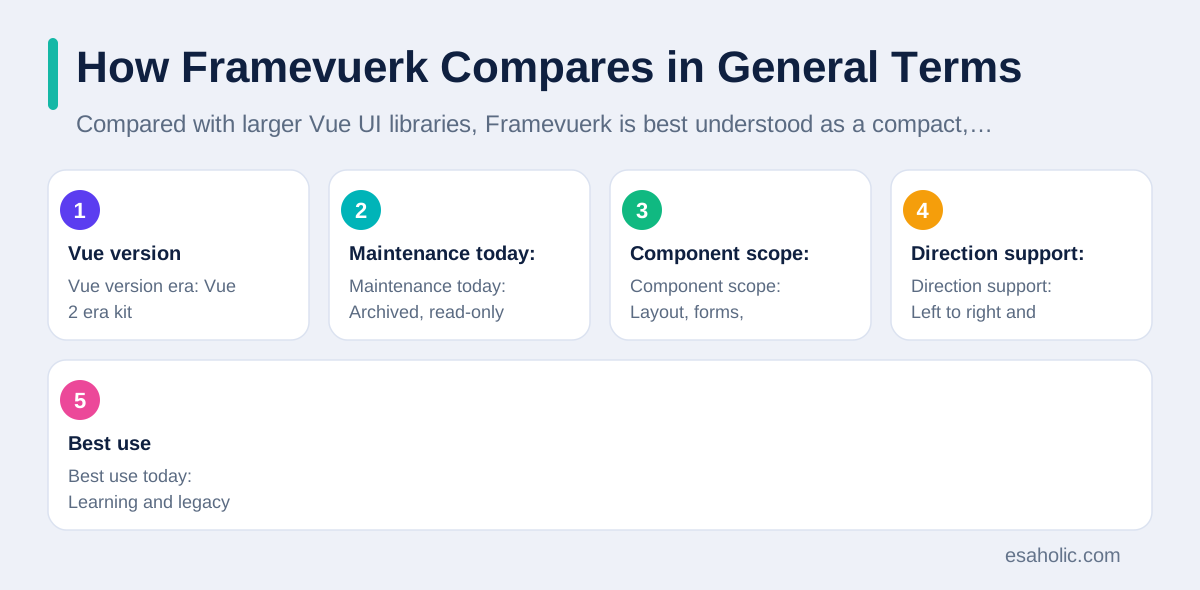
| Question | Framevuerk answer | What it means for you |
|---|---|---|
| Vue version era | Vue 2 era kit | Check fit before a Vue 3 project |
| Maintenance today | Archived, read-only since May 2025 | No new fixes from the original repo |
| Component scope | Layout, forms, tables, dialogs | Enough for dashboards and admin tools |
| Direction support | Left to right and right to left | Useful for multilingual audiences |
| Best use today | Learning and legacy maintenance | Not the default for new products |
Using Framevuerk in an Existing App
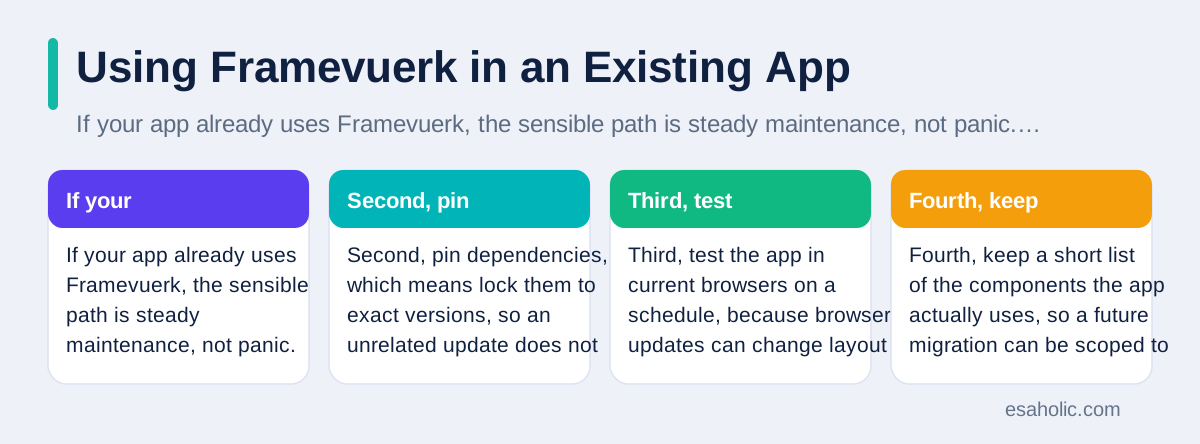
If your app already uses Framevuerk, the sensible path is steady maintenance, not panic. First, record the exact setup that works: the Vue version, the framework files in use, any builder configuration, and any optional libraries, so a new developer can reproduce the build. Second, pin dependencies, which means lock them to exact versions, so an unrelated update does not silently change the interface kit. Third, test the app in current browsers on a schedule, because browser updates can change layout and behavior even when app code stays the same. Fourth, keep a short list of the components the app actually uses, so a future migration can be scoped to real usage rather than to the whole catalog. Fifth, plan the migration as a gradual project: new screens can use a current kit, while old screens stay on Framevuerk until they need real changes, provided the two kits can coexist without style conflicts, which the team should test early on a sample page.
For teams building a new app with Vue today, the honest recommendation is to start with an actively maintained kit, learn its layout, form, and table patterns, and use Framevuerk only as a reference for how a compact kit organizes those same patterns. Studying its shell structure, its form container pattern, and its builder-based theming can still teach useful design ideas, even when the code itself is not the right dependency. That distinction, between learning from a project and depending on it, is the key judgment in this guide. Open source history is full of good ideas in archived projects, and good engineers borrow ideas while choosing dependencies with their eyes open. If you maintain a legacy app, our support and maintenance services cover this kind of careful, gradual modernization, and our guide on choosing between web and mobile frameworks shows the same version-and-maintenance thinking applied to another stack. A new kit should still be judged on user experience basics, since components only help if people can use the screens they build.
Conclusion
Framevuerk is a compact Vue UI framework with a clear idea: ready-made layout, form, table, and dialog pieces, configurable themes, and support for both text directions, built in the Vue 2 era. Its repository is archived and read-only since May 2025, so it suits learning and legacy maintenance far better than new products. If you inherit it, pin it, test it, and migrate gradually. If you start fresh, choose a current, actively maintained Vue kit, and let Framevuerk's patterns inform your design rather than carry your product.
Frequently Asked Questions
What is Framevuerk in simple terms?
Framevuerk is a user interface framework built on Vue.js that supplies ready-made pieces, such as layouts, forms, tables, and dialogs, so a team can assemble an app interface without styling every piece from scratch. It describes itself as fast, responsive, configurable, and supportive of both left-to-right and right-to-left layouts.
Is Framevuerk still actively maintained?
No, not as an active project: the owner archived the GitHub repository on May 30, 2025, and it is now read-only, which means no new changes are accepted there. That status matters for new projects, because bug fixes and compatibility updates for newer Vue versions cannot be expected from the original repository.
Should I start a new project with Framevuerk today?
For most new projects, no: choose an actively maintained Vue UI library that supports the Vue version you plan to use, and keep Framevuerk for learning, for studying its component patterns, or for maintaining an existing app that already uses it. If you must use it in an existing app, pin your dependencies, test upgrades carefully, and plan a migration path.
Written by Danish Mustafa
Senior Agentic AI Engineer and Systems Architect
Danish Mustafa is a senior agentic AI engineer at Esaholic who builds AI agents, voice systems, and messaging systems for real customers.
Reviewed by Ahmad Jajja
Senior AI Research Engineer and Generative AI Specialist
Ahmad Jajja is a senior AI research engineer at Esaholic who builds generative AI systems grounded in real documents for accurate answers.
Relevant blogs
React vs React Native: Which One Should You Pick
How React for the web differs from React Native for phones, and how to choose between them.
Cross Platform Mobile Programming Explained Simply
How one code base can serve Android and iPhone apps, where shared code helps, and where native code still wins.
Feature Sliced Design: A Simple Guide to Frontend Layers
How grouping frontend code by feature and layer keeps large apps clear, testable, and easier to change without rewrites.
Rapid Prototyping: A Simple Guide to Fast Product Tests
How teams turn an idea into a testable model in days and learn fast without wasting budget.
Back to all blog guides · Back to Software Development guides · Explore Custom Software Development Services