
User Experience Basics: A Simple Starter Guide
Open a food delivery app when you feel hungry, and notice what happens. You search for a meal, you see a clear price, you tap once to order, and food arrives. That smooth path feels obvious, but someone designed every step: the search words, the order of choices, the price display, and the confirmation that tells you the order worked. When any step confuses you, you pause, you guess, and you may leave. That whole journey, from the first need to the finished goal, is what teams mean when they talk about how people experience a product. A pretty screen alone cannot save a journey that asks for the wrong thing at the wrong time.
Good experience design starts with one simple question: what is the person trying to do, and what stands in their way. A visitor to a clinic site usually wants to book an appointment, not to admire a homepage video. A shopper on a phone usually wants to check a price and buy, not to read three pages about company history. When a team answers that question honestly, the rest of the work gets easier, because the team can cut every step that does not serve the goal, and strengthen every step that does. This guide teaches that habit from scratch. You need no design degree, no special software, and no large budget to start, only a willingness to watch real people use your product and to fix what trips them. That phone journey must work on both major phone systems, which is the subject of cross platform mobile programming.
You will learn how experience differs from screen design, how to learn about your users in a few hours, how to organize content so people find things fast, how to make screens easy to scan, how to build forms that people finish, how to test with real users, and how to include people who use keyboards, screen readers, or large text. A screen reader, in plain terms, is software that reads screen content aloud for people who cannot see it well. For a respected outside reference, Nielsen Norman Group's introduction to usability explains the core ideas clearly, and our website design services apply these same basics to client sites.
Experience Is the Journey, Not Just the Screen
People often mix up two jobs. Screen design, which teams call user interface design, covers the visible parts: layout, color, type size, and buttons. Experience design covers the full journey: how a person discovers the product, learns what it offers, completes a task, gets help when stuck, and decides whether to return. A checkout screen can look beautiful while the journey fails, for example when the site asks for an account before it shows the delivery cost, and the shopper leaves before paying. A plain screen can succeed while looking ordinary, when it asks for little, explains each step, and confirms success clearly. Teams that judge only by looks will polish screens while journeys leak users.
To judge a journey, follow one task from start to finish and count the friction, which means every pause, guess, backtrack, or error. Write down each step a person must take, and ask whether that step earns its place. A sign up flow that asks for a full address before the person has seen any value will lose people, because it demands trust before it offers proof. A booking flow that shows open times first, then asks for contact details only at confirmation, respects the person's time and earns the details at the right moment. Friction does not always mean extra steps, because a long flow with clear progress can feel easier than a short flow with confusing labels. The test is always the person's feeling at each step: do I know where I am, what happens next, and how to undo a mistake.
Know Your Users Before You Draw Anything
Design for a real person, not for an average user, because no average user exists. A retiree booking a clinic visit, a parent ordering groceries on a phone, and a warehouse worker checking stock on a shared tablet have different eyesight, time pressure, and patience, and one screen rarely serves all three equally well. Start by listing the top three tasks people actually try on your product, using support messages, search terms, and analytics, which are simple counts of what visitors click and where they leave. Then talk to five to eight people who match those tasks, and ask about their goal, their current workaround, and the moment they feel stuck. You do not need a formal lab. A quiet room, a phone, and honest notes will teach you more than a month of internal debate.
Turn what you learn into a short task list, not a long report. For each task, write the goal in the user's words, the steps they take today, and the pain at each step. A task list keeps the team honest, because it forces every new feature to answer one question: which task does this help, and how will we know it helped. Share the list where the whole team can see it, and revisit it when support tickets cluster around a new pain. Teams that skip this step often build features for themselves, using words they understand and flows they already know, and then wonder why new visitors struggle. Our guide to fast product tests shows how to turn an early task list into a testable model within days, so you can learn from users before you invest in a full build.
Organize Content So People Find Things Fast
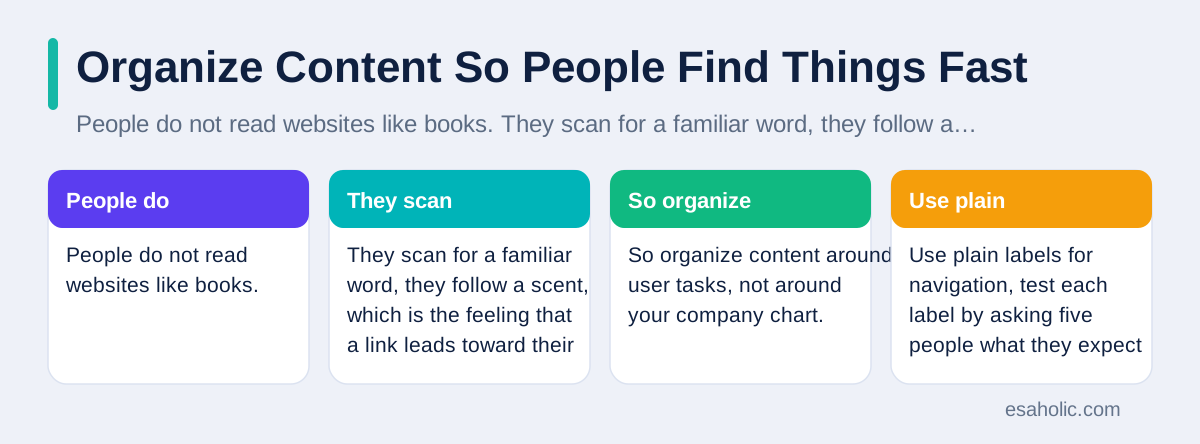
People do not read websites like books. They scan for a familiar word, they follow a scent, which is the feeling that a link leads toward their goal, and they leave when the scent fades. So organize content around user tasks, not around your company chart. A clinic site should group content by patient needs, such as book a visit, find a doctor, and check test results, rather than by internal departments that patients never think about. Use plain labels for navigation, test each label by asking five people what they expect behind it, and rename any label that draws different guesses. A label that confuses even two out of five people will confuse thousands at scale.
Give every page one clear job, and state that job in the first lines. A pricing page should answer price, what the price includes, and how to start, before it tells the company story. A help page should answer the top five questions at the top, with search as a backup, because most visitors arrive with one urgent question and little patience. Keep navigation shallow, which means most content sits within two or three taps from the home page, and keep the same navigation in the same place on every page, so people build a mental map instead of relearning the site each time. When a page must hold much content, use headings that read like a table of contents, because headings let scanners jump straight to the part they need.
Make Screens Easy to Scan and Act On
Visual hierarchy, which means the order in which the eye notices things, decides whether a screen feels clear or crowded. The most important action should look most important: larger, bolder, and placed where the eye lands after reading the main message. Supporting actions should look quieter, and minor links should look smallest of all. If every button shouts, then nothing stands out, and the visitor must read everything to find the next step. Use white space, which is empty area around elements, generously, because empty space groups related items together and separates unrelated ones, which lets the eye rest and the brain parse the page faster.
Write for scanning, not for essays. Put the key message first, use short sentences, and break long text with headings, lists, and bold lead words that carry meaning on their own. Avoid clever labels on buttons. A button that says "Continue" tells the person nothing, while a button that says "Review my order" tells them exactly what happens next. Keep text contrast strong, which means dark text on a light background or the reverse, with enough difference that the text stays readable in sunlight or on a cheap screen. Test every screen on a real phone, not only on a large monitor, because thumbs, glare, and one handed use change what feels easy. Our website development services build screens with this scanning habit baked in, from the first layout to the final check.
Build Forms People Actually Finish
Forms lose more users than any other part of a product, so treat each field as a cost. Ask only for facts you truly need at that moment, and move nice to have questions to later, after the person has already gained value. A newsletter sign up needs an email address, not a full name, a company, and a phone number. A checkout needs a delivery address and a payment method, not a marketing survey. Mark optional fields clearly, and explain why you ask for sensitive facts, because a short reason, such as "We need your phone number only to text delivery updates," removes suspicion and raises completion.
Show errors where the problem sits, in plain words, and tell the person how to fix it. An error that says "Invalid input" helps nobody, while an error beside the phone field that says "Please enter ten digits, without spaces" helps at once. Keep what the person already typed when an error appears, because forcing a full retype punishes honest mistakes and drives people away. Show progress on long forms, such as step two of four, and let people save and return when a form truly needs many details. Test each form by timing five users, and cut or clarify any field that causes a pause, a wrong entry, or a sigh, because those small signals predict abandonment at scale.
Test With Real Users in Small Rounds
Usability testing, which means watching real people try real tasks on your product, is the fastest way to find problems that internal reviews miss. You do not need a lab or a large sample. Recruit five people who match your top tasks, give each person one task at a time, such as "Book an appointment for next Tuesday," and ask them to think aloud while they work. Stay quiet when they struggle, because stepping in hides the exact confusion you need to see. Note where they pause, where they click the wrong thing, and what words they use for the problem, because their words often supply the better label.
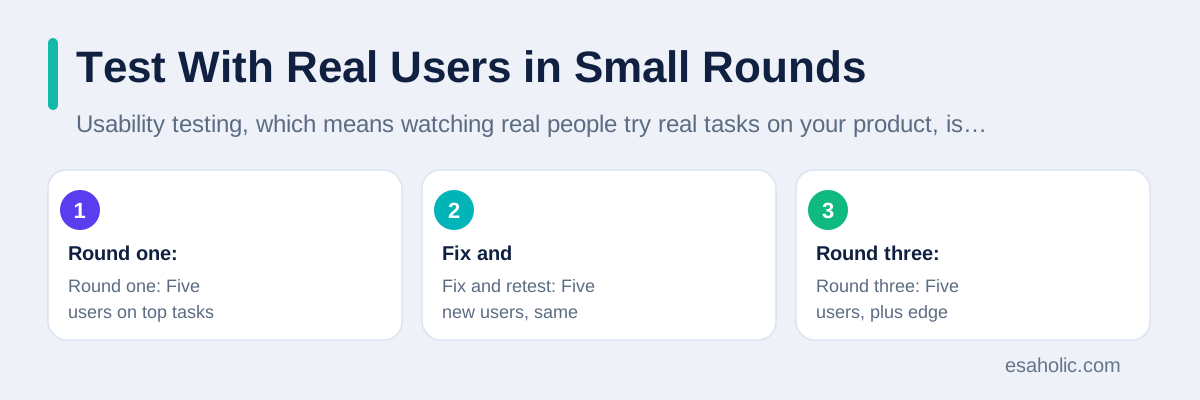
After five sessions, list the problems by frequency and by harm. A problem that blocks checkout for three people outranks a cosmetic complaint from one person, even if the cosmetic issue looks easier to fix. Fix the top three problems, then test five new people on the same tasks, and watch whether the fixes helped or created new confusion. Repeat this loop, and the product improves in visible steps, with evidence for each change. Teams that test only once before launch miss the learning that comes from the second and third rounds, when the big problems are gone and the subtler ones surface. Our guide to checking a product with real tasks covers the broader testing habits that pair with these user sessions, and our guide to overall system structure explains how early structure choices affect later experience fixes.
| Testing round | Who takes part | What the team learns |
|---|---|---|
| Round one | Five users on top tasks | The biggest blocks and confusions |
| Fix and retest | Five new users, same tasks | Whether fixes helped or hurt |
| Round three | Five users, plus edge cases | Subtler issues and accessibility gaps |
Design for Everyone, Not Just the Average User
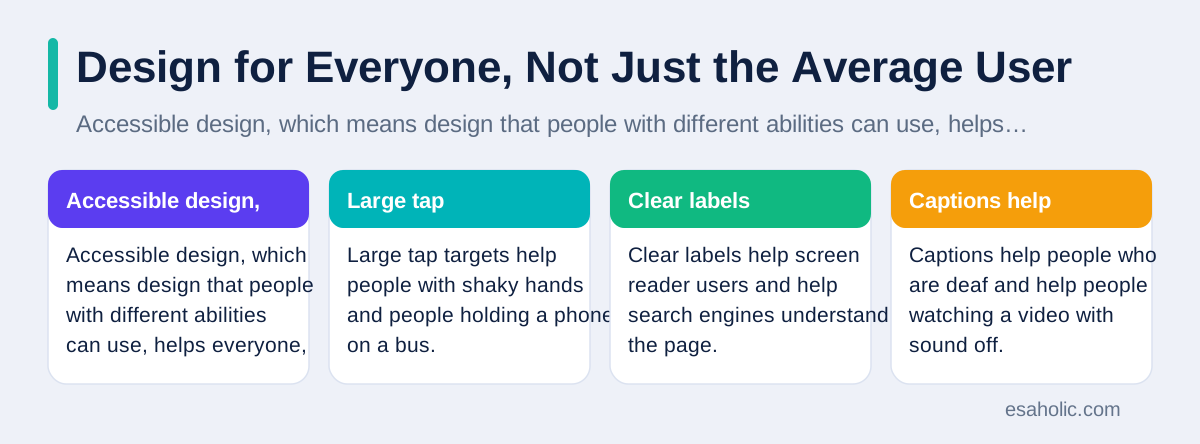
Accessible design, which means design that people with different abilities can use, helps everyone, not only people with disabilities. Large tap targets help people with shaky hands and people holding a phone on a bus. Clear labels help screen reader users and help search engines understand the page. Captions help people who are deaf and help people watching a video with sound off. Start with four checks: text contrast strong enough to read, every action reachable by keyboard alone, every image carrying a useful text description, and every form field carrying a visible label that stays in place. These four checks catch the most common barriers, and they cost little when the team applies them from the start.
Test accessibility with real tools, not only by eye. Try the keyboard alone for one full task, and fix any step where you cannot tell which element has focus, which means which element the keyboard currently controls. Try a free screen reader for one task, and fix any button that reads only as "button" with no purpose. Try large text settings, and fix any layout that breaks or hides content when text grows. For authoritative guidance, MDN's accessibility documentation explains these practices with examples, and the W3C introduction to web accessibility states the principles in plain language. Accessibility work also reduces support load, because a product that explains itself clearly needs fewer help calls from every kind of user.
Measure What Matters, Then Improve in Loops
Good teams measure tasks, not just traffic. Track completion rate, which means the share of people who finish a task they started, time on task, error count, and the share of people who contact support after trying a task. A page with high traffic and low completion tells a clearer story than a page with high traffic alone, because it shows that people arrive with intent and leave without success. Pair numbers with observation, because numbers show where people struggle, while watching users shows why they struggle. A drop in checkout completion plus five sessions that show confusion over delivery costs points to one fix, while the number alone could support many guesses.
Improve in small loops, and resist the urge to redesign everything at once. A full redesign resets what users already learned, hides which change helped, and risks breaking tasks that already worked. Instead, pick the worst task, fix its top three problems, measure again, and keep the change only if the numbers and the sessions agree it helped. This loop builds team skill over time, because each round teaches the team how users actually think, which sharpens the next design before anyone draws a screen. Over a year, small loops compound into a product that feels effortless, not because one genius redesign fixed it, but because dozens of small, tested fixes removed friction one task at a time.
Common Beginner Mistakes to Avoid
Beginners often copy a famous app without copying its context. A social app can hide settings behind gestures, because its users visit daily and learn the gestures, while a clinic site that hides booking behind the same gestures will lose first time visitors who never return to learn. Another common mistake is asking stakeholders, which means managers and clients, to approve screens without testing users, so the product pleases the meeting room and frustrates the market. A third mistake is adding features to fix confusion, such as a tutorial video for a form that asks too much, when removing fields would fix the root cause faster. When a design needs much explanation, suspect the design first, not the user.
A final mistake is treating launch as the finish line. Real use always reveals tasks, devices, and words the team never imagined, so the team should schedule a test round within a month after launch, and a task review each quarter after that. Keep a short list of top tasks, watch completion and support contacts for those tasks, and fix the worst task first in each cycle. Teams that keep this rhythm learn faster than competitors who redesign on a hunch every two years, because learning compounds, while hunches reset. Start small, test early, and let real users teach you the rest.
Conclusion
Great experience design means helping a real person reach a real goal with as little friction as possible. Learn the top tasks, organize content around those tasks, make screens easy to scan, build forms that ask only what they need, test with five users at a time, include people with different abilities, and improve in small measured loops. A product built this way earns trust task by task, because each visit feels clear, each step feels fair, and each success makes the next visit easier.
Frequently Asked Questions
What is the difference between user experience and user interface design?
User experience covers the whole journey a person takes to reach a goal, including research, structure, flows, and testing. User interface design covers the visible screens themselves, such as layout, color, and buttons. Good screens cannot rescue a confusing journey, and a clear journey still needs readable screens.
How many users do you need for a first usability test?
Five users usually reveal most of the big problems in one task, because the same confusion tends to repeat across people. Test five, fix the top problems, then test five more. Small repeated rounds beat one large round, because each round lets the team fix problems before the next group arrives.
What is the fastest way to improve a confusing website?
Watch five real users try one top task, such as signing up or checking out, and fix the first place where they pause, guess, or go back. Then shorten the form, rename unclear labels in plain words, and make the main action easy to see. One task fixed well teaches the team more than a full redesign guessed in a meeting.
Written by Danish Mustafa
Senior Agentic AI Engineer and Systems Architect
Danish Mustafa is a senior agentic AI engineer at Esaholic who builds AI agents, voice systems, and messaging systems for real customers.
Reviewed by Ahmad Jajja
Senior AI Research Engineer and Generative AI Specialist
Ahmad Jajja is a senior AI research engineer at Esaholic who builds generative AI systems grounded in real documents for accurate answers.
Relevant blogs
Rapid Prototyping: A Simple Guide to Fast Product Tests
How teams turn an idea into a testable model in days and learn fast without wasting budget.
Software Testing Basics: A Simple Guide for Teams
What testing means, the main types of tests, and how teams plan, run, and report tests without jargon.
Software Architecture Explained Simply for Teams
How teams plan a system structure, choose patterns, and keep code easy to change as products grow.
API Design Principles: A Simple Guide for Teams
How to name resources, version safely, handle errors clearly, and document an interface that teams can trust.
Back to all blog guides · Back to Software Development guides · Explore Website Design Services